How to Set Up IPTV on Firestick in 2026: Complete Guide
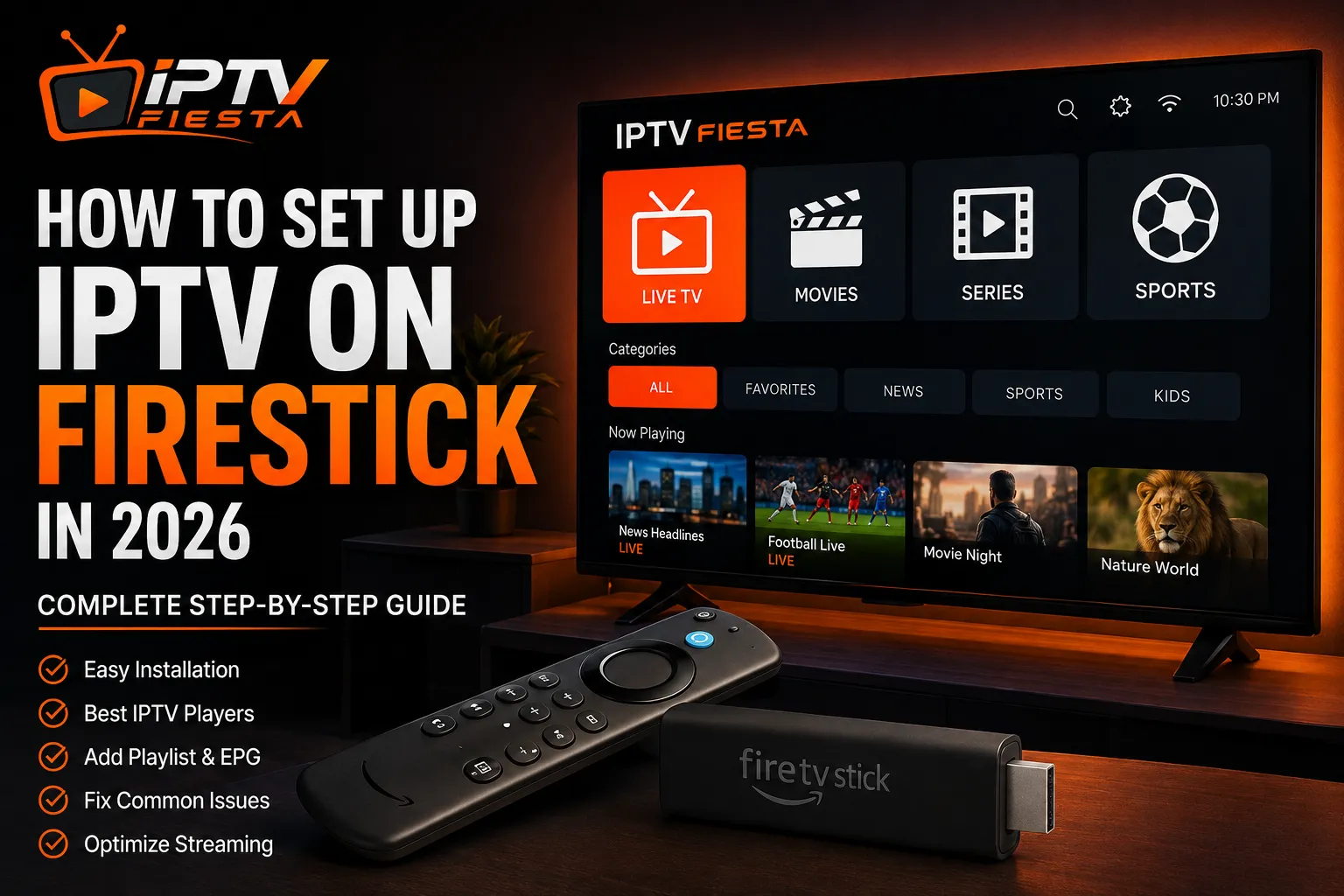
Amazon Firestick remains one of the most convenient ways to turn a regular TV into a smart streaming device. With the right IPTV-compatible player and a legitimate IPTV service, you can organize live television, on-demand content, and TV guides from a single device.
Setting up IPTV on a Firestick does not have to be complicated. The process generally involves preparing the Firestick, installing a compatible IPTV player from an official or trusted source, adding the playlist or account details supplied by your provider, and adjusting a few playback settings.
This guide explains the process step by step and also covers common problems such as buffering, missing channels, incorrect EPG information, and login errors.
What You Need Before Setting Up IPTV on Firestick
Before starting, make sure you have:
- An Amazon Fire TV Stick or compatible Fire TV device
- A television with an available HDMI port
- A stable internet connection
- An Amazon account configured on the Firestick
- A legitimate IPTV service or playlist
- An IPTV-compatible player
- Your IPTV login details, M3U playlist, or Xtream Codes credentials if supplied by your provider
Your internet connection is particularly important for HD and 4K streaming.
For the best experience, connect your Firestick to a strong Wi-Fi network or use an Ethernet adapter when possible.
 A step-by-step Firestick setup scene showing the Fire TV home screen and application installation process.
Step 1: Connect and Prepare Your Firestick
Connect the Firestick to an available HDMI port on your television.
Switch the TV to the correct HDMI input and follow Amazon's on-screen setup process.
You will normally need to:
- Select your language.
- Connect to your Wi-Fi network.
- Sign in with your Amazon account.
- Allow the device to install its required system updates.
- Wait for the Firestick home screen to load.
If your Firestick has not been updated recently, allow it to complete any available system updates before installing additional applications.
A properly updated device can help avoid compatibility problems later.
Upgrade Your Streaming Experience
Get access to 50,000+ live channels, 200,000+ VODs in 4K/FHD with zero buffering.
- 4K & Full HD Quality
- Anti-Buffer Technology
- All Smart TVs Supported
- Instant Activation
Step 2: Make Sure Your Internet Connection Is Stable
Before configuring IPTV, test the Firestick's internet connection.
Open a streaming application you already use and check whether normal video playback is smooth.
If ordinary streaming already buffers frequently, IPTV playback may experience the same problem.
For high-resolution streaming, a stable connection is more important than simply having a high advertised internet speed.
If possible:
- Place the Firestick within good Wi-Fi range of your router.
- Avoid unnecessary downloads on the same network.
- Use the 5 GHz Wi-Fi band when your router and Firestick support it and the device is close enough to the router.
- Consider Ethernet for the most consistent connection.
Step 3: Choose an IPTV Player
An IPTV player is the application that displays your playlist and plays the streams.
The player itself does not normally provide television channels. Instead, it connects to the playlist or service information supplied by your IPTV provider.
When choosing a player for Firestick, look for:
- M3U playlist support
- Xtream Codes support
- EPG support
- Hardware video decoding
- Easy remote navigation
- Buffer controls
- VOD and series organization
- Regular updates
Choose an application from an official app store or the developer's official distribution channel whenever possible.
Avoid downloading unknown APK files from random websites.
Step 4: Install Your IPTV Player
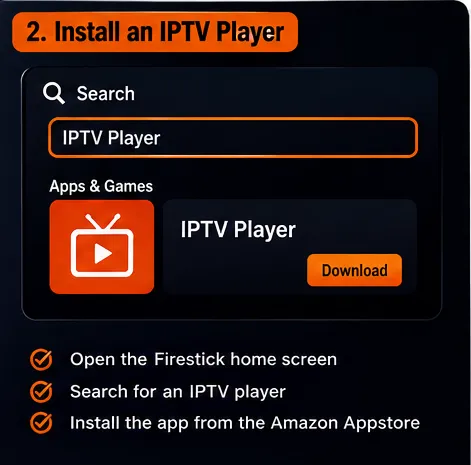
Open the Firestick home screen and select the search function.
Search for the IPTV player you want to use.
If the application is officially available through the Amazon Appstore, select it and choose the installation option.
After installation:
- Open the application.
- Accept any required permissions.
- Follow its setup wizard.
- Select the playlist or login method supported by your IPTV provider.
The exact menus can differ between IPTV players, so always follow the application's current instructions.
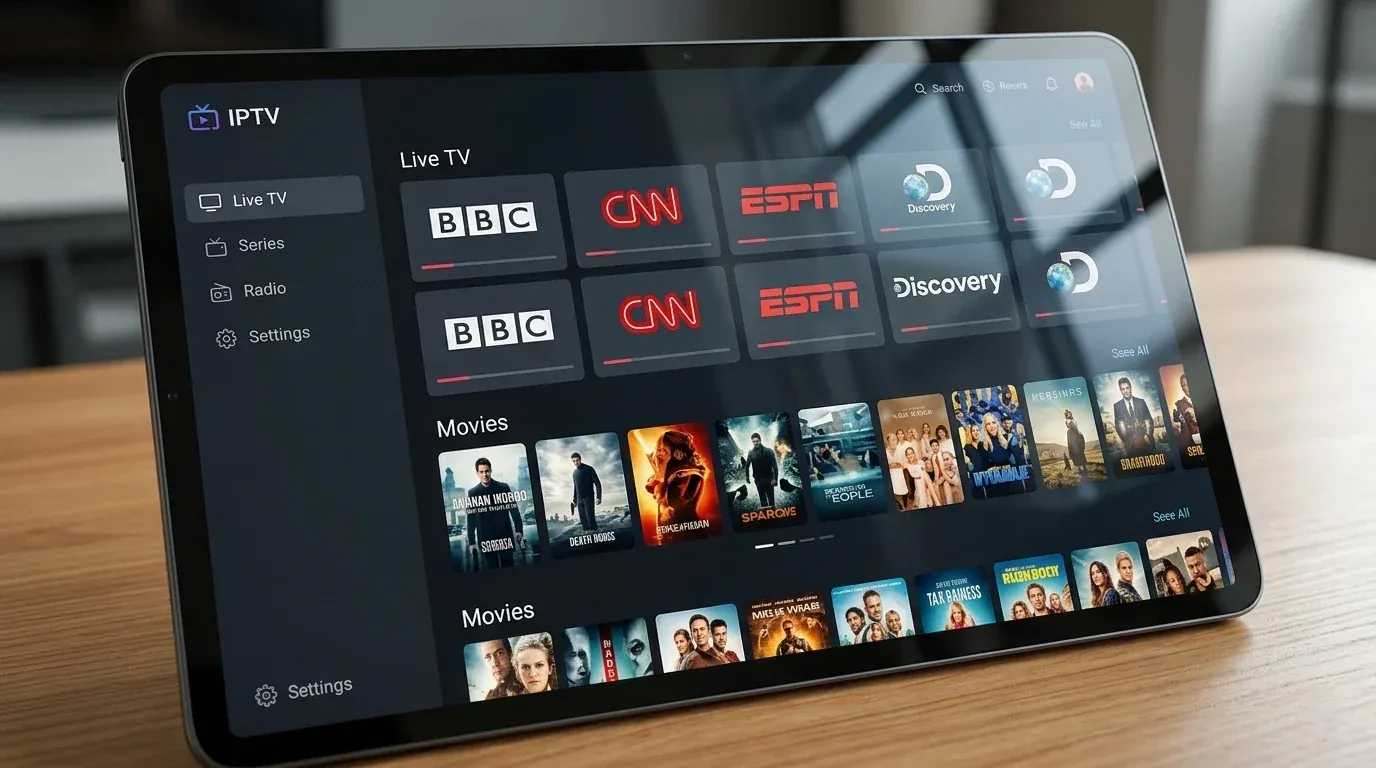
 An IPTV player interface on a television showing Live TV, Movies, Sports, EPG, and channel categories.
Step 5: Add Your IPTV Playlist or Account
Your provider may give you one of several types of login information.
Common options include:
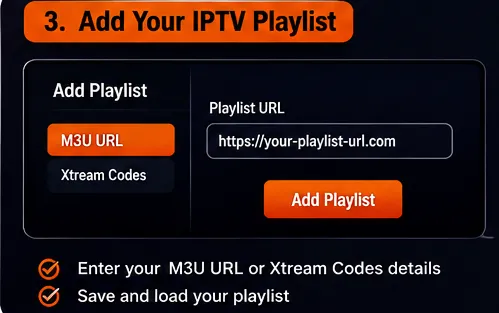
- M3U playlist URL
- Xtream Codes username and password
- Server URL
- EPG URL
If your player supports Xtream Codes, you may be asked for:
- Server URL
- Username
- Password
If it uses an M3U playlist, you may only need to enter the playlist URL.
Enter the information exactly as provided.
Pay attention to:
- Uppercase and lowercase letters
- Spaces
- Special characters
- Server address
- Port number
- Username
- Password
One incorrect character can prevent the playlist from loading.
Step 6: Wait for the Playlist to Load
Large IPTV playlists can take some time to process.
Depending on the service and player, the application may organize content into categories such as:
- Live TV
- Sports
- News
- Movies
- Series
- Kids
- International channels
- Video on Demand
Do not immediately close the application if a large playlist takes longer than expected to load.
Once the process finishes, open several channels to confirm that playback works correctly. You can also browse the full IPTV FIESTA Channel List online to see what to expect.
Upgrade Your Streaming Experience
Get access to 50,000+ live channels, 200,000+ VODs in 4K/FHD with zero buffering.
- 4K & Full HD Quality
- Anti-Buffer Technology
- All Smart TVs Supported
- Instant Activation
Step 7: Configure the EPG
EPG stands for Electronic Program Guide.
It displays information about current and upcoming programs.
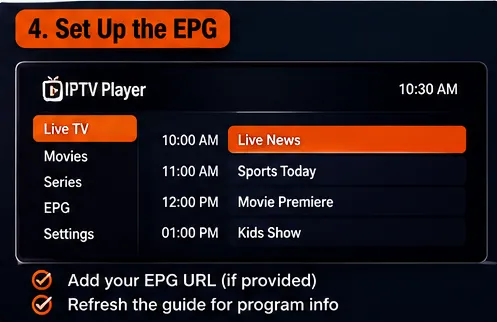
If your provider supplies an EPG URL, add it through the player's EPG settings.
After adding it:
- Save the EPG configuration.
- Refresh or update the guide.
- Wait for the data to download.
- Open several channels and verify their schedules.
If the EPG shows the wrong time, check your Firestick's time-zone settings and the player's EPG offset.
Step 8: Optimize Firestick for IPTV Streaming
Once IPTV is working, you can make a few simple improvements.
Keep the Firestick Updated
Check the Firestick's system settings regularly and install official system updates.
Close Unused Applications
Too many background applications can consume system resources.
Closing applications you are not using can help keep the interface responsive.
Clear an App's Cache
If your IPTV player becomes slow or behaves unexpectedly, clearing its cache can sometimes help.
Use the Firestick application-management settings and clear the cache for the affected application.
Do not clear application data unless you are prepared to sign in or configure the application again.
Use a Stable Network
For live TV and especially high-resolution content, network stability matters.
If Wi-Fi is inconsistent, consider moving the router closer, reducing interference, or using an Ethernet adapter.
 A Firestick IPTV troubleshooting/optimization scene showing Wi-Fi, buffering, cache, and playback settings.
Step 9: Test Different Channels and Content
Do not test only one channel.
Open several types of content:
- HD channels
- Sports channels
- News channels
- Movies
- VOD
- 4K content if available
This helps determine whether a problem affects the entire service or only a particular stream.
If one channel fails while everything else works normally, the issue may be specific to that channel rather than your Firestick.
Common IPTV Problems on Firestick
IPTV Keeps Buffering
Buffering can be caused by:
- Weak Wi-Fi
- Network congestion
- High-bitrate streams
- Problems with the stream source
- Overloaded servers
- Insufficient device resources
Start by testing your internet connection and checking whether other applications stream normally.
If buffering happens only on one channel, compare it with several other channels before changing device settings.
IPTV Channels Are Not Loading
Check your playlist URL and credentials.
Make sure there are no spaces or missing characters.
If the playlist worked previously and suddenly stopped, check whether your subscription is still active and contact our Support team if necessary.
EPG Is Not Showing
Verify the EPG URL supplied by your provider.
Then refresh the EPG.
If the guide remains empty, check whether the provider actually supplies EPG data for the channels in your playlist.
IPTV Login Failed
Double-check:
- Username
- Password
- Server URL
- Port
- Subscription status
If possible, copy and paste the credentials rather than typing them manually.
IPTV Works on Another Device but Not Firestick
If the same account works on another device, the problem may be related to:
- Firestick application configuration
- Cached data
- Player compatibility
- Network settings
- Device resources
Try restarting the Firestick and clearing the IPTV player's cache before reinstalling the application.
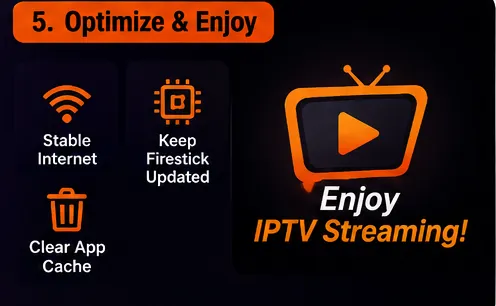 A clean visual checklist showing the complete IPTV Firestick setup process from device preparation to successful streaming.
How to Improve IPTV Quality on Firestick
For the best possible experience:
- Use a reliable IPTV player.
- Keep Firestick software updated.
- Use a stable internet connection.
- Prefer Ethernet when practical.
- Keep sufficient free storage.
- Avoid unnecessary background applications.
- Use hardware decoding when supported by the player.
- Refresh EPG data when schedules become outdated.
- Keep your IPTV credentials secure.
For 4K streaming, network stability becomes particularly important because high-resolution streams can require substantially more bandwidth than standard-definition content. You can browse compatible devices to see other platforms that support 4K streaming.
Is IPTV Legal?
IPTV is a technology for delivering television and video content over an internet connection.
The legality depends on the content being distributed and whether the service has the necessary rights or licenses.
Before subscribing to or using an IPTV service, make sure it is authorized to distribute the content it offers and complies with the laws applicable in your country.
Using an IPTV player does not automatically make every stream legal or illegal.
Frequently Asked Questions
Final Thoughts
Setting up IPTV on Firestick in 2026 is relatively straightforward once you understand how the different components work.
The Firestick provides the hardware, the IPTV player handles playback and organization, and the IPTV service or playlist provides the content.
Start by preparing the Firestick, installing a compatible player from a trusted source, adding your provider's credentials or playlist, configuring the EPG, and testing several channels.
If problems occur, troubleshoot the network, player settings, credentials, and EPG separately rather than changing everything at once.
With a stable network, compatible hardware, a reliable player, and properly authorized content, Firestick can provide a convenient platform for internet-based television.