IPTV Login Failed: Username, Password and Server URL Fixes
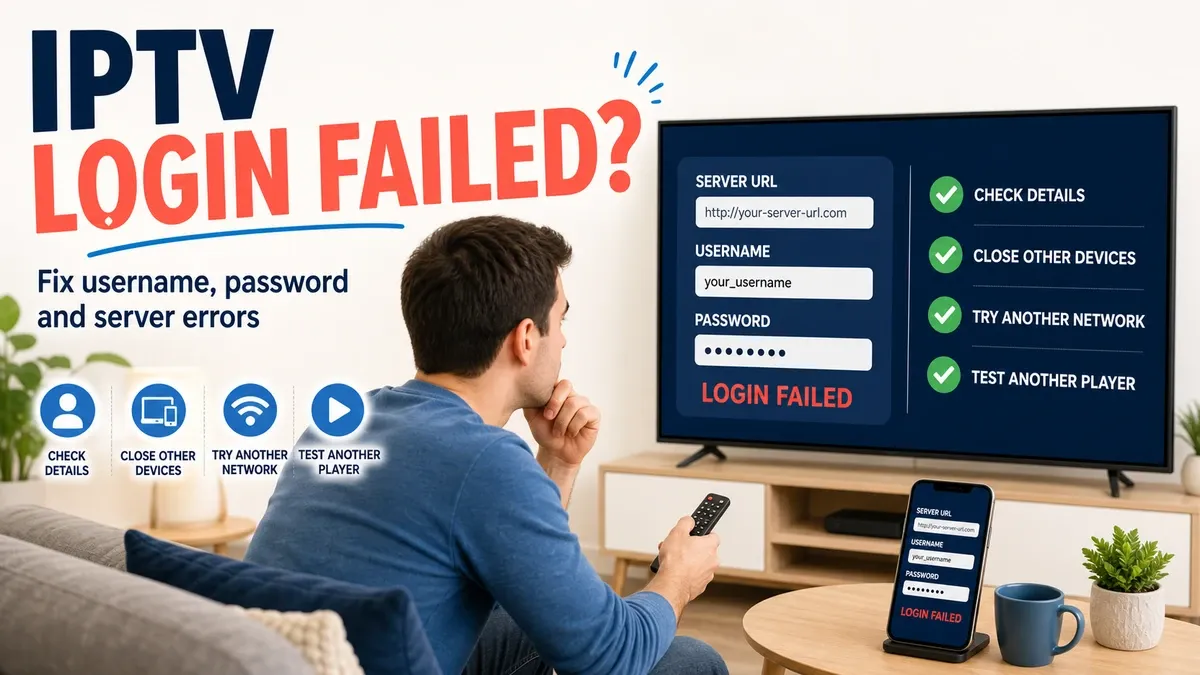
Seeing an "IPTV Login Failed" message can be frustrating, especially when your IPTV account was working normally before.
A failed login does not always mean that your account has stopped working. The problem can be caused by a typing mistake, an incorrect server URL, expired credentials, an application setting, a network problem, or a temporary authentication issue.
The good news is that most login problems can be narrowed down with a few simple checks.
In this guide, we will explain the most common reasons an IPTV login fails and what you can do to troubleshoot username, password, and server URL problems. (If you're evaluating a new service, make sure you also read How to Test IPTV Before Buying a Subscription to avoid unreliable providers).
IPTV Login Failed
Why Does IPTV Say Login Failed?
An IPTV application normally needs the correct account information before it can retrieve your playlist or channel information.
Depending on the application, this may include:
- Username
- Password
- Server URL
- Playlist URL
- Account or portal information
If any required information is incorrect, the application may display an authentication or login error.
Common causes include:
- Incorrect username
- Incorrect password
- Extra spaces
- Wrong server URL
- Expired account
- Incorrect login method
- Temporary server issue
- Network connectivity problem
- Application configuration issue
- Device or application compatibility problem
The first step is to determine which part of the login process is failing. (If you manage to log in but the video looks terrible, read How to Improve IPTV Picture Quality).
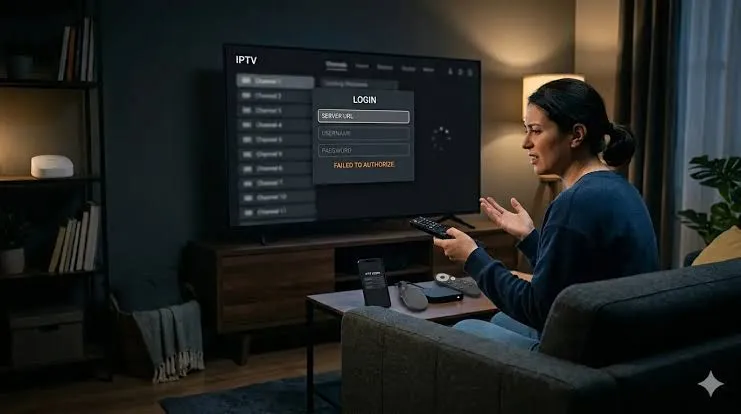
Check Your Username and Password
The simplest mistake is also one of the most common.
Carefully check the username and password you entered.
Pay attention to:
- Uppercase and lowercase letters
- Numbers
- Special characters
- Extra spaces
- Missing characters
- Similar-looking characters
For example, a username containing a number should not be confused with a similar-looking letter.
If your credentials were provided through an account portal or email, copy them again instead of manually typing them.
 Check Username and Password
Avoid Adding Extra Spaces
When copying credentials, an extra space at the beginning or end can sometimes cause authentication to fail.
Paste the username and password carefully.
If your IPTV player allows you to display the password temporarily, use that option to confirm that the characters were entered correctly.
Upgrade Your Streaming Experience
Get access to 50,000+ live channels, 200,000+ VODs in 4K/FHD with zero buffering.
- 4K & Full HD Quality
- Anti-Buffer Technology
- All Smart TVs Supported
- Instant Activation
Verify the IPTV Server URL
The server URL is another important part of the login information.
Even if your username and password are correct, the login can fail if the server address is incorrect.
Check:
- Domain name
- Protocol if required
- Port number if provided
- Spelling
- Missing characters
- Extra spaces
Do not replace the server URL with a random address found online.
Use the exact server information supplied by your legitimate service.
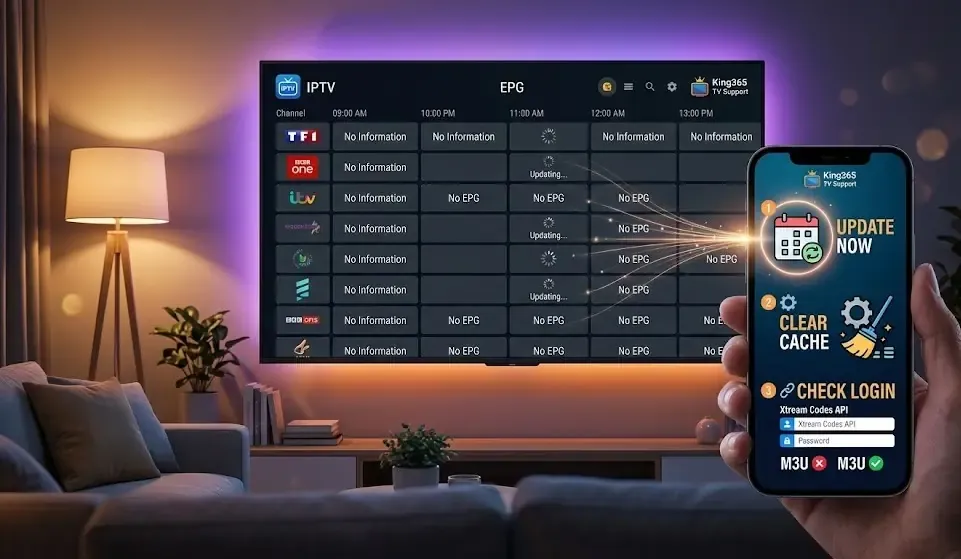 Verify the IPTV Server URL
Why Does the Server URL Matter?
The IPTV application needs to communicate with the correct server to authenticate your account and retrieve the available information.
If the server address is incorrect or unavailable, the application may report a login failure even when your username and password are correct.
Check Whether Your Account Is Still Active
An expired account can result in a login failure.
If your service provides an official account portal, check:
- Account status
- Expiration date
- Subscription status
- Connection limits
- Account notifications
If your account has expired, changing the password or reinstalling the application will not solve the problem.
Contact the relevant service support if the account should still be active.
Check Your Internet Connection
A login request requires an active internet connection.
If your device is connected to Wi-Fi but the connection is unstable, the IPTV application may not be able to reach the authentication server.
Test other websites or applications on the same device.
Check:
- Wi-Fi signal
- Internet stability
- Router connection
- Network congestion
- Ethernet connection if available
If other applications are also unable to connect, investigate the network before changing your IPTV credentials. (For connection troubleshooting, see IPTV Buffering Every Few Minutes: Causes and Fixes).
Restart the IPTV App
Sometimes the application itself may temporarily fail to establish a connection.
Try:
- Completely close the IPTV application.
- Open it again.
- Re-enter the login information if necessary.
- Try logging in again.
If the application is running on a TV or streaming device, restarting the entire device can also help.
Restart Your Router
If the device has internet access but the IPTV application cannot connect, restarting the router can sometimes resolve temporary network issues.
Turn the router off, wait briefly, and restart it.
Once the connection is restored:
- Connect the streaming device.
- Open the IPTV application.
- Try logging in again.
This is primarily a troubleshooting step, not a guaranteed fix.
Check the IPTV App Version
An outdated application can sometimes cause compatibility or authentication problems.
Open the official app store available on your device and check whether a newer version is available.
If an update is available:
- Install the latest official version.
- Restart the device.
- Open the IPTV application.
- Enter your credentials again.
If the problem started immediately after an update, check whether another update is available because developers sometimes release fixes for problems introduced in an earlier version. You can refer to IPTV Not Working After an App Update: What to Do if you need more details.
Clear the IPTV App Cache
A corrupted application cache can sometimes cause unexpected login behavior.
On many Android TV devices, the process is similar to:
Settings → Apps → Your IPTV App → Storage & cache → Clear cache
The exact menu can vary depending on your device.
Start with Clear Cache.
Avoid using Clear Data unless necessary because it can remove saved:
- Credentials
- Playlists
- Preferences
- EPG settings
If you use Clear Data, make sure you have your account information available before doing so.
Upgrade Your Streaming Experience
Get access to 50,000+ live channels, 200,000+ VODs in 4K/FHD with zero buffering.
- 4K & Full HD Quality
- Anti-Buffer Technology
- All Smart TVs Supported
- Instant Activation
Check the Login Method
Not every IPTV application uses the same login method.
Depending on the player, you may see options such as:
- Xtream Codes API
- M3U URL
- Portal URL
- Local playlist
- Other supported formats
Make sure you are using the login method intended for your account.
For example, if your service provides Xtream Codes credentials, do not automatically enter them into an M3U URL field unless the service specifically provides an M3U playlist.
Using the wrong login method can produce confusing errors.
Try Another Compatible IPTV Player
Testing the same account information in another compatible application can help identify the source of the problem.
If the account works in another player, the original application's configuration may be responsible. (See Best IPTV Players for Firestick in 2026 for recommendations).
Possible causes include:
- Application bug
- Incorrect player settings
- Corrupted cache
- Compatibility problem
- Unsupported login method
If the login fails in multiple compatible applications, investigate the account, credentials, server URL, or network.
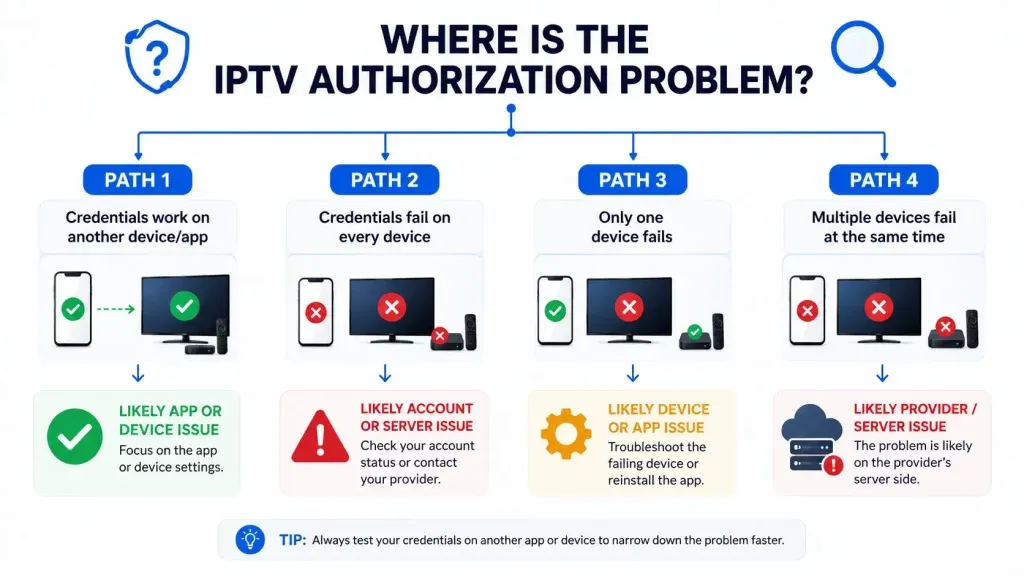 Try Another Compatible IPTV Player
Test Another Device
Another useful diagnostic step is testing the account on another compatible device.
For example, if the login fails on your Android TV but works on another supported device, the problem may be related to:
- Device configuration
- Application version
- Operating system
- Network settings
- Application compatibility
If it fails everywhere, the account or server becomes more likely to be responsible.
Check Whether the Server Is Temporarily Unavailable
Sometimes the credentials are correct but the server is temporarily unavailable.
Possible symptoms include:
- Login timeout
- Authentication error
- Very slow response
- No playlist after successful login
- Multiple devices failing simultaneously
If the same account suddenly stops working everywhere, wait briefly and check the service's official support or status information if available.
Do not repeatedly change your credentials when the actual problem may be server-side.
IPTV Login Troubleshooting Table
| Problem | What to Check |
|---|---|
| Username rejected | Re-enter username carefully |
| Password rejected | Check capitalization and characters |
| Login timeout | Check internet and server availability |
| Server error | Verify server URL |
| Account expired | Check account status |
| Works on another device | Check device/app configuration |
| Works in another player | Check original player |
| Started after app update | Check for another update |
| App keeps rejecting correct credentials | Clear cache and verify login method |
| All devices fail | Check account or server status |
What If the Username and Password Are Correct?
If you have verified the username and password several times, do not assume they are the only possible cause.
Check the server URL next.
Then test:
- Internet connection
- Account status
- Server URL
- Login method
- IPTV application
- Another compatible device
This approach helps isolate the problem without repeatedly changing information that is already correct.
What If IPTV Login Works on Another Device?
If the same credentials work on another device, your account is probably not the main problem.
Focus on the device where the login fails.
Check:
- Application version
- Cache
- Device time and date
- Internet connection
- Login method
- Application permissions
- Device compatibility
Reinstalling the application can also help if the configuration appears corrupted. (See How to Set Up IPTV on Firestick in 2026 for installation tips).
What If IPTV Login Fails Everywhere?
If the same credentials fail on multiple compatible devices and applications, investigate the account and server.
Possible causes include:
- Expired account
- Incorrect credentials
- Changed server URL
- Temporary server issue
- Account connection limit
- Service-side authentication problem
Contact the relevant service support and provide the exact error message.
Do not send your password publicly.
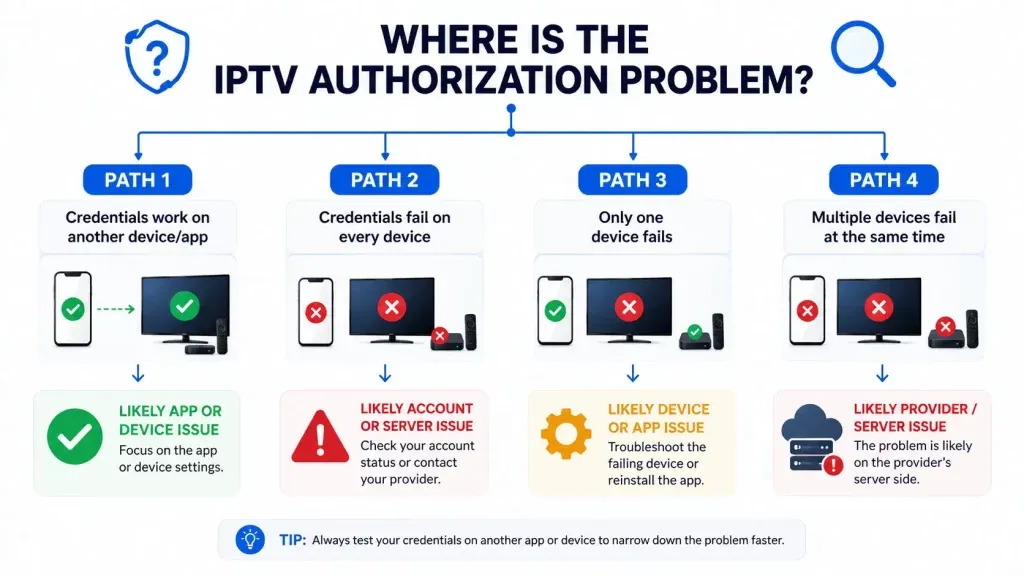 IPTV Login Final Fixes
Frequently Asked Questions
Conclusion
An IPTV login failure does not always mean that your account is broken.
Start by checking the username, password, and server URL carefully. Then verify that your account is active and that the device has a stable internet connection.
If the credentials are correct, restart the application, clear its cache, check the login method, and test another compatible player or device.
The most important troubleshooting step is to isolate the problem. If the same credentials work elsewhere, focus on the affected device or application. If they fail everywhere, investigate the account or server.
By checking each possibility systematically, you can usually determine why the IPTV login is failing without unnecessarily changing working settings.