IPTV Buffering Every Few Minutes: Causes and Fixes
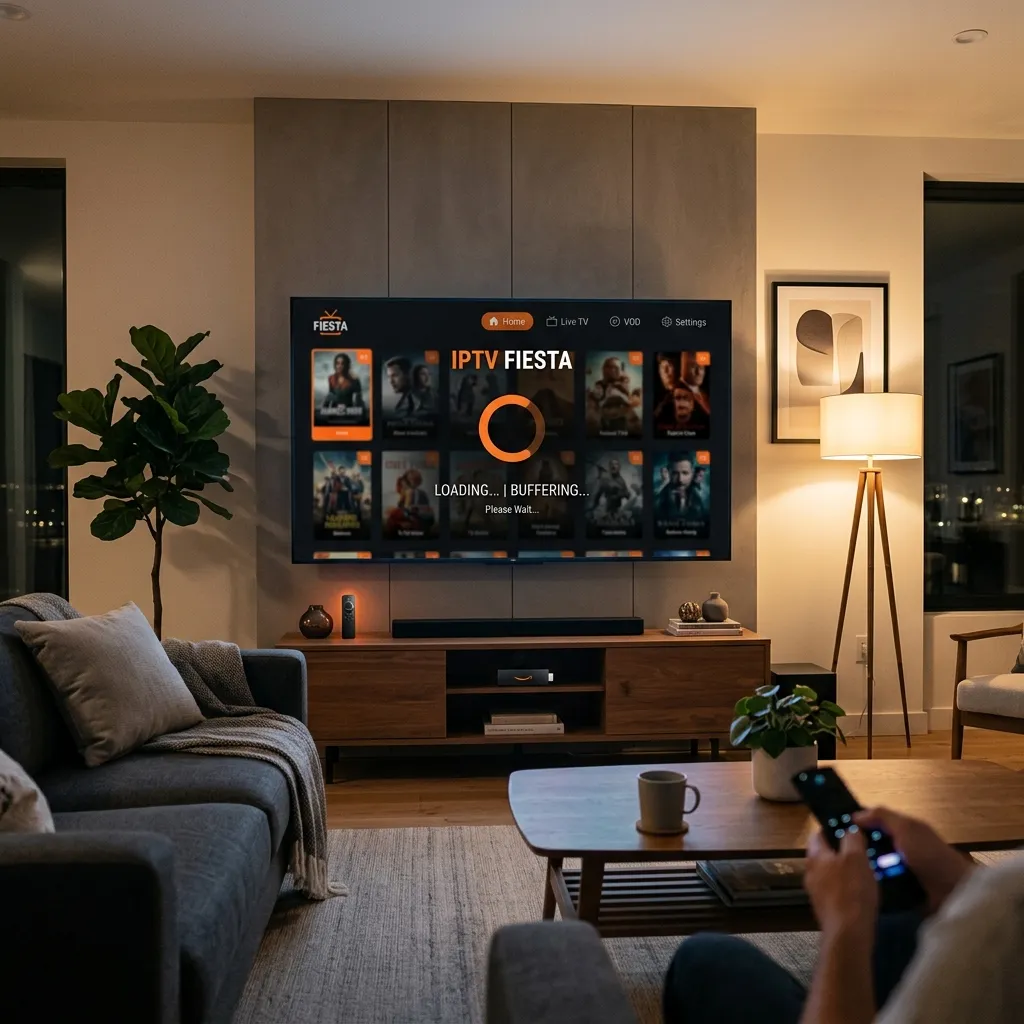
Few things are more frustrating than sitting down to watch live TV or a movie and seeing the video stop every few minutes to buffer.
If your IPTV keeps buffering, the problem is not necessarily your IPTV player. (For recommendations, see Best IPTV Players for Firestick in 2026). Buffering can be caused by your internet connection, Wi-Fi interference, device performance, network congestion, incorrect application settings, or problems with the stream source itself.
The good news is that you can usually identify the cause by testing a few things systematically.
Here are the most common reasons IPTV buffers every few minutes and the practical steps you can take to improve playback.
What Causes IPTV Buffering?
IPTV buffering happens when your device cannot receive enough video data to continue playback smoothly.
The most common causes include:
- Unstable Wi-Fi
- Slow or congested internet connection
- Network congestion during peak hours
- Weak router signal
- Device performance problems
- Too many applications running
- Incorrect player settings
- Problems with a particular stream
- Issues on the service provider's server
- Incorrect DNS or network configuration
The important thing is to determine whether the problem affects one channel or your entire IPTV service.
1. Check Your Internet Connection
Start with the simplest test: check your internet connection.
A speed test on your phone or computer does not always represent the connection available to your Firestick, Smart TV, or Android TV device.
Run the test directly on the device experiencing buffering if possible.
For HD and 4K streaming, a stable connection is more important than simply having a high advertised download speed.
If your connection repeatedly drops or fluctuates, IPTV playback can buffer even when your average speed looks good.
Upgrade Your Streaming Experience
Get access to 50,000+ live channels, 200,000+ VODs in 4K/FHD with zero buffering.
- 4K & Full HD Quality
- Anti-Buffer Technology
- All Smart TVs Supported
- Instant Activation
2. Test Wi-Fi Before Blaming Your IPTV Player
Wi-Fi is one of the most common reasons for repeated buffering.
Your Firestick or Smart TV may be far away from the router, or walls and other electronic devices may interfere with the wireless signal. If you are setting up a new device, see How to Set Up IPTV on Firestick in 2026.
Try moving your router closer to the streaming device.
If your router supports both 2.4 GHz and 5 GHz networks, test both. The best option depends on the distance between your device and router.
For a device located close to the router, 5 GHz can provide excellent performance. For longer distances, 2.4 GHz can sometimes provide better coverage.
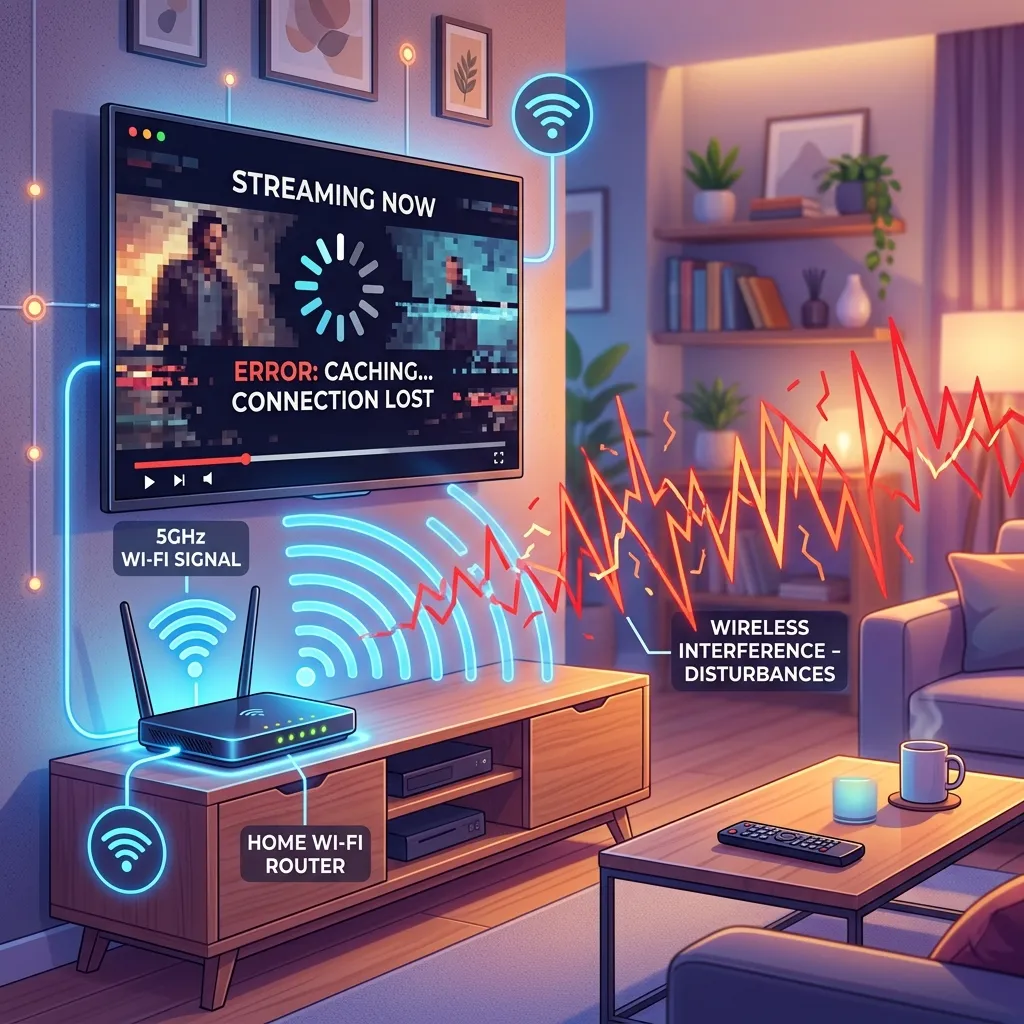 Wi-Fi Interference Causing Buffering
3. Use Ethernet If Possible
A wired Ethernet connection can eliminate many Wi-Fi-related problems.
If your streaming device supports Ethernet, connect it directly to your router and test the same IPTV channel again.
If buffering disappears after switching from Wi-Fi to Ethernet, you have strong evidence that the wireless connection was contributing to the problem.
This is particularly useful for users watching high-resolution streams.
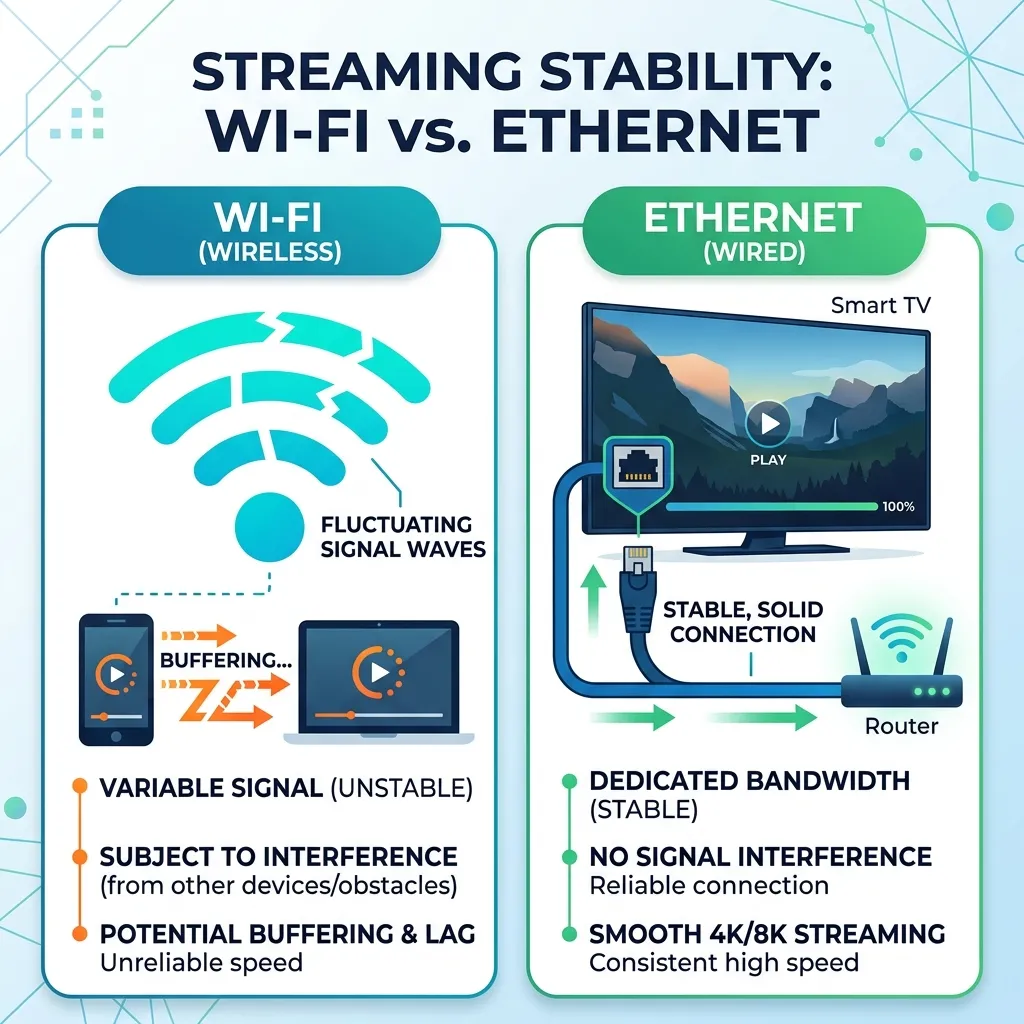 Wi-Fi vs Ethernet for Streaming
4. Check Whether Only One Channel Buffers
This is one of the most useful troubleshooting tests.
Try several different channels.
If only one channel buffers while other channels play normally, your internet connection and player are probably not the main problem.
The specific stream may be experiencing:
- Server congestion
- Temporary downtime
- A source-side problem
- High demand
- Poor stream quality
If dozens of channels buffer in exactly the same way, investigate your network, device, application, or IPTV service instead. If you also have trouble getting channels to load, read IPTV Channels Not Loading: 10 Things to Check.
5. Restart Your Router and Streaming Device
A simple restart can sometimes resolve temporary network or application problems.
Turn off your streaming device and restart your router.
Wait for the router to reconnect completely, then restart your Firestick, Android TV box, Smart TV, or other device.
After reconnecting, test the same channels again.
This is a basic step, but it can clear temporary network problems and free system resources.
6. Clear Your IPTV Player's Cache
Applications can accumulate temporary data over time.
On Firestick, for example, you can normally find application management through:
Settings → Applications → Manage Installed Applications
Select your IPTV player and look for the option to clear its cache.
Avoid clearing application data unless necessary because doing so may remove saved settings, playlists, or login information.
After clearing the cache, restart the application and test playback again.
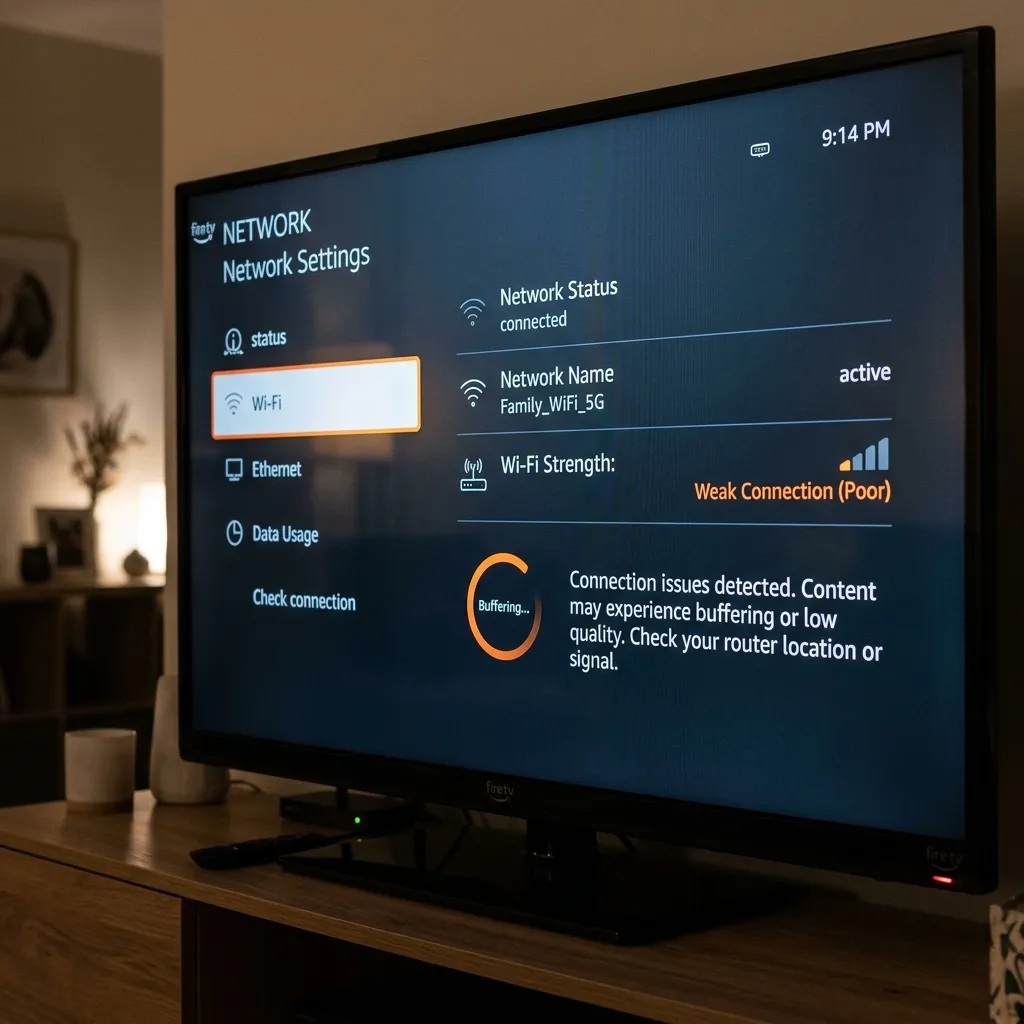 Troubleshooting Settings Menu
7. Check Your Firestick or Android TV Storage
A device that is almost completely full can become slower and less responsive.
Check the available storage on your streaming device.
Remove applications you no longer use and clear unnecessary cached data.
After freeing some storage, restart the device and test IPTV playback again.
8. Reduce Network Congestion
Even a fast internet connection can struggle when many devices are using it simultaneously.
For example, someone in your home might be:
- Downloading a large file
- Playing an online game
- Watching 4K video
- Uploading videos
- Using cloud backups
Temporarily disconnect other high-bandwidth devices and test IPTV again.
If buffering disappears, your connection may simply have been under heavy load.
Upgrade Your Streaming Experience
Get access to 50,000+ live channels, 200,000+ VODs in 4K/FHD with zero buffering.
- 4K & Full HD Quality
- Anti-Buffer Technology
- All Smart TVs Supported
- Instant Activation
9. Check Your IPTV Player Settings
Some IPTV players provide playback and buffer settings.
If the application allows you to adjust the buffer size, experiment with a slightly larger buffer.
A larger buffer can help when your connection has occasional instability because the player has more data prepared before playback reaches it.
However, increasing the buffer indefinitely is not a solution for a severely unstable connection.
For live sports, an excessively large buffer can also increase the delay between the real event and what appears on your screen.
10. Try Another IPTV Player
Sometimes the application itself may be contributing to playback problems.
If your IPTV service supports multiple players, test the same playlist using another compatible application.
For example, you could compare a dedicated IPTV player with another supported media player.
If the same channel buffers in every application, the problem is probably not the player.
If one application works smoothly while another constantly buffers, investigate the application's settings, compatibility, or performance.
11. Check Your DNS Configuration
DNS normally does not determine your raw internet speed, but DNS problems can sometimes affect how your device reaches online services.
If you suspect a DNS problem, you can test an alternative DNS provider supported by your network and device.
After changing DNS, restart the device and test again.
Do not assume that changing DNS will solve every buffering problem. If the underlying issue is weak Wi-Fi or an overloaded stream server, DNS changes will not fix it.
12. Buffering Only Happens at Night
If IPTV works perfectly during the day but buffers every few minutes during the evening, network congestion is worth investigating.
There can be congestion at several levels:
- Your home network
- Your ISP's network
- The route between your ISP and the streaming server
- The streaming service's infrastructure
Test the same channel at different times.
If buffering consistently appears during peak hours, record the pattern before contacting your provider or ISP.
13. Check Your Internet Connection on Another Device
Try streaming another legitimate video service on the same device and network.
If several streaming services experience buffering, your network connection is more likely to be the problem.
If other services work normally while only a particular IPTV stream buffers, investigate the IPTV source or service.
This simple comparison can save a lot of unnecessary troubleshooting.
14. Update Your IPTV Player and Device
Outdated applications can sometimes contain compatibility or performance problems.
Check whether your IPTV player has an available update.
You should also keep your Firestick, Android TV device, Smart TV, or other streaming hardware updated through its normal official software-update system.
Only download applications and updates from trusted official sources.
When Is the IPTV Service the Problem?
If you have tested multiple devices, a stable internet connection, different applications, and several channels, but the same streams continue buffering, the problem may be on the service side.
Possible causes include:
- Server overload
- Insufficient server capacity
- Network routing problems
- Temporary maintenance
- Poor stream infrastructure
Contact the service's support team and provide useful information such as the affected channel, approximate time, device, and whether other channels work.
This gives support something concrete to investigate.
Quick IPTV Buffering Checklist
Before changing complicated settings, work through this checklist:
- Test your internet connection.
- Restart your router.
- Restart your streaming device.
- Test another IPTV channel.
- Test another application.
- Move closer to the Wi-Fi router.
- Try Ethernet if available.
- Close unused applications.
- Clear the IPTV player's cache.
- Check available device storage.
- Test at another time of day.
- Check whether the problem affects multiple devices.
This approach helps you identify the source instead of randomly changing settings.
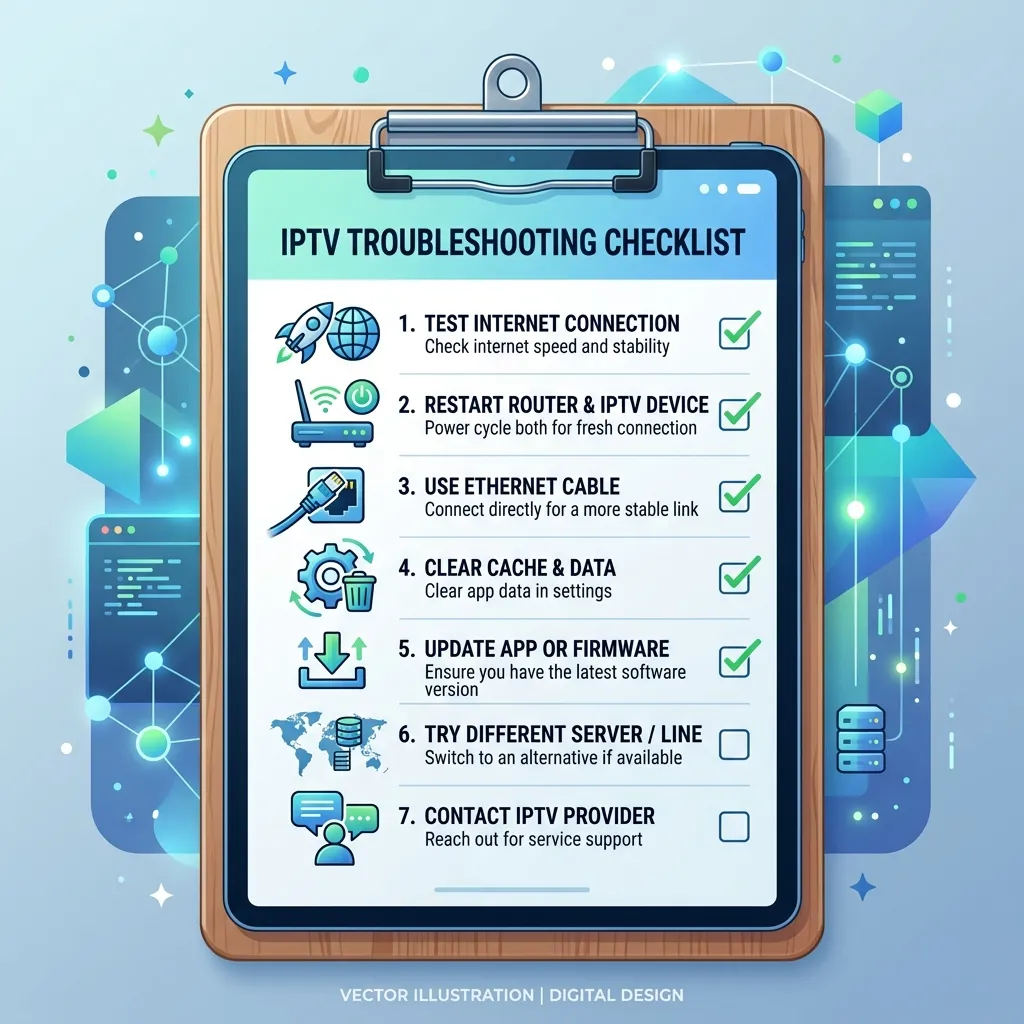 IPTV Buffering Troubleshooting Checklist
Frequently Asked Questions
Conclusion
IPTV buffering every few minutes can be frustrating, but the cause can usually be narrowed down with a few simple tests.
Start with your internet connection and Wi-Fi. Then test different channels, restart your equipment, check your device storage, clear the application's cache, and try another compatible player.
If only specific streams buffer, the problem may be related to those streams. If everything buffers across multiple devices and applications, investigate your network or IPTV service.
The key is to troubleshoot systematically instead of changing several settings at once. If you still have questions, check our main FAQ.