How to Improve IPTV Picture Quality
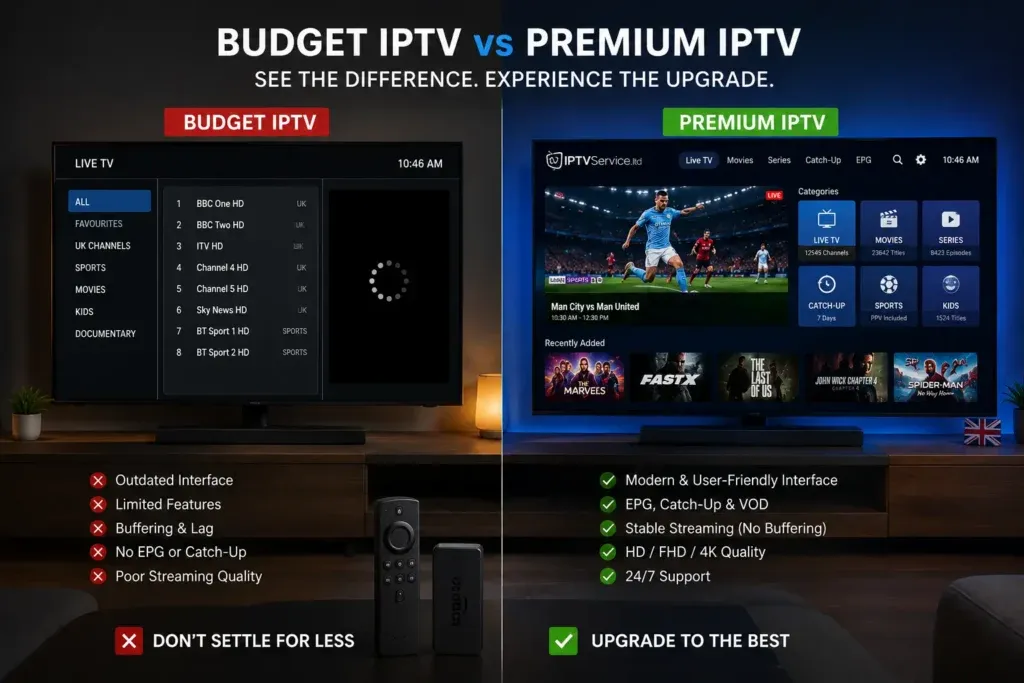
If you have ever sat down to watch a highly anticipated game or movie, only to be greeted by a blurry, pixelated screen, you know how frustrating poor picture quality can be.
Many people immediately assume the IPTV service itself is the problem. While that can sometimes be true, picture quality is actually determined by a combination of several factors: your internet connection, your Wi-Fi environment, your streaming device, your TV settings, the IPTV application, and the original stream source.
Before you cancel your subscription or buy an expensive new TV, it is important to troubleshoot the complete streaming setup. In this guide, we will walk you through practical steps to identify the bottleneck and learn exactly how to improve IPTV picture quality.
How to Improve IPTV Picture Quality
What Determines IPTV Picture Quality?
Before diving into fixes, it helps to understand what actually determines how good a stream looks.
Picture quality is primarily affected by:
- Resolution: The number of pixels on the screen (e.g., 1080p Full HD, 4K).
- Bitrate: The amount of data processed per second. A low bitrate will make even a 4K stream look blurry and compressed.
- Compression: How much the original video file is squeezed to transmit over the internet.
- Source Quality: How the channel is originally broadcasted.
- Internet Stability: A shaky connection causes the player to drop the resolution automatically to prevent buffering.
- Device Capabilities: Older devices may struggle to decode high-bitrate video.
- Display Quality: Your TV's hardware and picture settings.
A stream labeled "4K" can still look poor if its bitrate is low or the source quality is bad.
1. Check Your Internet Connection
The foundation of good picture quality is a stable internet connection. If your connection drops, most modern IPTV players will automatically lower the resolution to prevent playback from stopping entirely.
Speed is important, but stability matters just as much. You need to check for:
- Download speed: 4K streams require higher bandwidth.
- Connection stability: Does the speed fluctuate wildly?
- Latency (Ping): High latency can delay packets of video data.
- Packet loss: Missing data results in pixelated video artifacts.
What to do: Run a speed test near your streaming device. Test the connection at different times of the day and check whether other devices in your home are consuming significant bandwidth while you stream.
 Check Internet Speed for IPTV
Upgrade Your Streaming Experience
Get access to 50,000+ live channels, 200,000+ VODs in 4K/FHD with zero buffering.
- 4K & Full HD Quality
- Anti-Buffer Technology
- All Smart TVs Supported
- Instant Activation
2. Try Ethernet Instead of Wi-Fi
Wi-Fi is convenient, but it is susceptible to interference. If you want the most stable connection possible, try using an Ethernet cable to connect your streaming device directly to your router.
An Ethernet connection can bypass issues related to:
- Distance from the router
- Thick walls and physical obstacles
- Wireless interference from microwaves or neighboring networks
- Network congestion over Wi-Fi channels
While a good Wi-Fi connection can work perfectly well, a wired Ethernet connection provides maximum stability, reducing the sudden drops in speed that ruin picture quality.
3. Improve Your Wi-Fi Connection
If running an Ethernet cable isn't possible, you should optimize your Wi-Fi connection.
To get a better wireless signal:
- Move the router: Place it in a central, open location rather than hidden behind a TV or inside a cabinet.
- Reduce obstacles: Keep large metal objects and electronic devices away from the router.
- Keep devices in range: Ensure the streaming device is within a reasonable range of the router.
- Restart the router: A simple restart can sometimes clear up temporary network issues.
- Use 5GHz: If your router supports it, connect your streaming device to the 5GHz band rather than 2.4GHz for faster speeds (though it has a shorter range).
 Improve Wi-Fi for IPTV
4. Reduce Network Congestion
Your IPTV stream shares bandwidth with everything else on your network. If the picture quality suddenly drops, check what else is happening in your home.
Activities that can severely impact streaming include:
- Large file downloads or uploads
- Cloud backups (like phones backing up photos)
- Online gaming
- Multiple devices streaming high-resolution video simultaneously
- Background software updates
Testing your IPTV service while other devices are inactive can help identify if network congestion is the root cause.
5. Check the IPTV Stream Resolution
Not all channels are broadcast in the same quality.
Understand the differences:
- SD (Standard Definition): Can look blurry on large, modern TVs.
- HD (720p): Acceptable quality for smaller screens.
- Full HD (1080p): Standard high quality for most broadcasts.
- 4K (Ultra HD): The highest quality, but requires significant bandwidth.
Higher resolution does not automatically mean better picture quality. A heavily compressed 4K stream might actually look worse than a high-bitrate Full HD stream. If a channel looks poor, check to see if your provider offers alternative resolutions for that specific channel. (To make sure a service meets your needs, you can read our guide on How to Test IPTV Before Buying a Subscription).
6. Check Your TV's Picture Settings
Sometimes the issue is not the stream, but the TV itself. Modern TVs come with processing features that can sometimes make IPTV streams look worse.
Check these settings on your TV:
- Picture Mode: Standard, Movie, or Cinema modes often look more natural than "Vivid" or "Dynamic."
- Sharpness: Turning sharpness too high can introduce artificial halos and noise around objects. Try turning it down.
- Motion Settings: Features like "motion smoothing" or "TruMotion" can make films look unnatural (the "soap opera effect") and introduce artifacts during fast sports. Try disabling it.
- Noise Reduction: While meant to clean up bad signals, excessive noise reduction can make images look smeared or blurry.
7. Check Your IPTV Player Settings
The application you use to watch IPTV can have a significant impact on video processing.
Explore the settings in your IPTV player:
- Hardware Acceleration: Enabling hardware decoding can drastically improve playback performance on most devices.
- Video Quality / Buffer Size: Some players allow you to adjust the buffer size to handle network fluctuations better.
- Decoder Options: Try switching between software (SW) and hardware (HW) decoding if the video stutters.
- Aspect Ratio: Ensure the player is not awkwardly stretching a standard definition channel to fit a widescreen TV.
If you need a better application, check out our list of the Best IPTV Players for Android TV in 2026.
8. Make Sure Your Streaming Device Can Handle the Stream
Your streaming hardware matters. Older or underpowered devices may physically struggle to decode modern high-bitrate, high-resolution streams.
Whether you use a Smart TV, Android TV, Firestick, Apple TV, or PC, ensure the device is capable of handling the stream. An older smart TV processor might choke on a heavy 4K stream, resulting in dropped frames and a choppy picture.
If you are setting up a new device, you can reference our Setup Guide or read specifically How to Set Up IPTV on Firestick in 2026.
9. Check Your HDMI Connection
If you use an external streaming box (like an Android TV box or Apple TV), the connection to your TV is critical.
- Secure the connection: Ensure the HDMI cable is plugged in firmly on both ends.
- Try another port: Sometimes, a specific HDMI port on a TV is faulty or doesn't support 4K 60Hz.
- Check the cable: An old or damaged HDMI cable can cause "snow," flickering, or restricted resolution.
While you do not need an incredibly expensive HDMI cable, you do need one rated for the bandwidth of the resolution you are trying to output (e.g., Premium High Speed for 4K).
Upgrade Your Streaming Experience
Get access to 50,000+ live channels, 200,000+ VODs in 4K/FHD with zero buffering.
- 4K & Full HD Quality
- Anti-Buffer Technology
- All Smart TVs Supported
- Instant Activation
10. Check Your Device and TV Resolution Settings
Ensure that your streaming device is actually outputting a resolution that your TV can handle correctly.
For instance, if your Android box is set to output 720p, everything will look soft on a 4K TV, regardless of the stream's quality.
Navigate to your streaming device's display settings and ensure the resolution is set to match your TV (e.g., 1080p or 4K), or leave it on "Auto" if supported.
 Check TV and IPTV Resolution Settings
11. Test Several Different IPTV Channels
One poor-quality channel does not mean the entire IPTV service is bad. Sometimes, the broadcaster of a specific channel simply provides a low-quality feed.
Test multiple channels across different categories (sports, news, movies) and different resolutions. If only one specific channel looks blurry, it is likely a source issue for that particular channel. If all channels look terrible, the issue is more likely related to your setup or connection.
(Having trouble loading channels at all? See IPTV Channels Not Loading: 10 Things to Check).
12. Test IPTV at Different Times of Day
Does your picture quality look amazing in the morning but terrible at 8:00 PM?
Testing during different times of the day—especially during evening prime time or major live sporting events—can help identify if the problem is network-related. A drop in quality during peak hours usually points to network congestion, either on your ISP's side or the IPTV provider's servers.
13. Fix Buffering Before Blaming Picture Quality
Often, poor picture quality is a side effect of buffering. When a stream struggles to load, an adaptive player will lower the resolution to keep the video playing, resulting in a blurry picture.
If your video is constantly pausing or dropping in resolution, you need to address the buffering first. For a deep dive into fixing this specific problem, read our dedicated guide: IPTV Buffering Every Few Minutes: Causes and Fixes.
14. Restart Your Router, Device, and IPTV App
The classic "turn it off and back on again" advice applies here. A simple restart can clear cached data, refresh memory, and establish a cleaner network connection.
- Close the IPTV application completely.
- Restart your streaming device.
- Restart your internet router (unplug for 30 seconds, then plug back in).
- Reopen the application and test again.
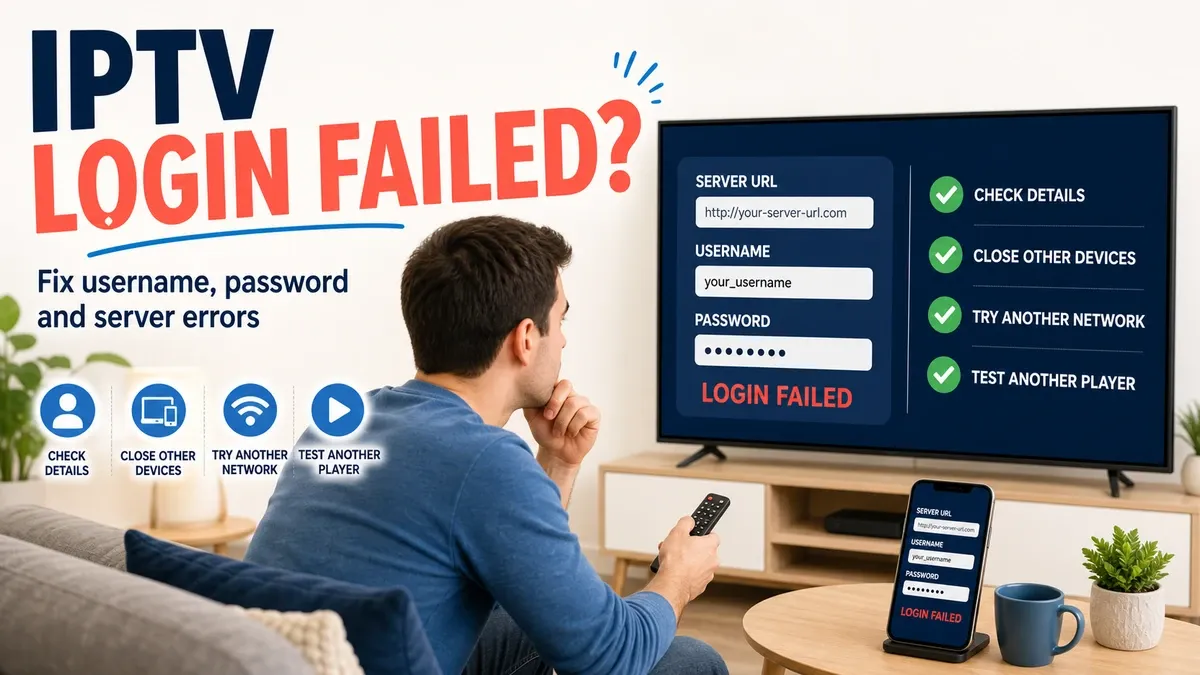
(If your app is completely failing to launch or authenticate after an update, see IPTV Not Working After an App Update: What to Do or check IPTV Login Failed: Username, Password and Server URL Fixes).
What If Your Internet and Device Are Fine?
What happens if your internet is blazing fast, your device is top-of-the-line, your TV settings are perfect, and other apps like Netflix look amazing, but your IPTV still looks poor?
The source may be the limiting factor.
You cannot turn a low-quality source into genuine 4K simply by changing a setting. If the provider is distributing a highly compressed, low-bitrate feed, that is exactly what you will see on your screen. In this case, there is nothing you can do on your end to improve it.
How to Get Better 4K IPTV Quality
Achieving true 4K quality requires the entire chain to be compatible:
- A 4K-capable TV.
- A 4K-capable streaming device.
- An appropriate high-speed HDMI cable.
- A fast and stable internet connection (usually 25 Mbps minimum, ideally much higher).
- An IPTV player that supports 4K decoding.
- Crucially: An IPTV provider that actually offers genuine 4K streams.
If any link in this chain is broken, you will not get 4K quality.
Quick IPTV Picture Quality Troubleshooting
| Problem | Possible Cause | What to Try |
|---|---|---|
| Blurry picture | Low source quality / low resolution | Test another channel and check stream quality. |
| Pixelation | Compression / unstable stream | Check connection and test another stream. |
| Buffering | Network or stream issue | Check internet and reduce network usage. |
| Choppy video | Device/network limitations | Restart device and test connection. |
| Poor 4K quality | Source/device/settings | Verify all components support 4K. |
| Only one channel looks bad | Channel-specific issue | Test other channels. |
| Quality changes over time | Network congestion or stream conditions | Test at different times. |
Improving Picture Quality With IPTV FIESTA
When you evaluate a service, the quality of the streams provided is incredibly important. At IPTV Fiesta, we focus on delivering a high-quality viewing experience across our extensive library.
The IPTV FIESTA service offers access to a massive lineup of Channels (over 50,000 live channels) and an enormous VOD library (200,000+ items). More importantly, the IPTV FIESTA platform supports multiple resolutions, allowing you to enjoy crystal-clear HD, Full HD, and 4K quality where available, provided your setup supports it.
We design our service to work smoothly across a variety of devices. By following the troubleshooting steps above—ensuring a stable connection, optimizing your Wi-Fi, and configuring your player correctly—you can maximize the performance of your IPTV FIESTA IPTV experience.
If you are looking for a reliable, high-quality streaming provider, explore our competitive Pricing plans or contact us via our Contact page (or WhatsApp) to request a Free Trial and see the quality for yourself!
Frequently Asked Questions
Conclusion
Understanding how to improve IPTV picture quality is largely about identifying the bottleneck in your streaming setup. By systematically checking your internet connection, optimizing your Wi-Fi, adjusting your device and TV settings, and ensuring you have compatible hardware, you can significantly enhance your viewing experience.
Remember, you cannot magically improve a low-quality source stream. For the best possible picture, you need a reliable provider that offers high-bitrate, high-resolution feeds. We invite you to experience the premium quality of the IPTV Fiesta service. Visit our Homepage to learn more and elevate your streaming experience today!