IPTV Channels Not Loading: 10 Things to Check
When IPTV channels suddenly stop loading, the problem is not always your IPTV player or subscription. A channel may fail because of an unstable internet connection, an incorrect playlist, expired credentials, an EPG issue, a device problem, or an issue with the stream itself.
The good news is that most IPTV loading problems can be diagnosed in a few minutes.
Instead of changing several settings at once, work through the following ten checks in order. This makes it much easier to identify exactly where the problem is.
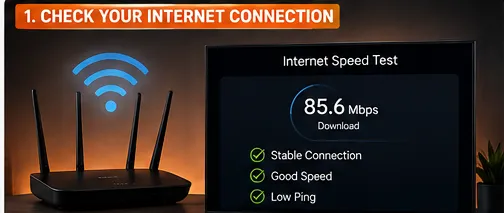
1. Check Your Internet Connection
The first thing to check is your internet connection.
Open another streaming application on the same device and play a video for several minutes.
If other streaming services are also slow or constantly buffering, the problem may be your network rather than IPTV.
For IPTV streaming, a stable connection is more important than simply having a high advertised download speed.
Try these basic checks:
- Restart your router.
- Move your streaming device closer to the router.
- Disconnect devices that are using heavy bandwidth.
- Try the 5 GHz Wi-Fi band if your device and router support it.
- Use Ethernet when possible.
- Run a speed test directly on the IPTV device.
If regular streaming works normally but IPTV channels do not load, continue to the next check.
 A troubleshooting scene showing internet connection, Wi-Fi/Ethernet, router, and IPTV streaming.
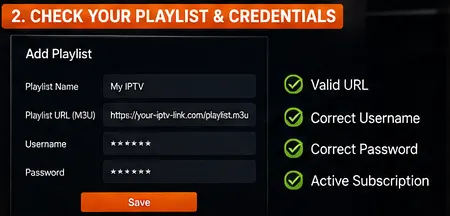
2. Check Whether Your Playlist Is Still Valid
An IPTV player needs valid playlist or account information before it can display channels.
Depending on your service, you may have received:
- An M3U playlist URL
- Xtream Codes credentials
- A server URL
- A username
- A password
If the playlist has expired or been disabled, channels may disappear or stop loading.
Check the information supplied by your authorized provider and confirm that your account is still active.
Do not assume that the player itself is broken before checking the account.
Upgrade Your Streaming Experience
Get access to 50,000+ live channels, 200,000+ VODs in 4K/FHD with zero buffering.
- 4K & Full HD Quality
- Anti-Buffer Technology
- All Smart TVs Supported
- Instant Activation
3. Verify Your Username and Password
Incorrect login information is another common cause.
Usernames and passwords can be case-sensitive, and a single missing character can prevent authentication.
If your IPTV player uses Xtream Codes, carefully verify:
- Username
- Password
- Server URL
- Port number
Whenever possible, copy and paste the credentials instead of manually typing them.
Also make sure that you have not accidentally included an extra space at the beginning or end of the information.
4. Check the IPTV Server Status
Sometimes everything on your side is working correctly and the problem is on the provider's server.
If every channel suddenly stops loading at approximately the same time, the service may be experiencing:
- Temporary maintenance
- Server overload
- Network problems
- An outage
- A change in server configuration
Check the provider's official support channel or status information if available. You can contact our support team to check server status for IPTV FIESTA.
If only one or two channels are affected while the rest work normally, the issue is more likely to be specific to those streams.
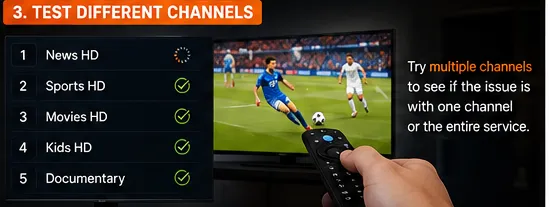
5. Test Several Different Channels
Do not test only one channel.
Open several channels from different categories.
For example:
- News
- Sports
- Entertainment
- Movies
- International channels
If every channel fails, investigate your connection, credentials, playlist, or player.
If only one channel fails, the problem may be with that particular stream.
This simple test can save a lot of unnecessary troubleshooting.
 A visual showing an IPTV playlist/channel-loading problem with a TV screen, M3U playlist interface, and loading indicators.
6. Restart Your IPTV Player
Applications can occasionally encounter temporary playback or network errors.
Completely close your IPTV player and open it again.
If the problem remains, restart your streaming device.
For Fire TV devices, Android TV boxes, Smart TVs, phones, and computers, a full restart can clear temporary system issues that are not obvious from the application interface. If you are using a Firestick, see our Firestick Setup Guide for device-specific tips.
After restarting, test the same channels again.
7. Clear the IPTV App Cache
A damaged or outdated cache can sometimes cause applications to behave unexpectedly.
If your device provides an option to clear an application's cache, try clearing the cache for your IPTV player.
Avoid clearing application data unless necessary because doing so may remove saved settings and require you to enter your account information again.
After clearing the cache:
- Restart the application.
- Wait for the playlist to reload.
- Test several channels.
- Check whether playback has improved.
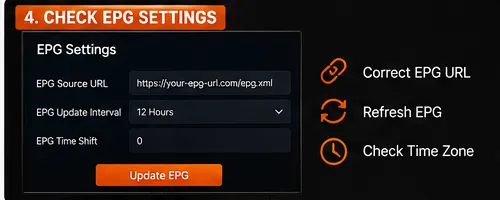
8. Check Your EPG Settings
EPG stands for Electronic Program Guide.
It provides information about programs, schedules, and upcoming broadcasts.
An EPG problem normally does not prevent the actual video stream from playing, but incorrect configuration can sometimes make the IPTV interface appear incomplete or confusing.
If channels load but program information is missing:
- Check the EPG URL.
- Refresh the EPG.
- Verify the time zone.
- Check the player's EPG settings.
- Make sure the provider's EPG source is still active.
If the channels themselves are not playing, continue troubleshooting the connection and playlist rather than focusing only on the EPG.
9. Update or Reinstall the IPTV Player
An outdated IPTV player can sometimes cause compatibility problems after device or service updates.
Check whether a newer official version of your IPTV application is available.
If updating does not solve the problem, consider reinstalling the application.
Before reinstalling, make sure you have your IPTV credentials or playlist saved somewhere secure.
After installation:
- Open the player.
- Add your account or playlist again.
- Allow the channel list to load completely.
- Test several channels.
Only download applications from official or trusted sources.
 An IPTV player troubleshooting interface showing credentials, server connection, EPG, cache, and playback settings.
Upgrade Your Streaming Experience
Get access to 50,000+ live channels, 200,000+ VODs in 4K/FHD with zero buffering.
- 4K & Full HD Quality
- Anti-Buffer Technology
- All Smart TVs Supported
- Instant Activation
10. Check Whether the Problem Is Device-Specific
Finally, test the same IPTV account or playlist on another compatible device if your service permits it.
For example, if the channels do not load on your Smart TV, test the same account on another supported device.
The result can tell you where the problem is.
If the service works on another device, investigate:
- The IPTV player's settings
- Device software
- Network configuration
- Available storage
- Device compatibility
If the service fails on every compatible device, the issue is more likely to be related to the account, playlist, network, or service.
There is an important difference between channels not appearing and channels appearing but refusing to play.
If the channel list loads correctly but playback fails, check:
- Internet stability
- Video decoder settings
- Player compatibility
- Stream availability
- Device performance
- Network congestion
Try another channel first.
If other channels play normally, the problem may be limited to the original stream.
If IPTV works normally during the day but becomes unreliable during evening hours, network congestion may be involved.
Your home network may have more devices using bandwidth in the evening.
The streaming service may also experience higher traffic during popular live events.
Test your connection during the time when the problem occurs rather than relying only on a speed test performed earlier in the day.
If possible, compare Wi-Fi and Ethernet performance.
You can reduce many common IPTV problems by maintaining your setup properly.
Follow these practices:
- Keep your streaming device updated.
- Use a reliable internet connection.
- Restart your router occasionally if necessary.
- Keep your IPTV player updated.
- Remove unnecessary applications from low-storage devices.
- Keep your IPTV credentials secure.
- Check your subscription status.
- Use Ethernet when practical.
- Avoid testing only one channel when diagnosing problems.
A stable setup makes troubleshooting much easier when an issue does occur.
 A clean checklist graphic showing the 10 things users should check when IPTV channels are not loading.
Why are my IPTV channels not loading?
The most common causes include an unstable internet connection, expired credentials, an invalid playlist, server problems, an outdated IPTV player, or a device-specific issue.
Why does IPTV show channels but not play them?
If the channel list appears but playback fails, check your internet connection, player compatibility, decoder settings, and whether the individual stream is currently available.
Why are all my IPTV channels suddenly gone?
If the entire channel list disappears, check your playlist or account credentials first. Then verify your internet connection and whether the IPTV service is experiencing an outage.
Why do only some IPTV channels work?
If most channels work while a few do not, the problem may be limited to those individual streams. Test several categories before changing your device configuration.
Can restarting my Firestick fix IPTV problems?
Yes. Restarting the device can clear temporary application, memory, and network-related problems. It is one of the easiest troubleshooting steps to try. See our full Firestick setup guide for more details.
Should I clear my IPTV app cache?
Clearing the cache can help when an application becomes slow or behaves unexpectedly. However, clearing app data may remove saved login information and settings, so use it only when necessary.
Why is my IPTV EPG not working?
The EPG URL may be incorrect, expired, or incompatible with your playlist. Check the EPG settings, refresh the guide, and verify the time-zone configuration.
Does internet speed affect IPTV?
Yes. Both available bandwidth and connection stability affect streaming quality. High-resolution streams generally require more bandwidth than lower-resolution streams.
When IPTV channels are not loading, there is usually no need to change everything at once.
Start with your internet connection, then check your playlist and credentials. After that, test different channels, restart the player, clear its cache, check the EPG, update the application, and finally test another compatible device.
Following these ten checks systematically makes it much easier to determine whether the problem is your network, device, player, account, playlist, or the stream itself.
For the best experience, use compatible hardware, a stable internet connection, an up-to-date IPTV player, and an authorized IPTV service. If you need help, you can review our device setup guides or check our frequently asked questions.