IPTV Audio and Video Out of Sync in 2026: Causes and Fixes
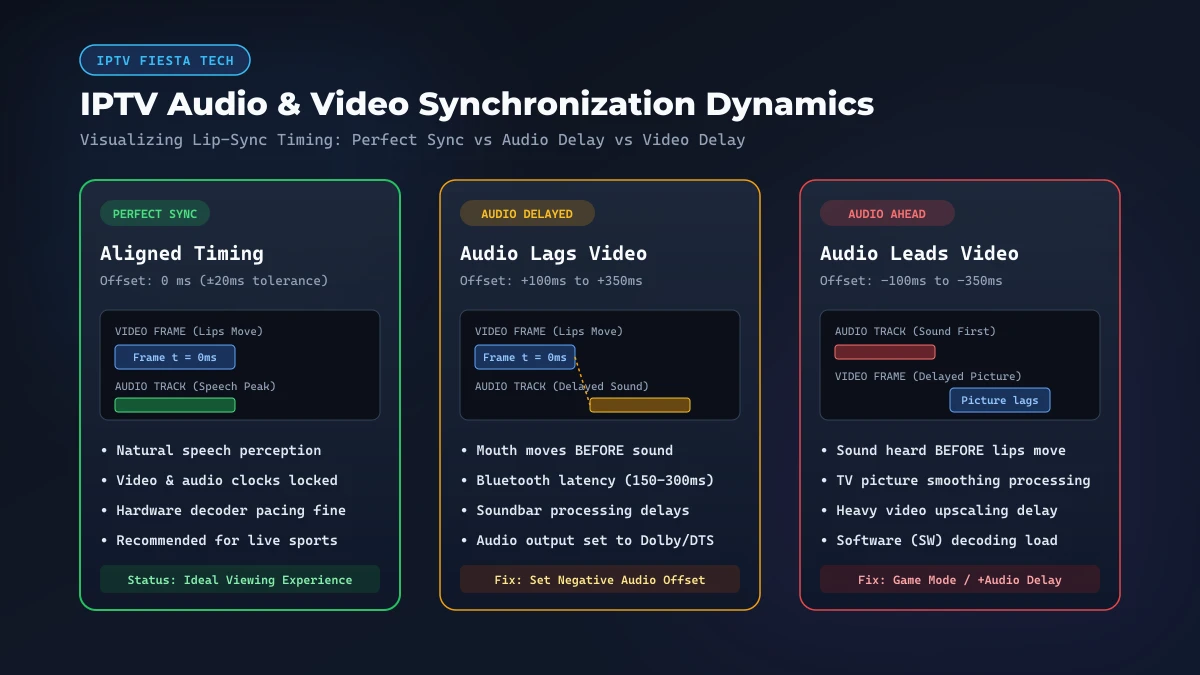
You settle in to watch live sports or a movie, but something feels off. An actor speaks, yet lips move before sound arrives. On sports broadcasts, commentary calls a play before it happens on screen. Facing IPTV audio and video out of sync is a common streaming frustration.
Common lip-sync symptoms include:
- Audio lags video: Mouths move first; dialogue arrives late.
- Audio leads video: Spoken words precede mouth movement.
- Gradual drift: Timing aligns initially but drifts over time.
- Single channel lag: One feed lags while other channels sync cleanly.
- Bluetooth delay: Wireless headphones or soundbars cause speech delay.
- Post-update offset: Timing breaks following an IPTV player update.
Importantly, slow internet speed is rarely the cause. While bandwidth drops cause buffering, lip-sync errors stem from hardware decoders, TV image processing, Bluetooth buffers, or broadcaster source encoding. This 2026 guide explains why IPTV audio and video desynchronize and provides practical fixes for Smart TVs, Firestick, Android TV, and IPTV players.
IPTV audio and video synchronization and lip-sync waveform
Why Is My IPTV Audio and Video Out of Sync?
Lip-sync errors happen when video frames and audio packets decode or render at different speeds. Digital streams package video and audio in separate tracks inside an MPEG transport container. If your streaming box, TV, or player processes one track faster than the other, alignment breaks.
| Symptom Pattern | Likely Root Cause | Area to Investigate |
|---|---|---|
| Audio ahead of video | TV image processing or slow video decoder | Motion smoothing (MEMC), Game Mode, HW decoding |
| Video ahead of audio | Audio processing, Bluetooth, or soundbar | Bluetooth latency, PCM audio output, audio offset |
| Single channel affected | Broadcaster source feed or satellite uplink | Provider stream, backup channel, encoder |
| All channels affected | Device, player, or TV configuration | System audio delay, player engine, TV sound |
| Bluetooth causes delay | Wireless audio transmission buffering | Bluetooth latency (SBC/AAC), wired connection |
| Started after app update | Reset player settings or audio API changes | OpenSL vs AudioTrack, HW decoder, app cache |
| Sync drifts over time | Device thermal throttling or packet jitter | Hardware RAM, background apps, network jitter |
Determining whether sound leads or trails video isolates the bottleneck fastest.
What Does Audio and Video Sync Mean?
Audio and video synchronization—known as lip-sync—refers to temporal alignment between the visual image and sound track.
Broadcast streams stamp packets with Presentation Time Stamps (PTS) to instruct players when each frame and audio sample renders.
Human perception is sensitive to timing mismatches:
- Audio arriving late (mouth moves first): Delays exceeding 100 milliseconds (ms) are noticeable; gaps past 150ms prove disruptive.
- Audio arriving early (sound before mouth): Offsets as small as 45ms feel unnatural because sound never precedes sight in physical reality.
When timestamps drift, dialogue disconnects and sports lose realism.
Upgrade Your Streaming Experience
Get access to 50,000+ live channels, 200,000+ VODs in 4K/FHD with zero buffering.
- 4K & Full HD Quality
- Anti-Buffer Technology
- All Smart TVs Supported
- Instant Activation
Is the Audio Ahead or Is the Video Delayed?
Diagnosing IPTV lip-sync problems requires determining the direction of the offset:
When Audio Comes Before the Video
If you hear words before mouth movement, the video track is delayed:
- Television Image Processing: Smart TVs apply motion smoothing (MEMC), noise reduction, and upscaling, delaying video by 80ms to 150ms while passing audio instantly.
- Heavy Video Decoding Load: Software (SW) decoding on 4K streams overloads CPUs, delaying video behind audio.
- Player Sync Offset: An unintended positive audio delay in player settings pushes sound ahead of video.
- Display Refresh Mismatches: Auto refresh rate matching without hardware pacing causes visual hesitation.
When Video Comes Before the Audio
If an actor finishes speaking before sound emerges, the audio track is delayed:
- Bluetooth Latency: Bluetooth introduces 120ms to 300ms of latency while compressing, transmitting, and buffering wireless sound.
- Soundbar Processing: External soundbars connected via optical or HDMI ARC decode Dolby audio through DSP chips, adding latency.
- Audio Output Encoding: Dolby Digital transcoding forces real-time audio re-encoding, adding delay over PCM stereo.
- Player Audio Buffering: Oversized player audio buffers delay sound delivery.
Before Changing Settings: Identify Where the Problem Happens
Before adjusting settings, isolate the source of the timing failure with these 7 checks:
- Test Another Channel: Switch between news, sports, and movies. If only one channel lags, the issue is provider-side.
- Test Live TV vs VOD: Play an on-demand title. If VOD syncs but live feeds lag, real-time stream encoding is the culprit.
- Test Built-in TV Speakers: Switch to internal TV speakers. If sync returns, external audio hardware caused the lag.
- Test Another IPTV Player: Try IPTV Smarters, OTT Navigator, or VLC. If it syncs, your primary app has bad decoder settings.
- Test Another Streaming App: Open YouTube or Netflix. If dialogue syncs, device hardware and TV settings are fine.
- Test Another Device: Load your playlist on a mobile phone on the same Wi-Fi. If mobile syncs, TV processing is the bottleneck.
- Restart the Stream: Re-opening the channel clears player buffers and re-synchronizes the clock.
Diagnostic Summary
- One channel affected: Stream/provider source issue.
- All channels in one player affected: Player audio offset or decoder configuration.
- All apps on device affected: Device audio settings, Bluetooth, or TV picture processing.
- Only external audio affected: Soundbar, AV receiver, or Bluetooth latency.
How to Adjust IPTV Audio Delay in Your Player
Most IPTV players include dedicated Audio Delay, Audio Offset, or Lip-Sync settings:
- Negative Offset (-ms): Shifts audio earlier. Use this when video leads audio (lips move before sound).
- Positive Offset (+ms): Delays audio track. Use this when audio leads video (sound arrives before lips move).
Practical Calibration Steps
- Find Close-up Dialogue: Tune to a news broadcast with clear face close-ups. Plosive consonants (B, P, M) provide the clearest cues for lip closure.
- Access Audio Settings: Open your player's on-screen controls and locate the audio track menu.
- Adjust in Small Increments: Adjust in 25ms to 50ms steps. Large jumps make finding true sync difficult.
- Verify on Live Sports: Confirm that ball strikes and crowd cheers match visual cues.
- Save Carefully: Select "Current Channel Only" unless every channel exhibits the exact same delay.
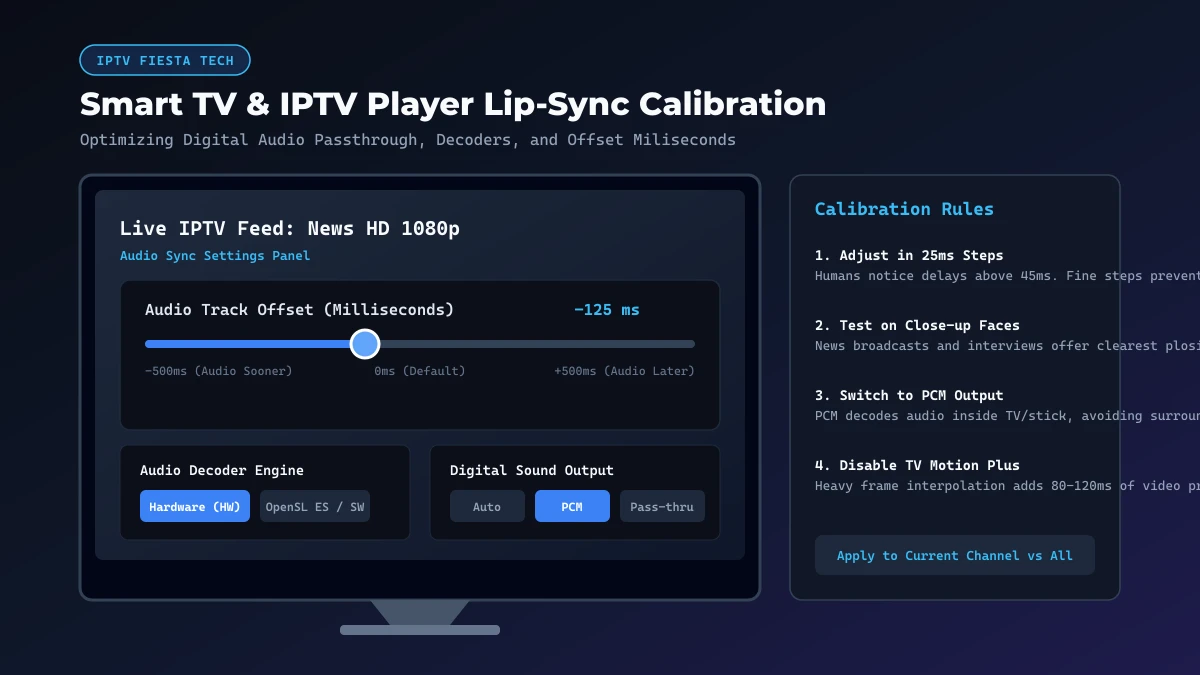 Smart TV and IPTV player audio sync adjustment
Tip: If an adjustment makes sync worse, reset the slider to 0ms before testing other options.
How to Fix IPTV Audio and Video Sync on a Smart TV
Smart TV image processing can delay video rendering. Apply these fixes:
1. Disable Motion Smoothing (MEMC)
Motion interpolation (Auto Motion Plus, TruMotion, Motionflow) delays video by 80ms to 120ms to smooth pictures while audio outputs instantly. Turn off Motion Smoothing in picture settings, or enable Game Mode for your HDMI input to drop video latency below 15ms.
2. Switch Digital Audio Output to PCM
Passing multi-channel audio through TV processors causes Dolby re-encoding latency. In Sound > Expert Settings > Digital Audio Output Format, select PCM. PCM delivers uncompressed stereo, bypassing TV re-encoding.
3. Adjust TV Built-in Audio Delay
Use your TV sound delay slider while observing news dialogue until speech matches mouth movement.
4. Cold-Reboot the Smart TV
Unplug your TV for 60 seconds to purge memory fragmentation and reset drivers.
For detailed television setup steps, see how to set up IPTV on Smart TV.
How to Fix IPTV Audio Delay on Firestick or Fire TV
Fire TV devices (Firestick 4K, 4K Max, Cube) can develop audio timing offsets:
1. Run Audio Video Sync Tuning
Navigate to Settings > Display & Sounds > Audio > Audio Video Sync Tuning. Use remote arrow keys to align the audio chirp with the bouncing ball animation.
2. Set Surround Sound to PCM
Fire TV defaults to Dolby Digital Plus. If your TV struggles with format negotiation, transcoding adds delay. Go to Settings > Display & Sounds > Audio > Surround Sound and select PCM to eliminate conversion latency.
3. Clear IPTV App Cache
Cached thumbnails and guide data strain memory, causing video decoders to lag. Under Settings > Applications > Manage Installed Applications, select your IPTV app, choose Clear Cache, and click Force Stop.
4. Restart Firestick Hardware
Hold Select and Play/Pause for 5 seconds to reboot.
For full setup details, consult how to set up IPTV on Firestick in 2026.
How to Fix IPTV Audio and Video Sync on Android TV
Android TV and Google TV devices provide flexible decoder options:
1. Toggle Hardware vs Software Video Decoders
In Android TV players, your decoder choice directly influences presentation timing:
- Hardware Decoding (HW): Offloads decompression to the graphics processor. It is fast and energy-efficient.
- Software Decoding (SW): Uses the CPU to decode media algorithmically, which can drop video frames and cause video to lag behind audio.
- Tuning Tip: Ensure Hardware (HW) video decoding is enabled. If video leads audio on a specific feed, switch the Audio Decoder from HW to Software (SW) or OpenSL ES.
2. Check Match Frame Rate (AFR)
When an IPTV player attempts to match TV refresh rates, HDMI renegotiation can cause audio clocks to drift. Test with Auto Frame Rate (AFR) turned OFF.
3. Select an Optimized Player
Upgrading to an advanced player with dedicated clock syncing delivers stable playback. Explore our top picks for the best IPTV players for Android TV in 2026.
Upgrade Your Streaming Experience
Get access to 50,000+ live channels, 200,000+ VODs in 4K/FHD with zero buffering.
- 4K & Full HD Quality
- Anti-Buffer Technology
- All Smart TVs Supported
- Instant Activation
Can Bluetooth Cause IPTV Audio Delay?
Bluetooth audio is the most common cause of audio lag. When using Bluetooth headphones or wireless soundbars, speech noticeably trails mouth movements.
The Cause of Bluetooth Delay
Bluetooth architecture prioritizes audio compression over real-time video sync. Transmitting audio over Bluetooth compresses packets (SBC/AAC) and buffers at the receiver, creating 120ms to 300ms of latency.
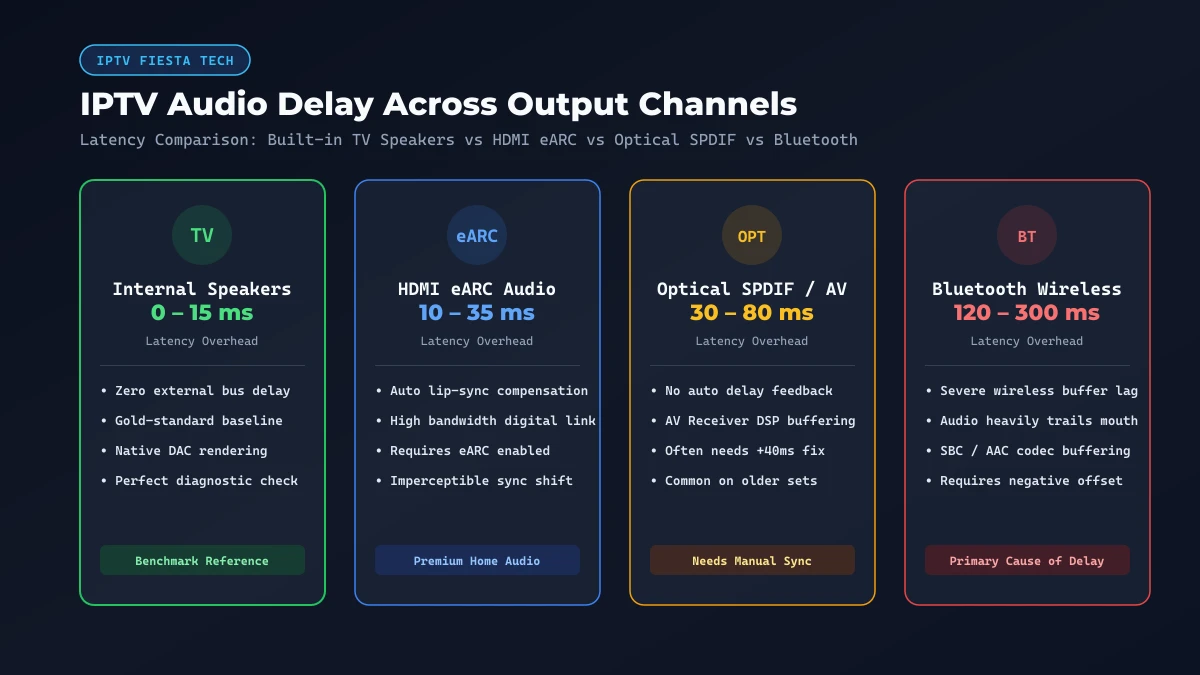 IPTV audio delay across TV speakers Bluetooth soundbar and HDMI
Fixing Bluetooth Latency
- Test TV Speakers: Turn off Bluetooth. If picture and sound align through built-in TV speakers, Bluetooth latency is confirmed.
- Apply a Negative Audio Offset: In players supporting audio offsets (TiviMate, OTT Navigator, VLC), configure a negative audio delay between -150ms and -250ms to neutralize wireless lag.
- Use Low-Latency Gear: Select headphones featuring aptX Low Latency (aptX-LL) or RF transmitters.
- Use Wired Audio: Wired 3.5mm or optical connections eliminate wireless buffer lag.
Can HDMI or a Soundbar Cause IPTV Lip-Sync Problems?
External soundbars and AV receivers introduce separate routing paths for video and sound:
- Video Path: Streaming device → HDMI cable → TV screen.
- Audio Path: Streaming device → HDMI cable → TV → eARC / Optical → Soundbar DSP → Speakers.
If a soundbar takes 50ms to process surround algorithms while the TV displays video without delay, audio lags. Conversely, if a TV takes 100ms to upscale video, audio arrives too early through the soundbar.
Equipment Isolation Steps
- Test Built-in TV Speakers: Disconnect or mute your soundbar. If TV speakers play in sync, the soundbar introduced the delay.
- Use HDMI eARC Instead of Optical: HDMI eARC features Auto Lip-Sync Correction, allowing equipment to negotiate timing automatically.
- Switch Soundbar to "Direct" Mode: DSP filters add processing time; switching soundbars to "Direct" mode minimizes buffering.
- Use Soundbar Audio Delay Sliders: Many soundbars feature AV Sync controls to tune delay in 10ms steps.
Can Internet Problems Cause IPTV Audio and Video Sync Issues?
Viewers often assume slow internet causes lip-sync errors. However, network instability produces distinct symptoms:
- Buffering: Video pauses completely while a loading circle spins.
- Stuttering: Video freezes while audio continues, or vice versa.
- Pixelation: Adaptive bitrates drop stream resolution.
Network packet jitter and bursty packet loss can disrupt synchronization:
- When packet jitter causes dropped video frames while audio continues, tracks desynchronize.
- Prolonged packet loss causes PTS clocks to drift.
If playback freezes alongside desync, see our guide on IPTV buffering causes and fixes.
Why Is IPTV Audio Out of Sync on Only One Channel?
When most channels sync properly but an isolated feed lags, your local hardware is functioning correctly.
In this scenario, the issue originates upstream at the broadcaster or provider encoder:
- Encoder Clock Drift: If source encoders suffer clock drift during satellite capture, feeds desynchronize at broadcast.
- Satellite Transponder Lag: Multiple satellite transponders can introduce uplink timing gaps between tracks.
- Live Transcoding Latency: Live 50fps to 60fps transcoding can shift timestamps under peak server loads.
How to Handle Single-Channel Desync
- Check Alternative Feeds: Switch to alternative versions (HD, FHD, 4K, or backup server) in your playlist.
- Do Not Alter Global Settings: Changing global settings to fix one feed desynchronizes working channels.
- Report to Support: Report the channel name, category, and observed offset to support. Never share passwords or private URLs.
Why Did IPTV Audio Sync Break After an App Update?
If lip-sync issues started immediately after an app update, check these factors:
- Reset Decoder Preferences: Updates often reset player configurations from Hardware (HW) decoding back to Software (SW) decoding.
- Audio Driver Changes: Driver updates between AudioTrack and OpenSL ES can introduce hardware latency.
- Corrupted App Cache: Stale cache files from prior updates disrupt playback timing loops.
- New Application Bugs: App updates may introduce timestamp regressions on select operating systems.
If an update caused desync, clear app cache and check what to do after an IPTV app update.
IPTV Audio Sync Troubleshooting Decision Tree
Use this mobile-friendly diagnostic decision tree to locate and resolve your IPTV synchronization problem:
IPTV AUDIO AND VIDEO OUT OF SYNC
│
├── Universal on ALL channels?
│   ├── NO  → Stream-specific: test backup feed or report to support
│   └── YES → Local hardware or configuration:
│       ├── Using Bluetooth / Soundbar?
│       │   ├── YES → Test TV speakers; if sync returns, switch to PCM or negative offset
│       │   └── NO  → Proceed to display & decoder settings
│       │
│       ├── Audio ahead of video? → Disable TV Motion Smoothing (MEMC) or enable Game Mode
│       ├── Video ahead of audio? → Switch audio to PCM or set negative audio offset (-ms)
│       └── Another player syncs? → Toggle player HW/SW decoder or clear app cache
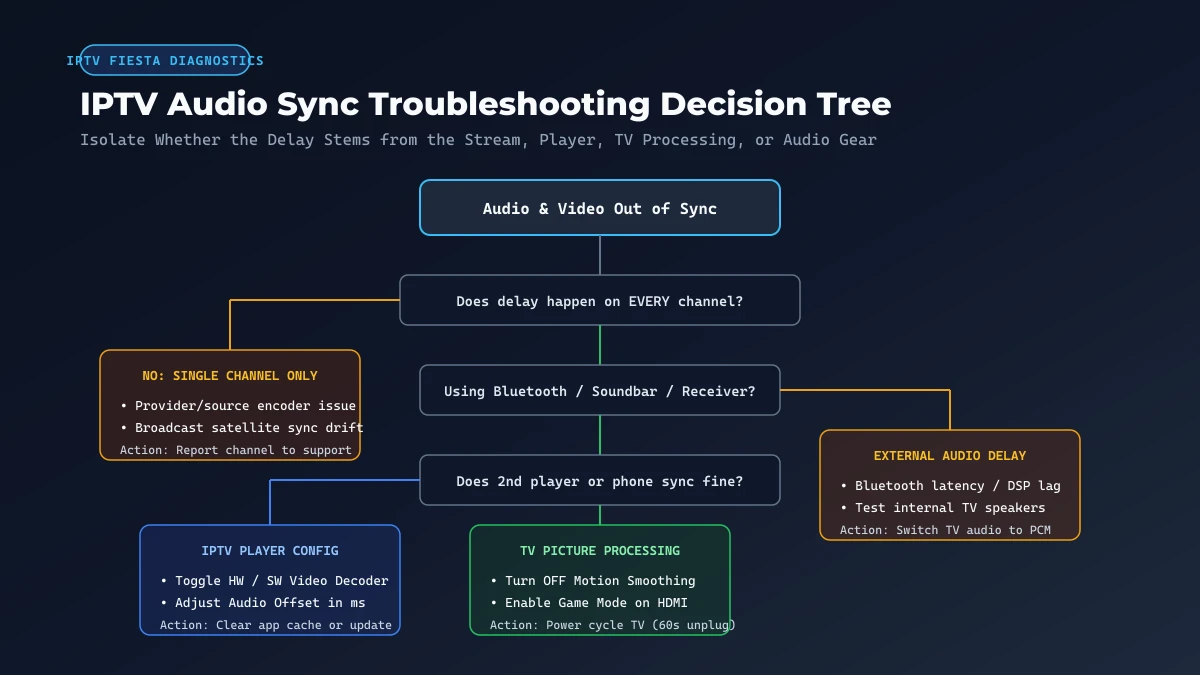 IPTV audio sync troubleshooting decision tree
IPTV Audio and Video Sync Quick Fix Checklist
Save this practical checklist to audit your streaming setup:
- Test 3 channels to confirm universal vs isolated delay.
- Play a VOD movie to verify pre-muxed audio timing.
- Switch to TV speakers to isolate soundbars and receivers.
- Disconnect Bluetooth to rule out wireless audio latency.
- Disable TV Motion Smoothing (MEMC, TruMotion) in picture settings.
- Enable Game Mode on HDMI input to minimize video processing delay.
- Set TV audio output to PCM instead of Dolby Digital.
- Adjust Audio Delay in player in 25ms increments using close-up dialogue.
- Enable Hardware (HW) Video Decoding in player settings.
- Power-cycle streaming device by unplugging power for 60 seconds.
- Power-cycle Smart TV to clear standby memory fragmentation.
- Test a secondary player like TiviMate, OTT Navigator, or VLC.
- Clear application cache in device application settings.
- Verify HDMI eARC settings and enable Auto Lip-Sync correction.
Frequently Asked Questions
Conclusion
Few technical issues ruin television enjoyment faster than dialogue lagging behind lip movements. Recognizing that IPTV audio and video out of sync is a timing calibration challenge rather than a fatal service failure enables you to isolate and eliminate the bottleneck efficiently.
By following the systematic diagnostics in this guide—identifying whether audio leads or lags, testing built-in TV speakers, disabling television motion processing, selecting hardware decoders, and fine-tuning player audio offsets—you can restore crystal-clear, synchronized playback across all your channels.
If you want a dependable entertainment service supported by enterprise-grade infrastructure, ultra-low-latency streams, and audio-visual fidelity across 50,000+ live channels and 200,000+ on-demand titles, explore IPTV FIESTA. Visit our Homepage to explore our features, review flexible Pricing plans, or check out our Installation Guides and FAQ. For broader playback diagnostics, explore our guides on how to improve IPTV picture quality, IPTV buffering causes and fixes, and how to test IPTV before buying. Optimize your setup today and enjoy television the way it was meant to be experienced!