How to Set Up IPTV on Smart TV in 2026: Complete Step-by-Step Guide
How to Set Up IPTV on Smart TV in 2026: Complete Step-by-Step Guide
Introduction
If you have recently purchased a new television or decided to upgrade your home entertainment system, you might be wondering how to start streaming live television without the hassle of traditional cable boxes. The good news is that modern Smart TVs are incredibly capable devices. Today, you can easily run IPTV directly through compatible IPTV player applications right on your television.
However, the exact process to get started depends entirely on the TV operating system you are using. Setting up a stream on a Samsung TV is not the same as setting it up on an LG TV, and both are different from configuring an Android TV or Google TV. Because of these differences, finding a clear, easy-to-follow guide can be challenging.
In this comprehensive guide, we will walk you through exactly how to set up IPTV on Samsung, LG, Sony, Android TV, and other compatible Smart TVs. We will explain how to identify your platform, choose the right player, and input your credentials. Whether you are using M3U playlists or Xtream Codes, we have you covered.
At IPTV FIESTA, we understand that getting started should be straightforward. As a premium provider, our goal is to ensure you have all the information you need to optimize your viewing experience. Let's dive in and transform your Smart TV into the ultimate entertainment center.
How to set up IPTV on Smart TV
What You Need to Set Up IPTV on a Smart TV
Before you start clicking around your TV menus or downloading applications, it is important to gather everything you need. Having the right tools and information ready will make the installation process much smoother and faster.
Here is exactly what you need to set up IPTV on a Smart TV:
- A Compatible Smart TV: You need a modern Smart TV (Samsung, LG, Sony, Philips, TCL, etc.) connected to the internet. The TV must have access to its respective application store.
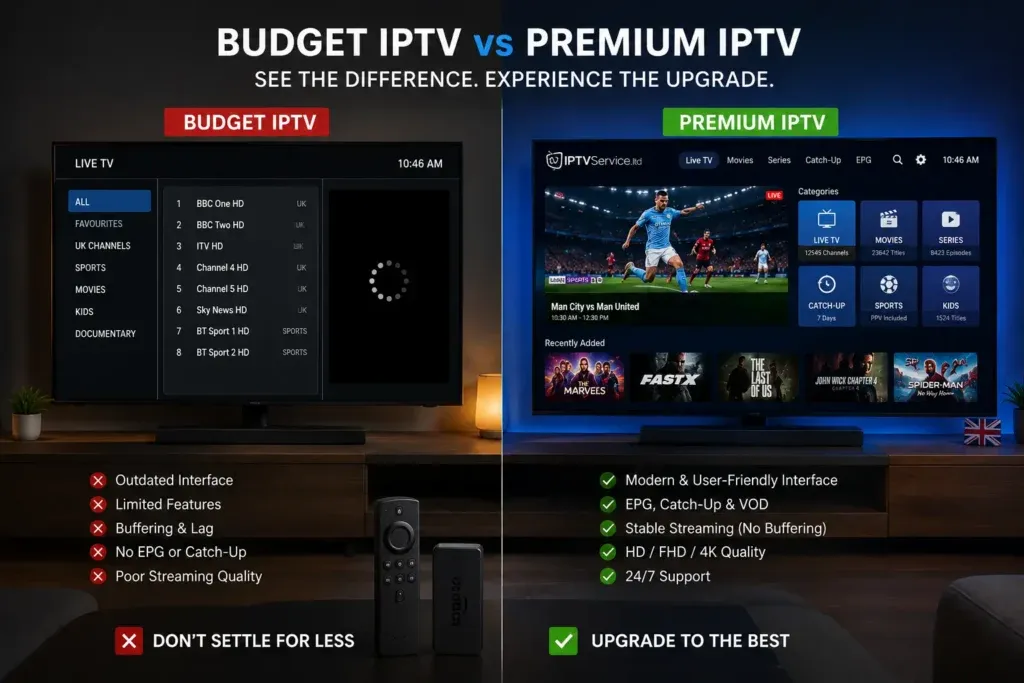
- Stable Internet Connection: A strong, stable internet connection is required. We highly recommend using an Ethernet cable rather than Wi-Fi if possible to reduce the chances of buffering. If you are experiencing connection drops, check out our guide on how to fix IPTV buffering.
- An IPTV Subscription/Account: You need an active account with a provider. The IPTV service provides the actual channels and content you will be watching. If you need a reliable provider, you can check out the IPTV FIESTA pricing plans.
- An IPTV Player Application: This is the software you install on your TV to actually watch the channels provided by your subscription. (More on how to choose this below).
- Login Credentials: When you sign up for an IPTV service, you will receive login details. This usually comes in the form of an M3U playlist URL or Xtream Codes (Username, Password, and Server URL). You must have this information ready to enter into the IPTV player.
It is important to remember that the exact login method depends on both the IPTV player you choose and your service configuration. Your IPTV provider will give you the specific details you need.
Upgrade Your Streaming Experience
Get access to 50,000+ live channels, 200,000+ VODs in 4K/FHD with zero buffering.
- 4K & Full HD Quality
- Anti-Buffer Technology
- All Smart TVs Supported
- Instant Activation
Step 1: Identify Your Smart TV Operating System
The first step in setting up IPTV is identifying the operating system (OS) running on your Smart TV. The OS dictates which application store you have access to, and consequently, which IPTV players you can install.
If you are unsure what OS your TV uses, here is a quick breakdown of the most common platforms:
Samsung
Modern Samsung Smart TVs run on an operating system called Tizen, and the interface you use to access apps is called the Smart Hub. Samsung has its own dedicated app store. While it does not have as many apps as Android TV, it supports several excellent IPTV players.
LG
LG Smart TVs operate on webOS. To download apps, you use the LG Content Store. Similar to Samsung, webOS is a closed system, meaning you can only install apps that LG has officially approved for their store. Fortunately, many top-tier IPTV players are available on webOS.
Sony
Sony Smart TVs are a bit different. Depending on the year your model was manufactured, it will likely use either Android TV or the newer Google TV. Both of these use the Google Play Store, giving you access to the widest variety of IPTV applications.
Android TV / Google TV
Many other brands, such as TCL, Hisense, and Philips, also use Android TV or Google TV. If your TV has the Google Play Store installed, you are running an Android-based system. This is generally considered the best platform for IPTV because of the massive app selection.
Understanding your platform is crucial because the available IPTV apps vary significantly by platform. An app that works perfectly on Android TV might not exist on a Samsung Smart TV.
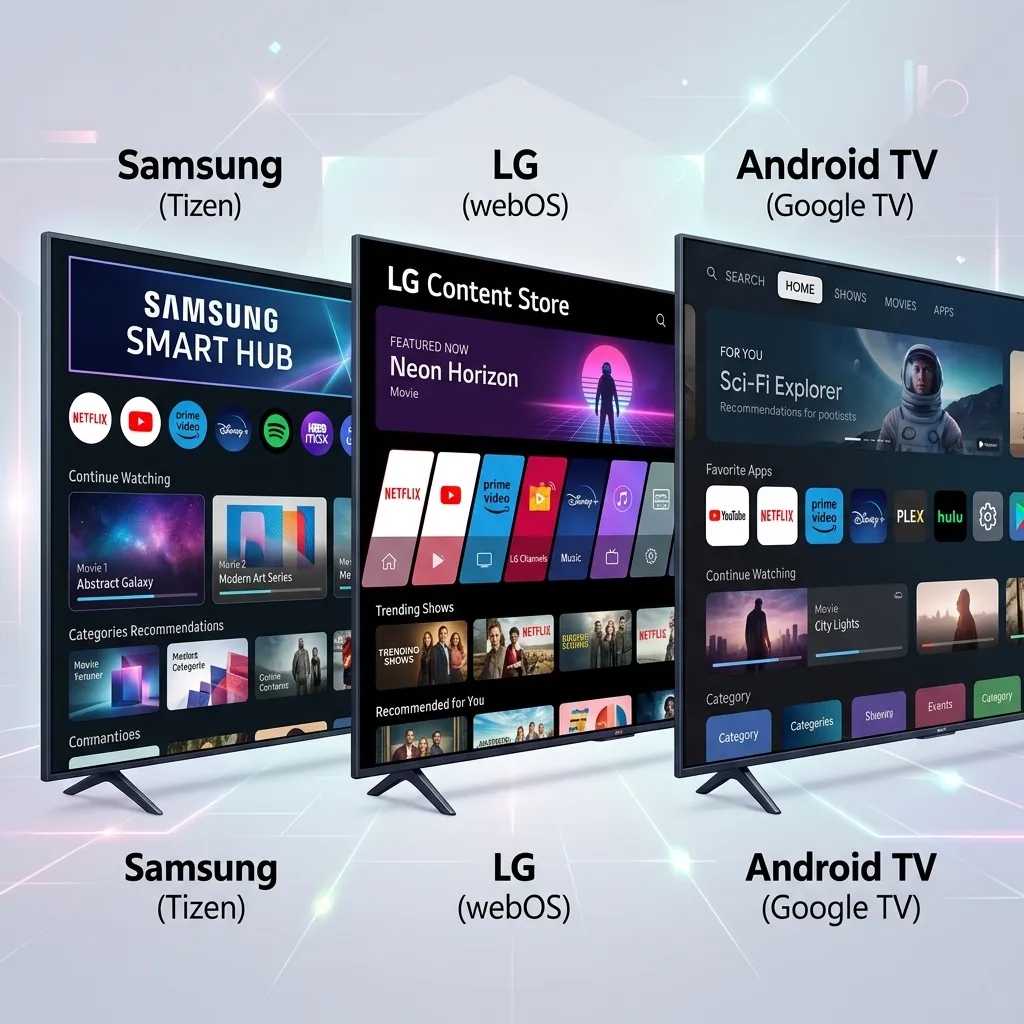 IPTV setup on Samsung LG and Android Smart TVs
Step 2: Choose a Compatible IPTV Player
Now that you know your TV's operating system, it is time to choose an IPTV player.
It is vital to understand the difference between an IPTV service and an IPTV player. The IPTV service provides the content (the live channels, movies, and series). The IPTV player is just a blank application; it contains no content of its own until you add your IPTV account details to it.
Based on the actual IPTV FIESTA compatible devices information, here are some of the most popular and reliable players available:
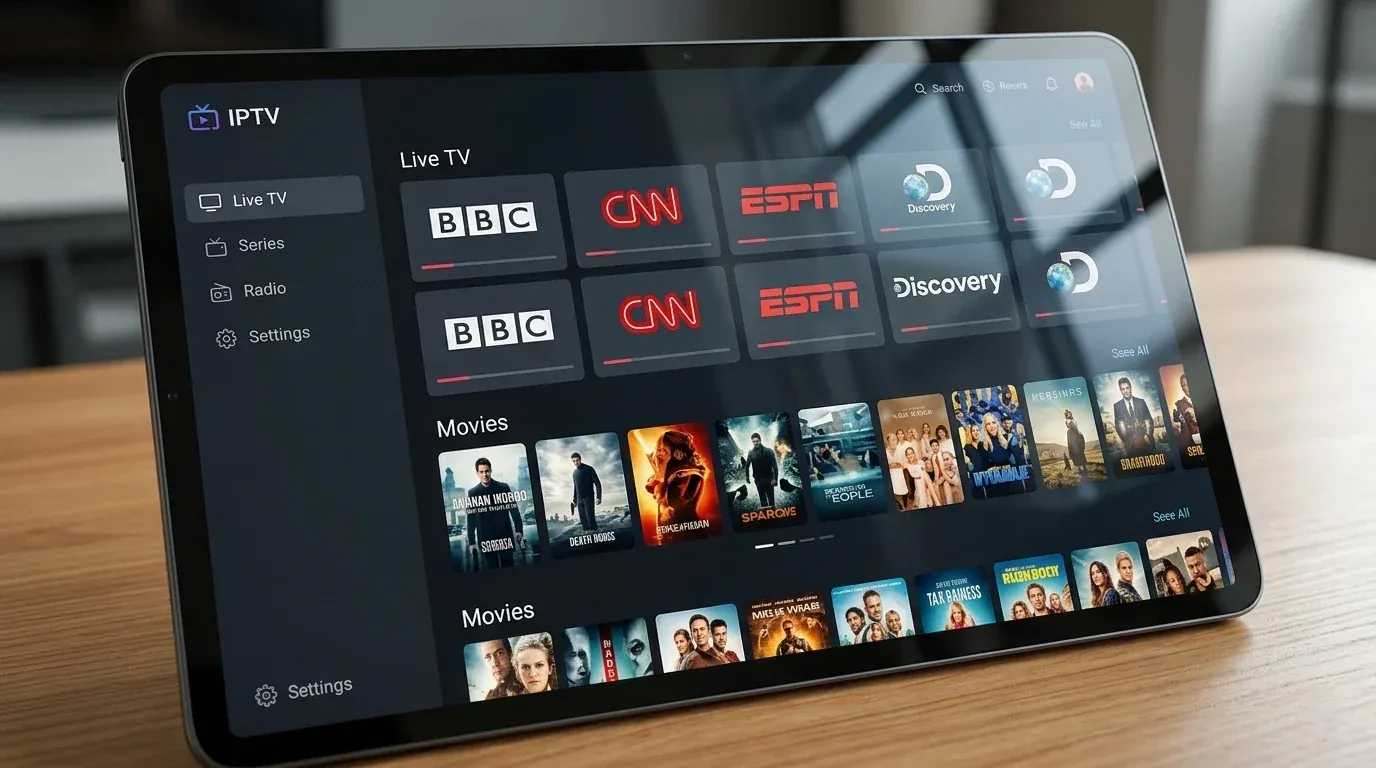
- IPTV Smarters / Smarters Player Lite: Available on almost all platforms (Samsung, LG, Android TV). It is incredibly beginner-friendly, supports Xtream Codes, and organizes Live TV, Movies, and Series into clear categories.
- TiviMate: Available exclusively on Android TV and Google TV (as well as Firestick). TiviMate is widely considered the best IPTV player available due to its premium, cable-like interface and advanced EPG (Electronic Program Guide) features. If you are using an Android-based TV, this is highly recommended. You can read more about it in our list of the Best IPTV Players for Android TV.
- IBO Player: A popular premium player available on Samsung and LG TVs. It requires a one-time activation fee but offers a very stable and clean interface.
- Flix IPTV: Another great option for Samsung and LG users, offering a modern interface and good subtitle support.
Do not claim that every app works on every Smart TV. Always distinguish between the Samsung/LG app stores (which have a more restricted selection) and Android TV/Google TV (which have the Google Play Store).
How to Set Up IPTV on Samsung Smart TV
If you own a Samsung Smart TV, the process is straightforward but requires you to use the specific apps available in the Samsung Smart Hub.
Here are the clear step-by-step instructions for Samsung Smart TVs:
- Turn on your TV and press the Smart Hub (or Home) button on your remote control.
- Navigate to Apps (usually an icon on the bottom menu bar).
- Select the Search icon (the magnifying glass) in the top right corner.
- Search for a compatible IPTV player. (For example, search for "Smarters Player Lite", "IBO Player", or "Flix IPTV").
- Select the application and choose Install.
- Once installed, Open the player.
- The app will ask you to choose an appropriate login or playlist method. Most apps will give you a Device MAC address to upload a playlist via a website, or they will allow you to log in directly using Xtream Codes.
- Enter the credentials provided by your IPTV service. If you are using the IPTV FIESTA IPTV service, we provide clear Xtream Codes details.
- Wait a few moments for the playlist and channels to load into the application.
- Open the Live TV or channel section and test several channels to ensure everything is working correctly.
If you cannot find the app you want, make sure your TV's region settings are correct, as some apps are geo-restricted by Samsung.
How to Set Up IPTV on LG Smart TV
LG Smart TVs use the webOS platform, which is very user-friendly. The setup process is similar to Samsung.
Here is how to set up IPTV on an LG Smart TV:
- Press the Home button on your LG Magic Remote.
- Navigate to and open the LG Content Store (or simply "Apps" on newer webOS versions).
- Use the Search icon (magnifying glass) at the top right of the screen.
- Search for a compatible IPTV player (e.g., "Smarters Player Lite", "IBO Player", "DuplexPlay").
- Select the app and click Install.
- Once the installation is complete, Launch the application.
- Add the IPTV account or playlist according to the player's supported method. Like Samsung, you may need to enter Xtream Codes directly or upload an M3U link via the app's website using a Device ID.
- Enter the provided credentials carefully. Double-check for typos!
- Wait for the playlist to download and process.
- Navigate to the Live TV section and test the streams. If your provider includes them, test the VOD (Video on Demand) movies and series as well.
How to Set Up IPTV on Sony Smart TV
The setup for Sony Smart TVs depends entirely on the operating system your specific model uses.
Most modern Sony Bravia TVs run on Google TV or Android TV. If your Sony TV has these, you are in luck, as you have access to the Google Play Store. If you have an older Sony TV running a proprietary Linux-based OS, your app choices will be severely limited, and you may need to use an external device like a Firestick. (See our guide on how to install IPTV on Firestick).
For Sony TVs running Google TV or Android TV:
- Navigate to the Home screen and open the Google Play Store. (On Google TV, you can just navigate to the "Apps" tab and select "Search for apps").
- Search for a compatible IPTV player. (We highly recommend searching for "TiviMate" or "IPTV Smarters Pro").
- Select the app and choose Install.
- Open the player once it finishes installing.
- Select the appropriate login method (Xtream Codes API is usually the easiest and fastest).
- Enter the IPTV credentials provided by your service.
- Click "Add User" or "Load Playlist".
- Test the playback by selecting a live channel.
How to Set Up IPTV on Android TV and Google TV
Whether you are using a TCL, Hisense, Philips, or an Nvidia Shield, the process for setting up IPTV on Android TV and Google TV is identical and very straightforward.
Here is the general process:
- Turn on your device and navigate to the Home Screen.
- Open the Google Play Store (or navigate to the Apps search bar).
- Search for a compatible IPTV player. Because you are on Android, you have access to the best apps, including TiviMate, OTT Navigator, and Smarters.
- Select Install to download the application to your TV.
- Launch the app.
- Select the supported login method. We recommend choosing "Log in with Xtream Codes API" if the app supports it, as it allows for easier EPG and VOD organization.
- Enter your credentials (Username, Password, and Server URL).
- Wait for the player to load the channels, movies, and series.
- Test Live TV to ensure the stream connects.
- Test VOD (Video on Demand) if available on your plan.
Remember, do not confuse an IPTV service with an IPTV player. The IPTV FIESTA service provides the high-quality content and your account credentials. The IPTV player (like TiviMate) is simply the application you use to access and watch that content.
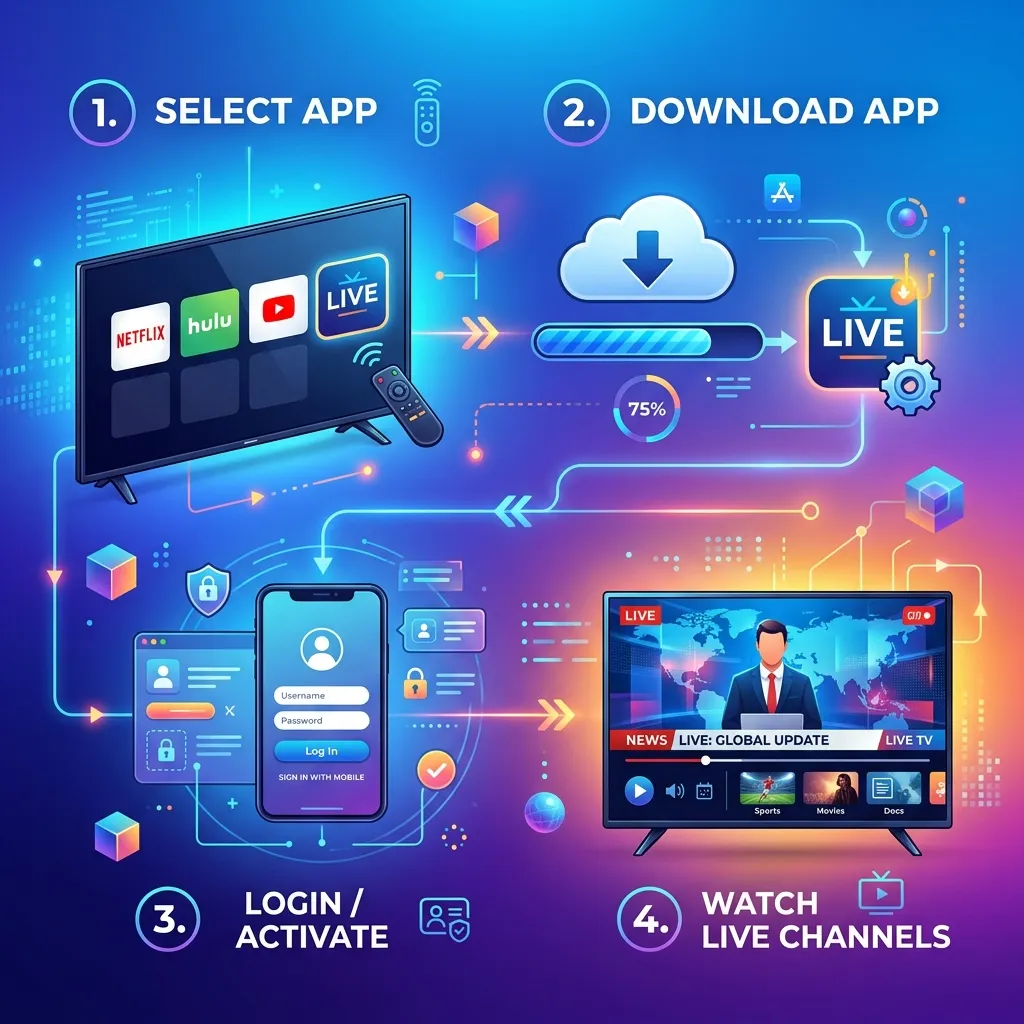 IPTV Smart TV installation and setup steps
Upgrade Your Streaming Experience
Get access to 50,000+ live channels, 200,000+ VODs in 4K/FHD with zero buffering.
- 4K & Full HD Quality
- Anti-Buffer Technology
- All Smart TVs Supported
- Instant Activation
How to Set Up IPTV FIESTA on a Smart TV
At IPTV FIESTA, we want to ensure you get the best possible experience when configuring your account on your Smart TV. The IPTV FIESTA setup process is designed to be compatible with almost every major Smart TV brand and IPTV player on the market.
When you subscribe to the Fiesta IPTV service, you will receive an email containing your unique login credentials. We provide both an M3U playlist URL and Xtream Codes details (Username, Password, and Server URL) to ensure maximum compatibility regardless of which TV or app you are using.
To set up iptvfiesta on your Smart TV:
- Download your preferred IPTV player from your TV's app store (e.g., Smarters Pro, TiviMate, or IBO Player).
- Open the app and select "Add New User" or "Xtream Codes API".
- Enter the exact Username, Password, and Server URL provided in your IPTV FIESTA welcome email.
- Click Login, and the app will instantly download our massive library of over 50,000 live channels and 200,000+ VODs.
If you ever run into trouble, our comprehensive IPTV FIESTA installation guide and our dedicated IPTV FIESTA support team are always available to help you get connected.
M3U vs Xtream Codes: Which Login Method Should You Use?
When setting up your player, you will usually be asked how you want to log in. The two most common methods are M3U and Xtream Codes. But what is the difference, and which one should a beginner use?
M3U Playlist
An M3U playlist is a long URL (web link) that contains the complete list of channels provided by your IPTV service.
- Pros: It works on almost every single IPTV player in existence.
- Cons: The URLs are incredibly long and prone to typing errors if you have to enter them manually using a TV remote. They also don't naturally separate Live TV from VOD in some older players.
Xtream Codes
Xtream Codes is an API login method that breaks the connection down into three simple pieces of information:
- Username
- Password
- Server URL (Portal URL)
- Pros: Much easier to type with a TV remote. It automatically organizes Live TV, Movies, and Series into separate, easy-to-navigate categories. It also handles EPG updates much better.
- Cons: Not every single app supports it (though almost all modern, high-quality apps do).
Verdict: If your IPTV player and service support it, you should always use Xtream Codes. It provides a much cleaner, more organized user experience.
Step 3: Load Your IPTV Channels
Once you have entered your credentials and clicked "Login" or "Add Playlist," the app needs a moment to download the data from the server.
Here is what to do next:
- Wait for the playlist to load: Depending on your internet speed and the size of the playlist (which can be massive), this can take anywhere from a few seconds to a couple of minutes. Do not interrupt the process.
- Open Live TV: Navigate to the Live TV section and browse the categories (e.g., Sports, News, Entertainment, International).
- Test channels: Select a few different channels in different categories to ensure they load quickly and play smoothly.
- Check VOD if available: If your subscription includes Movies and TV Shows, navigate to those sections and test playback.
- Check the EPG if supported: See if the TV Guide is populating with program information.
If your channels fail to load completely, you should consult our troubleshooting guide on IPTV channels not loading for quick fixes.
How to Get Better IPTV Performance on Smart TV
Setting up the app is only half the battle; ensuring the stream runs flawlessly is the other half. Smart TVs are fantastic, but they can sometimes struggle with heavy network demands if they are not optimized.
Here is how to optimize your Smart TV IPTV experience:
- Use Ethernet where supported: If your Smart TV has a LAN port, connect it directly to your router with an Ethernet cable. This provides a much more stable connection than Wi-Fi and significantly reduces buffering.
- Ensure Strong Wi-Fi: If you must use Wi-Fi, ensure the TV is connected to the 5GHz band (if close to the router) for faster speeds, and ensure there are no major physical obstructions blocking the signal.
- Close unnecessary applications: Smart TVs have limited RAM. If you have Netflix, YouTube, and an internet browser running in the background, close them to free up memory for your IPTV player.
- Keep TV software updated: Always install the latest firmware updates for your Smart TV, as these often include critical network and performance improvements.
- Keep the IPTV player updated: Check the app store periodically to ensure your player is running the latest version.
- Avoid unnecessary background traffic: If someone else in the house is downloading huge files or gaming, it will affect your stream.
- Test HD before 4K when troubleshooting: If a 4K channel is buffering, switch to the HD version of that channel to see if the issue is bandwidth-related. (For more on improving quality, see our guide on how to improve IPTV picture quality).
Do not fall for services that promise "zero buffering" under all circumstances. Buffering can happen due to internet fluctuations out of anyone's control. However, following the steps above will minimize it significantly.
How Much Internet Speed Do You Need for IPTV on Smart TV?
One of the most common questions we get is about internet speed. How fast does your connection really need to be?
The requirements vary depending on several factors:
- Video quality: 4K streams require vastly more data than Standard Definition streams.
- Stream bitrate: A high-quality, uncompressed stream uses more bandwidth.
- Network stability: Speed is useless if the connection constantly drops.
- Number of devices: Are you the only one using the internet, or is the whole family streaming at the same time?
- Wi-Fi conditions: Interference can effectively reduce your available speed.
As a general guideline:
- Standard Definition (SD): Minimum 5-10 Mbps.
- High Definition (HD / 1080p): Minimum 15-25 Mbps.
- 4K Ultra HD: Minimum 30-50 Mbps (ideally much higher for a buffer-free experience).
Remember that these are minimum requirements. For the best experience, especially if you have multiple devices connected to your network, we recommend an internet connection of at least 50-100 Mbps.
IPTV Not Working on Smart TV? Try These Fixes
Even with the best setup, you might occasionally run into issues. Here is a quick troubleshooting guide for common problems:
IPTV app does not open
If the app crashes or refuses to open, restart your TV completely (unplug it from the wall for 60 seconds, then plug it back in). Check for updates to the TV firmware and the app itself.
Channels do not load
If the app opens but the channels are empty, double-check your login credentials for typos. Verify that your subscription is active, and check your internet connection. (See: IPTV channels not loading: 10 things to check).
IPTV keeps buffering
Buffering is usually a network issue. Restart your router, switch to an Ethernet cable, and ensure no other devices are hogging the bandwidth. (See: IPTV buffering every few minutes: Causes and fixes).
Black screen
If you can hear audio but see a black screen, or if the channel simply won't load video, the player might be struggling to decode the stream. Try changing the decoder settings in your app (from Hardware to Software decoding, or vice versa), or test another channel.
Login fails
If you receive an "Invalid Details" or "Authorization Failed" error, carefully recheck your Username, Password, and Server URL. Pay attention to capital letters and avoid entering extra spaces. (See: IPTV login failed: Username, password and server URL fixes).
EPG does not appear
If the TV guide is blank, force the app to refresh or update the EPG data in the settings. Some apps require you to manually sync the guide the first time.
4K does not play
If 4K channels buffer or fail to play, check your TV's capability, your network stability, and ensure your internet speed is sufficient for the high bitrate.
IPTV works on another device but not Smart TV
If the service works perfectly on your phone but fails on the Smart TV, compare the network connections (is the phone on mobile data while the TV is on a weak Wi-Fi signal?) and check if the TV's processor is powerful enough to handle the app.
Smart TV App vs Firestick for IPTV
A common debate is whether it is better to use the apps built into a Smart TV or to buy an external streaming device like an Amazon Firestick.
Here is a balanced comparison:
- Built-in Smart TV Apps: The main advantage is convenience. You don't need extra remotes, you don't take up an HDMI port, and everything is centralized. However, older Smart TVs (especially Samsung and LG) often have slow processors that can struggle with large IPTV playlists, and their app stores have limited options.
- Amazon Firestick (or Android TV Box): External streaming devices are cheap, incredibly powerful for their size, and run on Android, giving you access to the best apps (like TiviMate). They are also very easy to replace and upgrade without having to buy a whole new television.
If your Smart TV is brand new and runs Android TV natively, you likely don't need a Firestick. However, if you have an older Samsung or LG TV and find the apps sluggish, investing in an external device is highly recommended. (To learn how to set one up, check out our guide on how to set up IPTV on Firestick in 2026).
Frequently Asked Questions
Conclusion
Setting up IPTV on a Smart TV in 2026 is easier than ever. By taking a few minutes to identify your Smart TV platform, install a compatible IPTV player, and carefully enter your credentials, you can transform your television into a powerful streaming hub.
Whether you are navigating the Samsung Smart Hub, the LG Content Store, or the Google Play Store, the key is choosing the right app and ensuring your home network is optimized for streaming. Connect via Ethernet if possible, double-check your Xtream Codes, and you will be watching your favorite live channels and movies in no time.
If you are ready to cut the cord and experience premium television, IPTV FIESTA is here to deliver. With our vast selection of channels, massive VOD library, and dedicated support, we make streaming simple and reliable. Visit our Homepage to explore our features, or check our FAQ if you have any more questions. Elevate your Smart TV experience today!