How to Improve IPTV Streaming Quality: 10 Ways to Get Smoother HD and 4K Playback
How to Improve IPTV Streaming Quality: 10 Ways to Get Smoother HD and 4K Playback
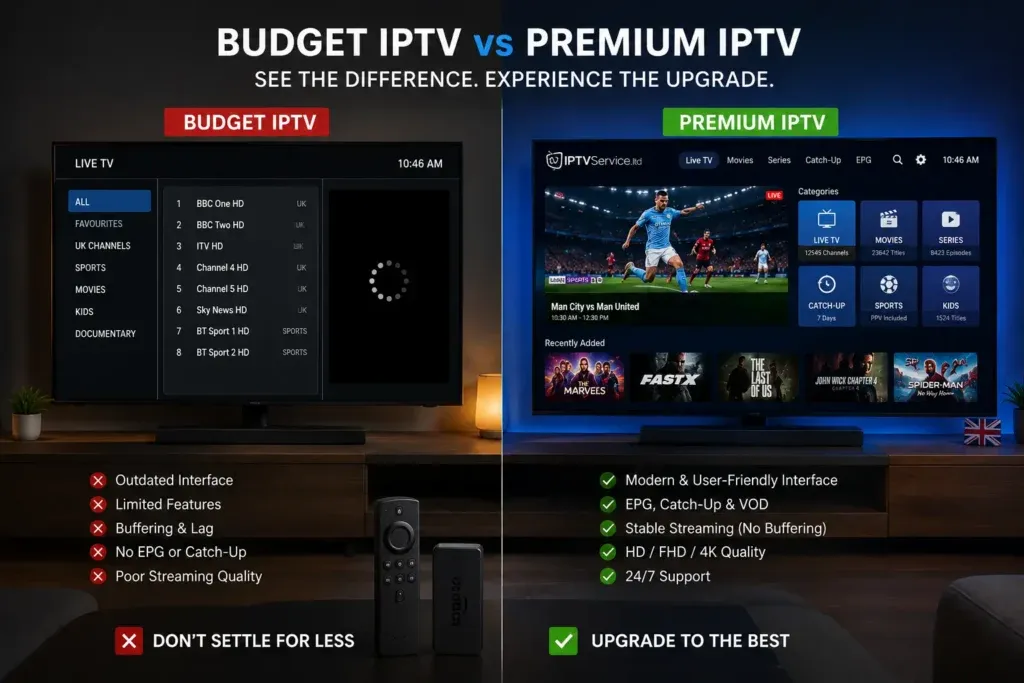
When setting up internet television, most users focus on getting channels to open and play. However, simply having a channel load is only half the battle. There is a vast difference between a video stream that stutters, pixelates, or drops resolution and one that delivers crisp, continuous high-definition or 4K playback. Few things ruin movie nights or live sports broadcasts faster than unexpected blurriness, frame drops, or constant buffering cycles.
If you are trying to improve IPTV streaming quality, understanding how video data travels from broadcasting servers to your living room display is essential. Delivering high-bitrate IPTV HD streaming—and especially demanding IPTV 4K streaming—requires far more than just a fast internet package. It demands network stability, low latency, adequate local hardware processing, proper player decoders, and minimal local congestion.
Whether you are experiencing occasional resolution drops or trying to optimize your system for 4K visuals, this comprehensive guide covers the root factors affecting IPTV playback quality. Below, we break down how internet speed, Wi-Fi signals, device capabilities, and application configurations interact—and provide 10 practical, proven methods to achieve smooth IPTV streaming on any device.
How to Improve IPTV Streaming Quality
What Determines IPTV Streaming Quality?
To effectively improve IPTV performance, you must first understand the complete technical chain involved in delivering live and on-demand video over the internet. Unlike traditional satellite or cable broadcasts, internet television splits video streams into digital data packets sent across IP networks.
The final visual quality and smoothness on your screen depend on several key factors:
- Internet Bandwidth: The maximum rate of data transfer available on your connection. Higher resolutions require higher sustained bitrates.
- Connection Stability: Freedom from packet loss and sudden bandwidth drops. A stable 30 Mbps line streams IPTV far better than an erratic 300 Mbps connection that drops packets.
- Latency & Jitter: The time it takes for data packets to travel from the server to your device (latency) and the variability in arrival time (jitter).
- Wi-Fi Signal Quality: Interference, wall obstacles, and distance between your router and streaming box can cause silent data re-transmissions.
- Ethernet vs. Wi-Fi: Physical wire connections eliminate wireless interference, offering consistent throughput and minimal latency.
- Device Hardware (CPU/GPU): Streaming hardware must process incoming video packets, decompress codecs (like H.264 or HEVC), and render frames in real time.
- IPTV Player Optimization: Software video decoders, render engines, and buffer memory allocation vary significantly between applications.
- Video Resolution & Encoding Bitrate: The original quality at which the source channel is encoded by the broadcaster or provider.
- Codec Compatibility: Whether your streaming box supports hardware decoding for modern video formats.
- Server/Provider Infrastructure: The capacity, bandwidth, and load balancing of your IPTV service distribution nodes.
- Local Network Congestion: Other devices on your home network competing for bandwidth simultaneously.
A crucial point to remember is that higher bandwidth alone does not guarantee better streaming if your connection is unstable. Even a gigabit connection will experience IPTV streaming problems if your Wi-Fi signal drops packets or your streaming stick overheats and throttles its processor.
How Much Internet Speed Do You Need for IPTV?
One of the most common questions regarding IPTV internet speed is how much bandwidth is required for reliable playback. While internet service providers advertise peak download speeds, internet television requires sustained, uninterrupted throughput.
Here are practical guidelines for the best internet speed for IPTV based on streaming resolution:
| Streaming Quality | Video Resolution | Minimum Speed (Single Device) | Recommended Speed (Household) |
|---|---|---|---|
| Standard Definition (SD) | 480p / 576p | 3 Mbps – 5 Mbps | 15 Mbps – 25 Mbps |
| High Definition (HD) | 720p / 1080i | 8 Mbps – 12 Mbps | 30 Mbps – 50 Mbps |
| Full HD (FHD) | 1080p (60fps) | 15 Mbps – 25 Mbps | 50 Mbps – 100 Mbps |
| Ultra HD (4K) | 2160p (HEVC/H.265) | 30 Mbps – 50 Mbps | 100 Mbps + |
 Internet Speed and Network Connection for IPTV
Understanding Household Bandwidth Overhead
The speed numbers listed above represent the actual bandwidth dedicated to a single active IPTV stream. However, modern homes rarely have only one connected device active at a time.
When calculating your household speed requirements, consider how other network activities consume bandwidth in the background:
- Concurrent Video Streaming: Family members watching Netflix, YouTube, or secondary TV streams in other rooms.
- Large File Downloads & Game Updates: Console updates (PlayStation, Xbox) or PC downloads that max out your connection unexpectedly.
- Work & Video Calls: Zoom or Microsoft Teams sessions consuming both upload and download bandwidth.
- Cloud Backups & Smart Home Devices: Automated photo and security camera uploads occupying upstream bandwidth.
- Online Gaming: Requires ultra-low latency and consistent packet delivery, competing with video buffering queues.
If multiple people share your internet connection, having a total household subscription of 100 Mbps or higher ensures that background network activity won't degrade your IPTV video quality.
Upgrade Your Streaming Experience
Get access to 50,000+ live channels, 200,000+ VODs in 4K/FHD with zero buffering.
- 4K & Full HD Quality
- Anti-Buffer Technology
- All Smart TVs Supported
- Instant Activation
10 Ways to Improve IPTV Streaming Quality
If your streams suffer from unexpected pixelation, frame drops, or resolution degradation, apply these 10 practical optimization techniques to improve IPTV quality and stability.
1. Test Your Internet Connection
Before tweaking app configurations, measure your actual connection parameters from the exact streaming device you use for watching television. Running a speed test on a phone standing next to the router will not reflect the connection quality of a Firestick tucked behind a wall-mounted TV.
Focus on five key metrics:
- Download Speed: Ensure sustained download speed meets the minimum recommendation for your target resolution.
- Upload Speed: Inadequate upload speeds can delay request acknowledgments and cause stream stalling.
- Latency (Ping): Lower ping (under 50ms) ensures faster channel switching and quicker buffer initiation.
- Jitter: High jitter (variations in latency) indicates network instability, leading to frame stuttering.
- Packet Loss: Packet loss should ideally be 0%. Any packet loss above 1% will cause visible artifacts or buffering.
If your device test shows high jitter or packet loss, your local network environment—rather than your overall ISP speed—is likely the root cause of your IPTV buffering and quality issues.
2. Use Ethernet Instead of Wi-Fi When Possible
Wireless Wi-Fi signals are inherently prone to environmental interference, signal attenuation, and radio congestion. Connecting your streaming box directly to your router using a Cat6 Ethernet cable is the single most effective hardware upgrade you can make to improve IPTV performance.
Wired Ethernet connections provide several critical advantages:
- Zero Wireless Interference: Unaffected by neighboring Wi-Fi networks, Bluetooth devices, or household electronics.
- Consistent Throughput: Delivers constant, unvarying data speeds without sudden drops.
- Ultra-Low Latency: Eliminates latency spikes caused by wireless packet retries.
- Superior 4K Stability: High-bitrate 4K streams remain rock-solid over copper wiring.
If your streaming device lacks a built-in Ethernet port, USB Ethernet adapters are widely available to enable wired connectivity.
3. Improve Your Wi-Fi Signal
If connecting via Ethernet cable is physically impractical, taking active steps to optimize your IPTV Wi-Fi connection can dramatically enhance streaming stability:
- Switch to the 5 GHz Frequency Band: The 5 GHz band offers significantly faster speeds, wider bandwidth, and less interference—making it ideal for IPTV HD streaming and 4K playback.
- Reposition Your Wireless Router: Place your router in a central, elevated position away from concrete walls and metal appliances.
- Reduce Physical Obstacles: Heavy masonry and mirrors reflect Wi-Fi signals, degrading data integrity.
- Select an Uncongested Wi-Fi Channel: Use a network analyzer tool to identify overlapping neighboring networks and manually assign your router to a clear channel on 5 GHz.
- Upgrade to Modern Wi-Fi Standards: Ensure both router and streaming hardware support Wi-Fi 5 (802.11ac) or Wi-Fi 6 (802.11ax).
- Consider a Mesh Wi-Fi Network: If your TV is far from your gateway, a multi-node mesh system provides high-speed coverage without signal dead zones.
4. Reduce Network Congestion
Home networks are shared environments. When multiple devices download data simultaneously, router queues fill up, causing packet delays for time-sensitive video streams.
To minimize local network congestion during peak viewing hours:
- Schedule Large Downloads: Configure game consoles, computers, and cloud backups to update during off-peak night hours.
- Enable Quality of Service (QoS): Access your router's panel and enable QoS. Prioritize your streaming device's MAC address so the router gives IPTV packets priority over background downloads.
- Disconnect Unused Devices: Turn off Wi-Fi on idle laptops or tablets syncing cloud data in the background.
5. Restart Your Router and Streaming Device
Over weeks of continuous operation, electronic devices accumulate temporary memory fragmentation and stale network leases. A routine power cycle clears these temporary bottlenecks and restores peak performance:
- Unplug your router and modem from the power outlet.
- Unplug your streaming device (Firestick, Android Box, or Smart TV).
- Wait 60 seconds to allow internal capacitors to discharge fully.
- Plug the modem and router back in and wait 2 to 3 minutes until status lights solidify.
- Power on your streaming device, launch your IPTV app, and test playback.
While restarting is a basic maintenance step rather than a cure for fundamental network deficiencies, it frequently resolves sudden frame drops or unresponsive applications.
6. Check Your IPTV Player Settings
The application you use to play IPTV streams plays a major role in how video data is buffered and rendered. Popular apps (such as TiviMate, IPTV Smarters, Sparkle TV, or OTT Navigator) offer advanced menus that directly influence IPTV playback quality:
- Buffer Size (Stream Buffer Length): Adjusting buffer memory determines how many seconds of video the app pre-loads. A larger buffer (Medium / Large) adds 5 to 10 seconds of safety cushion, absorbing temporary network drops to maintain smooth IPTV streaming.
- Video Decoder Selection: Most modern players offer choices between Hardware (HW), Hardware+ (HW+), and Software (SW) decoders.
- Resolution & Frame Rate Matching (AFR): Allows the player to switch your TV's display refresh rate (e.g., 50Hz, 60Hz) to match the broadcast source, eliminating motion jitter.
Note: Application interfaces and available options vary between IPTV players. Always consult your player's documentation when adjusting internal settings.
7. Use Hardware Acceleration When Supported
Video files rely on compression standards (such as H.264 or HEVC/H.265) to shrink raw video feeds into manageable streams. To play these streams, your device must decode compressed data back into visual frames:
- Hardware Decoding (HW Acceleration): Dedicated visual processing chips inside your device handle the heavy mathematical lifting of video decompression. Hardware decoding is fast, power-efficient, and renders 4K 60fps video effortlessly.
- Software Decoding (SW Decoding): The general-purpose CPU handles decompression through code. Software decoding consumes massive processing power, generates heat, and frequently causes dropped frames or stuttering on 1080p and 4K streams.
Optimization Tip: Ensure Hardware Acceleration is set to "ON" or "Hardware (HW)" in your IPTV player's settings. The only exception occurs when playing rare legacy video formats unsupported by your hardware chip.
8. Make Sure Your Device Can Handle HD and 4K
Even with gigabit fiber internet and a flawless router setup, an underpowered streaming box will become a severe bottleneck for IPTV 4K playback:
- Processor (CPU/GPU): Budget streaming sticks with slow processors often struggle to decompress high-bitrate 60fps streams, leading to visual lag.
- System RAM: Devices with less than 2GB of RAM frequently run out of memory when handling large playlist guides and 4K buffers simultaneously.
- Internal Storage Space: Storage filled past 90% capacity limits the OS ability to create temporary swap files, causing system slowdowns.
- HDMI Port Standards: To view true 4K at 60Hz with HDR, your TV's HDMI port and cable must support HDMI 2.0 or HDMI 2.1 standards.
If you are using an older streaming stick or Smart TV built before 2020, upgrading to a modern 4K device (such as an Amazon Fire TV Stick 4K Max, Apple TV 4K, or Nvidia Shield TV) will instantly solve hardware performance limits. For detailed device setup recommendations, read our guide on how to Set Up IPTV on Firestick in 2026.
9. Keep Your IPTV App and Device Updated
Software developers continuously update streaming applications and device operating systems to improve video rendering engines, optimize memory usage, patch security vulnerabilities, and enhance codec support:
- Enable Automatic App Updates: Ensure your IPTV player receives the latest stability patches from official app stores.
- Check Device System Firmware: Regularly navigate to your device settings (Settings > System > About > Check for Updates) to install OS upgrades.
- Download Apps Only From Legitimate Sources: Download IPTV player applications exclusively from verified app stores (Google Play Store, Amazon Appstore, or official developer sites). Never install unverified APK files from unknown third-party websites.
If you recently updated your app and experienced issues, see our guide on troubleshooting IPTV Not Working After an App Update.
10. Check Whether the Problem Is the IPTV Service
If you have executed all local optimization steps and continue to experience low visual quality or constant stuttering, the issue may originate from the IPTV provider's infrastructure rather than your local setup:
| Symptom Pattern | Problem Origin | Primary Cause |
|---|---|---|
| Only 1 device stutters, while other devices stream fine on the same home network. | Local Device / Wi-Fi | Weak Wi-Fi, underpowered hardware, or bad app settings. |
| All channels stutter on 1 app, but load smoothly in a secondary IPTV player app. | Local Application | Corrupted app cache or incorrect decoder configuration. |
| Streams buffer on Wi-Fi, but play smoothly when connected via Ethernet or mobile hotspot. | Local Network / ISP | Wi-Fi interference or ISP bandwidth throttling. |
| All channels buffer across multiple devices, apps, and different network connections. | IPTV Service Provider | Server congestion, inadequate CDN capacity, or provider outage. |
If diagnostic testing proves the issue is server-side, contact your IPTV service's support team. To learn how to test service stability before committing to a plan, consult our guide on How to Test IPTV Before Buying a Subscription.
How to Improve IPTV 4K Streaming
Streaming video in true 4K Ultra HD (2160p resolution) requires transmitting four times as many pixels as standard 1080p Full HD. Because 4K streams carry exceptionally high bitrates, minor network fluctuations that go unnoticed during regular HD viewing will cause noticeable stuttering in 4K.
 Wi-Fi vs Ethernet Connections for IPTV
To ensure smooth IPTV 4K streaming, verify that your setup meets every item on this 4K readiness checklist:
- Sustained 40+ Mbps Bandwidth: Ensure actual connection speed at the streaming device consistently exceeds 40 Mbps.
- Direct Wired Ethernet or 5 GHz Wi-Fi: Never attempt 4K streaming over legacy 2.4 GHz Wi-Fi networks.
- Dedicated 4K Hardware Box: Use modern devices equipped with hardware HEVC/H.265 decoders (e.g., Firestick 4K Max, Nvidia Shield, or Apple TV 4K).
- HDMI 2.0 / HDCP 2.2 Compliant Display: Ensure your TV's HDMI port supports 4K at 60Hz.
- Correct Display Output Settings: Set your device video output to 2160p at 60Hz or enable "Auto-Match Frame Rate."
- Hardware Video Decoder Enabled: Set your player's video decoder to "Hardware (HW)."
- Minimal Local Congestion: Pause large household downloads while streaming 4K content.
Note: Be aware that not all streams labeled "4K" by third-party sources are native 4K broadcasts. Genuine 4K broadcasts require legitimate high-bitrate source feeds from the original broadcaster.
IPTV HD vs 4K — What Makes the Difference?
Understanding the technical differences between High Definition (HD) and Ultra High Definition (4K) helps explain why 4K requires a significantly more robust home setup:
| Factor | High Definition (HD / 1080p) | Ultra High Definition (4K / 2160p) |
|---|---|---|
| Pixel Resolution | 1920 x 1080 (2.07 Million Pixels) | 3840 x 2160 (8.29 Million Pixels) |
| Typical Bitrate | 5 Mbps – 12 Mbps | 18 Mbps – 45 Mbps |
| Compression Codec | H.264 (AVC) | HEVC / H.265 or AV1 |
| Bandwidth Overhead | Low to Moderate | High |
| Minimum Hardware Need | Basic Quad-Core CPU / 1GB RAM | Modern 4K SoC / 2GB+ RAM / HEVC Chip |
| Sensitivity to Packet Loss | Moderate (Can buffer briefly) | High (Prone to immediate stalling) |
While HD streaming is forgiving of minor Wi-Fi drops, 4K streaming demands near-perfect data delivery to maintain continuous frame rendering.
Upgrade Your Streaming Experience
Get access to 50,000+ live channels, 200,000+ VODs in 4K/FHD with zero buffering.
- 4K & Full HD Quality
- Anti-Buffer Technology
- All Smart TVs Supported
- Instant Activation
Why IPTV Can Look Worse Than Other Streaming Apps
Users sometimes notice that live IPTV channels look slightly less sharp than content on mainstream platforms like Netflix or Apple TV+, even when both display a "1080p" label.
Perceived visual quality depends on several factors beyond basic pixel resolution:
- Source Capture Quality: Commercial streaming platforms host static, pre-rendered file packages encoded directly from studio master prints. Live IPTV channels capture dynamic, real-time broadcasts that are compressed on the fly.
- Encoding Bitrate: A 1080p stream encoded at 3 Mbps will look noticeably blocky compared to a 1080p stream encoded at 10 Mbps. Higher bitrates preserve fine detail, motion clarity, and color depth.
- Compression & Artifacts: Complex motion scenes (such as fast-moving live sports) require high bitrates. If compression is too aggressive, macroblocking (pixelated blocks) appears around moving objects.
- Device Video Scaling: When displaying a 720p or 1080p stream on a giant 4K TV, your TV or streaming box must "upscale" the image. Low-quality upscaling processors introduce blurriness and soft edges.
- Display Calibration: Incorrect TV sharpness settings, aggressive noise reduction filters, or improper motion smoothing can degrade overall visual quality.
The final picture quality on your display is determined by the weakest link in the entire streaming chain—from the original broadcaster's encoder down to your TV's picture settings.
IPTV Quality Is Good but Keeps Buffering
It is important to differentiate between poor picture quality (blurry images, low resolution, color artifacts) and buffering/stalling (the video pauses with a spinning loading circle).
- Poor Picture Quality is primarily caused by low source bitrate, aggressive video compression, or incorrect display scaling. The stream plays continuously without stopping, but looks soft or pixelated.
- Buffering and Stalling is caused by data delivery bottlenecks. The player's buffer memory empties faster than new video packets arrive from the network, forcing playback to pause while waiting for data.
Quick Buffering Diagnostic Checklist:
- Is video quality crisp right until it stops? This indicates a network transport issue (packet loss, Wi-Fi drop, or ISP throttling).
- Does buffering happen on every channel or only live sports? Live sports experience high viewer concurrency, which can strain server bandwidth.
- Does buffering vanish when switching from Wi-Fi to Ethernet? This confirms your local Wi-Fi signal was dropping packets.
If your primary issue is frequent playback interruption rather than visual blurriness, follow our step-by-step diagnostic guide on IPTV Buffering Every Few Minutes: Causes and Fixes.
IPTV Picture Is Blurry or Low Quality
If your video stream plays continuously without buffering but looks noticeably blurry, pixelated, or washed out, review these root causes and solutions:
- Automatic Quality Auto-Downgrade: Some IPTV players automatically switch to lower-resolution streams when network bandwidth dips. Fix this by manually selecting the highest resolution stream in player options.
- Low-Resolution Source Broadcast: Increasing your television's resolution setting to 4K cannot magically create detail that does not exist in a 480p or 720p source feed.
- Aggressive Display Motion Smoothing: Disable "Motion Interpolation" or "TruMotion" in your TV settings, as artificial frame insertion creates digital halos and blur around fast-moving objects.
- Adjust TV Sharpness Settings: Excessively high TV sharpness settings create harsh white edges around objects, while setting sharpness to 0 can make HD feeds look soft. Set TV sharpness to a neutral baseline (typically 10-15%).
Best Setup for Smooth IPTV Streaming
To achieve optimal, reliable streaming performance, organize your home setup according to this recommended hardware topology:
High-Speed Internet (50+ Mbps) → Router (5 GHz / QoS Enabled) → Cat6 Ethernet Cable → 4K Streaming Box (2GB+ RAM) → HDMI 2.0 Cable → 4K Smart TV
 Smooth 4K IPTV Playback Setup
By ensuring every component along this pipeline meets modern performance standards, you eliminate bottlenecks and guarantee smooth, high-definition entertainment.
Quick IPTV Streaming Quality Checklist
Save this quick reference checklist to audit your streaming quality whenever performance degrades:
- Test internet speed directly on your streaming device (verify 25+ Mbps for HD, 50+ Mbps for 4K).
- Check latency and packet loss (ensure packet loss is 0%).
- Connect via Ethernet cable or switch Wi-Fi to the 5 GHz band.
- Reposition router closer to the streaming device and clear physical obstacles.
- Reduce network congestion by pausing background downloads on other devices.
- Power cycle router and streaming device (unplug for 60 seconds).
- Increase buffer size in your IPTV player app settings.
- Enable Hardware Acceleration (HW) in player video decoder options.
- Update IPTV player app and streaming box operating system to the latest versions.
- Test a secondary IPTV player to determine whether issues are app-specific or server-side.
Frequently Asked Questions
Conclusion
Achieving smooth, crisp, high-definition internet television is not a matter of luck—it is the result of optimizing every link in your streaming pipeline. When you take control of your network environment, hardware capabilities, and player configurations, you eliminate the technical bottlenecks that cause IPTV streaming problems.
By following the 10 proven methods outlined in this guide—from switching to wired Ethernet and configuring 5 GHz Wi-Fi to enabling hardware video decoding and managing household bandwidth—you can enjoy seamless IPTV HD streaming and vibrant 4K visuals every time you power on your television.
If you are looking for a reliable, high-performance streaming service with uncompressed HD channels, 4K capabilities, and rock-solid uptime, discover IPTV FIESTA. Explore our Homepage to see our full feature lineup, review our Pricing plans, or check out our setup guides for Firestick and Smart TVs. If you ever run into TV guide issues, visit our diagnostic guide on IPTV EPG Not Working in 2026. Upgrade your streaming setup and enjoy flawless playback today!