IPTV EPG Not Working in 2026: Causes, Fixes and How to Get the TV Guide Back
IPTV EPG Not Working in 2026: Causes, Fixes and How to Get the TV Guide Back
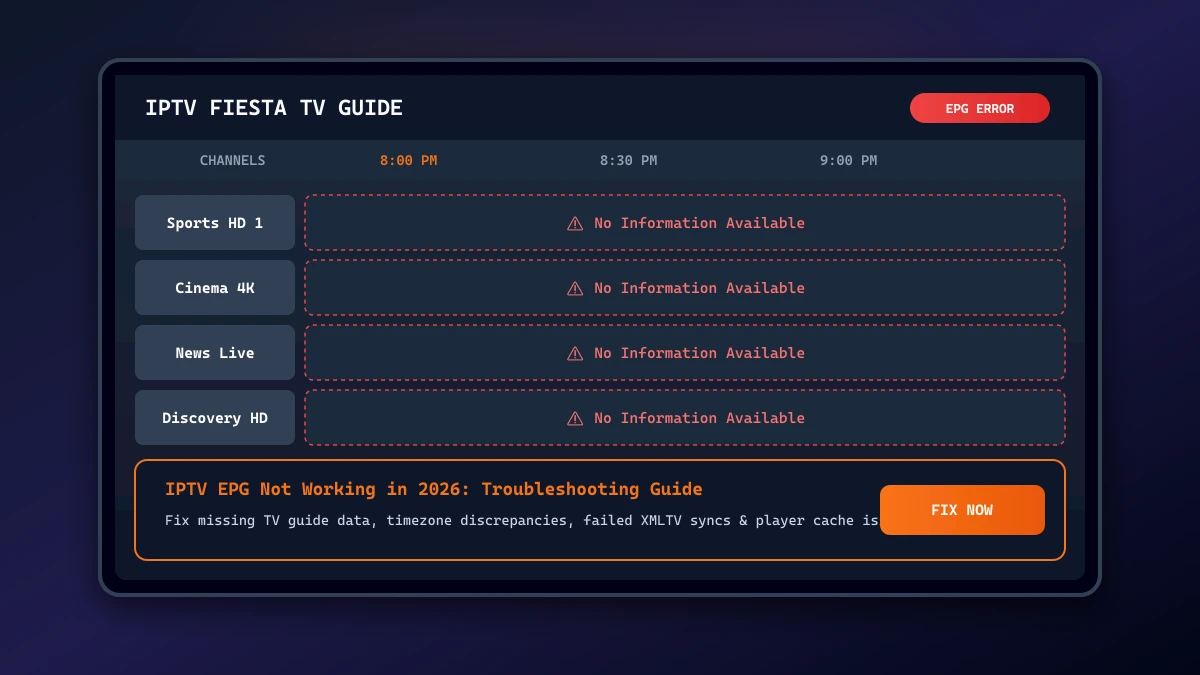
When you launch your IPTV player and scroll through the channel list, you expect to see an organized schedule showing what is currently broadcasting and what comes next. However, few streaming issues are more frustrating than opening your electronic program guide (EPG) only to find a blank grid, a wall of "No Information" tags, or program schedules shifted by several hours.
When your IPTV EPG is not working, browsing through live channels turns into an inconvenient guessing game. You are forced to click into channels individually just to discover what is playing. Fortunately, an IPTV TV guide not working rarely indicates a broken IPTV service. In most cases, EPG failures result from client-side configuration mismatches, corrupted app caches, unsynchronized device clocks, or temporary XMLTV feed synchronization delays.
Understanding what EPG means, how guide data is delivered independently from video streams, and how to execute systematic troubleshooting will allow you to quickly restore your TV guide. In this guide for 2026, we will walk you through the root causes behind IPTV EPG problems, step-by-step diagnostic fixes, timezone adjustments, and best practices to keep your IPTV program guide updated and running smoothly.
IPTV EPG Not Working in 2026
What Is an IPTV EPG?
An EPG (Electronic Program Guide) is the digital metadata menu system integrated into modern IPTV streaming applications and TV receivers. It replaces printed TV guides with a real-time, interactive visual grid displayed on your screen.
The primary function of an EPG is to collect, format, and display programming metadata. When an EPG functions properly, it provides viewers with:
- Current and Upcoming Programs: Real-time schedule information on what is currently airing and what is scheduled next.
- Channel Identification: Clear channel names, network logos, and call signs.
- Program Synopses: Episode summaries, movie overviews, and sports matchup details.
- Broadcasting Timeframes: Exact start times, end times, and duration progress bars.
- Category Filtering: Quick navigation across news, sports, entertainment, movies, and international groups.
In IPTV architecture, the EPG is processed as a separate data stream from the video content. While live video streams travel via high-bandwidth media protocols (such as HLS or MPEG-TS), EPG data is transmitted as XML metadata (commonly through an XMLTV EPG file or API endpoint). Because video and EPG metadata travel via separate channels, your channels can continue playing with perfect video quality even when the IPTV EPG is not working at all.
The availability and accuracy of your IPTV channel guide depend on the schedule data supplied by your IPTV provider and how effectively your IPTV player parses that information. To learn how IPTV players handle playlist data, explore our guide on the Best IPTV Players for Android TV in 2026.
What Does It Mean When the IPTV EPG Is Not Working?
When users report that their IPTV EPG is not showing, the issue can manifest in several distinct ways depending on the device, app, and provider setup. Identifying the exact symptom helps choose the right fix.
Common manifestations of EPG failure include:
- Completely Blank EPG Grid: The guide grid opens, but all rows and columns are completely empty without channel names or program titles.
- "No Information" or "No Data" Labels: The channel list loads with channel logos, but every program slot displays generic placeholder messages like "No Information Available."
- Partial EPG Coverage: Guide data appears accurately for major networks, but international or specialized channels display no schedule information.
- IPTV EPG Not Updating: The guide displays outdated schedules from previous days or stops refreshing altogether.
- IPTV Guide Showing Wrong Times: Program titles are correct for the channel, but all start and end times are shifted several hours early or late.
- Incorrect Channel Information: Channel schedules appear scrambled—for example, showing movie listings on a live news channel.
- EPG Disappeared After App Update: The TV guide worked normally until an IPTV player update, after which guide data vanished.
- EPG Stopped Suddenly: The guide worked seamlessly for weeks, but suddenly stopped fetching data overnight without settings changes.
If your issue involves total app failure or login errors beyond the guide, consult our guides on IPTV Not Working After an App Update and IPTV Login Failed: Username, Password and Server URL Fixes.
Upgrade Your Streaming Experience
Get access to 50,000+ live channels, 200,000+ VODs in 4K/FHD with zero buffering.
- 4K & Full HD Quality
- Anti-Buffer Technology
- All Smart TVs Supported
- Instant Activation
Why Is My IPTV EPG Not Working?
Resolving IPTV EPG problems requires examining how schedule metadata is delivered. Here are the primary technical causes behind EPG failures in 2026:
Incorrect or Missing EPG URL
If you set up your IPTV app using a manual M3U playlist file rather than an automated API, your player requires a dedicated EPG URL (often ending in .xml or .xml.gz). If this URL contains a typo, an outdated domain, or was omitted during setup, the player cannot download schedule data.
EPG Has Not Been Refreshed
EPG schedule files contain dynamic data that constantly expires. If your app's automatic background refresh feature is disabled, blocked by power-saving modes, or interrupted by network drops, the player will rely on expired local cache files that eventually turn blank.
Incorrect Time Zone
Timezone misconfigurations are the leading cause when an IPTV guide is showing wrong times. If your streaming device (Firestick, Smart TV, Android Box) or IPTV app is set to GMT while you reside in EST or CET, program schedules will display out of sync by several hours.
Channel-to-EPG Mapping Problems
Every channel in an IPTV playlist contains a unique identifier (such as tvg-id="ESPN.us"). The EPG database uses this exact ID tag to attach schedule metadata to the corresponding channel. If a provider updates a channel name or ID tag without updating the XMLTV header, the player cannot link the schedule data to the channel, resulting in "No Information."
Provider EPG Data Is Temporarily Unavailable
IPTV providers aggregate schedule feeds from global broadcasting servers. If the provider's central EPG server undergoes routine maintenance, database updates, or a temporary outage, client devices will fail to fetch new XMLTV updates even though live streams remain fully operational.
IPTV Player Cache Problems
Modern IPTV applications store downloaded EPG files locally on your device to speed up navigation. If a previous EPG update was interrupted, the cached file can become corrupted. When this occurs, the app may repeatedly fail to read or overwrite the damaged local cache file.
IPTV App Update or Configuration Change
Software updates for IPTV players can alter default database structures, reset customized EPG source links, or adjust network timeout thresholds, requiring you to re-verify your guide source.
Incomplete EPG Data
Not all television networks broadcast digital EPG feeds. While major national networks and premium sports channels broadcast detailed XMLTV metadata, smaller local stations or obscure international feeds may lack official digital schedule data.
How to Fix IPTV EPG Not Working
Follow this systematic 10-step diagnostic sequence to locate the bottleneck and restore your program schedule.
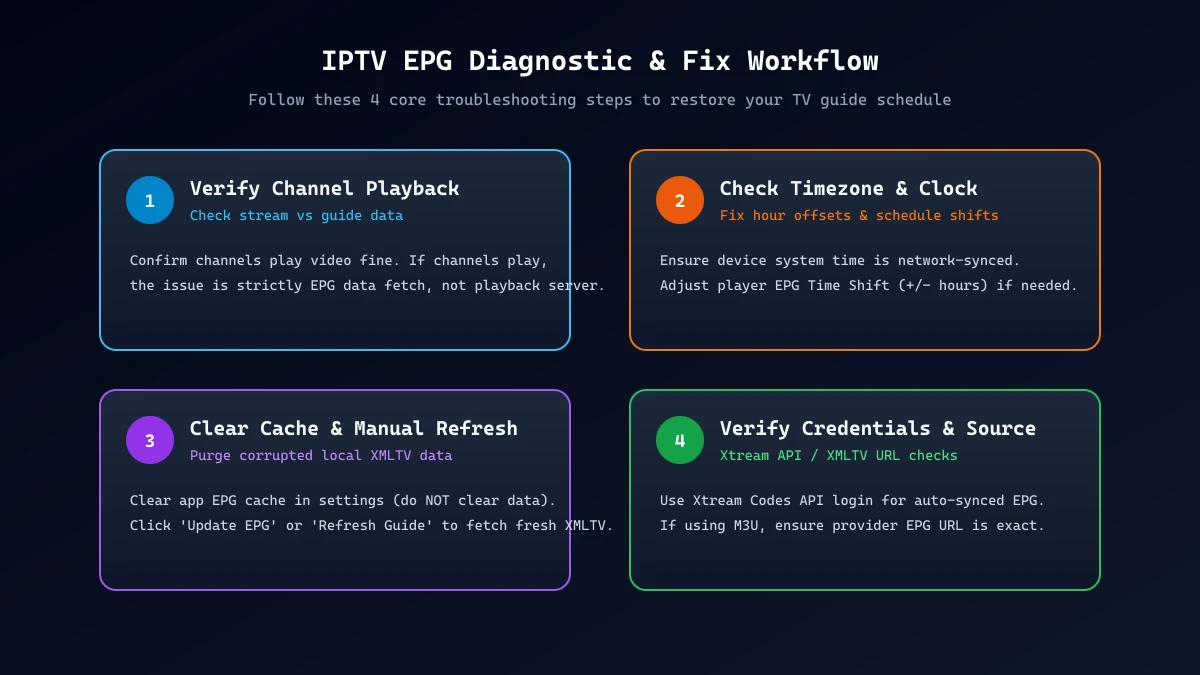 IPTV EPG Troubleshooting & Diagnostic Steps
Step 1: Check Whether the Channels Still Play
Before diving into settings, select a few channels and test video playback.
- If channels play smoothly: Your internet connection, subscription account, and streaming server are healthy. The problem is isolated specifically to the EPG metadata download.
- If channels do not load or buffer constantly: You are facing a broader network or playlist connectivity issue. Refer to our comprehensive guides on IPTV Channels Not Loading: 10 Things to Check and IPTV Buffering Every Few Minutes: Causes and Fixes.
Step 2: Check the EPG Settings
Open your IPTV player application (such as TiviMate, IPTV Smarters, Sparkle TV, or OTT Navigator) and navigate to Settings > EPG / TV Guide. Ensure that:
- The EPG source is enabled and marked as Active.
- Automatic EPG refresh on startup or on a periodic schedule (e.g., every 24 hours) is turned ON.
- The EPG source is correctly linked to your active playlist.
Step 3: Verify the EPG/XMLTV URL
If your application uses an M3U playlist setup requiring a separate EPG URL, check the web address for accuracy:
- Cross-reference the link character-by-character with the setup details provided by your legitimate IPTV provider.
- Check for common syntax errors, such as missing colons (
http://), misplaced slashes, or missing extensions (.xmlor.gz). - Important: Never attempt to guess or invent an EPG URL, and do not copy unverified third-party XMLTV links from public forums. Channel ID tags in external EPG files will not match your provider's channel identifiers.
- Pro Tip: Whenever possible, switch your login method from M3U to Xtream Codes API (Username, Password, and Server URL). Xtream Codes automatically handles EPG source linking, eliminating manual EPG URLs. For step-by-step setup assistance, see our guide on How to Set Up IPTV on Smart TV.
Step 4: Refresh the EPG Manually
Do not wait for your application's scheduled auto-update. Trigger an immediate EPG refresh:
- Go to your IPTV player's Settings > EPG.
- Select Update EPG, Refresh Guide, or Sync Data.
- Keep the application open and allow 1 to 3 minutes for the download process to complete.
Step 5: Check the Device Time and Time Zone
An incorrect clock on your streaming device will prevent the player from displaying current schedule data correctly:
- Exit the IPTV app and open your device's system settings.
- Navigate to System > Date & Time.
- Enable Automatic Date & Time (Network-provided time).
- Verify that your Time Zone matches your exact physical location.
- Return to your IPTV application and perform a manual EPG refresh.
Step 6: Clear the EPG/App Cache
If corrupted cache files are blocking fresh guide data, clearing the app's cache memory will resolve the issue.
Crucial Warning on Cache vs. Data:
- Clear Cache: Safely removes temporary files, including downloaded EPG guides and image caches. It will NOT delete your saved login credentials, playlists, or favorite channel lists.
- Clear Data / Clear Storage: Completely resets the application to its factory state, deleting your saved username, password, playlist URLs, custom channel order, and settings. Only clear data if you have your login details ready to re-enter!
To clear cache on Android TV or Firestick:
- Go to device Settings > Applications > Manage Installed Applications.
- Select your IPTV app (e.g., TiviMate or IPTV Smarters).
- Click Clear Cache.
- Re-open the app, go to EPG settings, and click Update EPG.
Step 7: Check Channel Mapping
If the guide loads data for most channels but leaves a few blank, check channel mapping settings in your IPTV player. Advanced apps like TiviMate allow users to long-press a channel, select Assign EPG, and manually search for the matching channel schedule title in the XMLTV database.
Step 8: Restart the IPTV Player and Device
A system restart clears volatile RAM memory, closes background processes, and forces clean server connections:
- Force close the IPTV application.
- Unplug your streaming box or Smart TV from the power outlet for 60 seconds.
- Restart your internet router to clear DNS caches.
- Power on your streaming device, launch the IPTV app, and test the guide.
Step 9: Test Another Compatible IPTV Player
To determine whether an IPTV TV guide not working issue is caused by your application or your provider's server, install a second compatible IPTV player on your device (such as IPTV Smarters if you normally use TiviMate).
Import your subscription credentials into the secondary app. If the EPG loads perfectly in the test app, your primary app has a corrupted database. If the guide remains blank across multiple apps, the issue originates from the provider's EPG server.
Step 10: Contact the IPTV Provider
If you have completed steps 1 through 9 and the EPG remains unavailable across multiple devices, contact your IPTV service support team. Provide your device model, application name, network type, and clear screenshots so technicians can inspect server logs.
IPTV EPG Shows the Wrong Time — How to Fix It
One of the most widespread IPTV EPG problems occurs when the guide schedule loads successfully, but all program listings appear shifted by 1, 2, 5, or 8 hours.
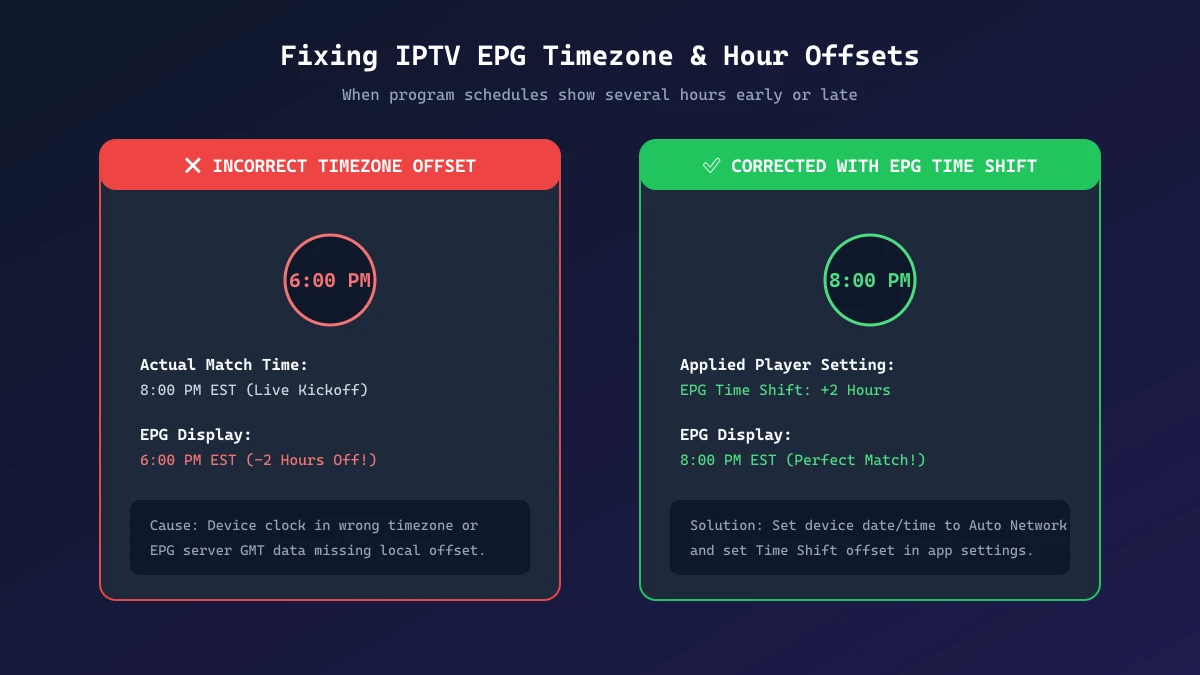 IPTV EPG Timezone & Clock Offset Fix
To resolve an incorrect EPG time, distinguish between two different underlying issues: the streaming device's system timezone being wrong versus the EPG metadata requiring a manual hour offset.
1. Fix Device System Timezone Mismatch
If your streaming device's system clock is incorrect, the IPTV player will calculate program start times against a flawed baseline.
- Go to your device's main settings menu (Settings > System > Date & Time).
- Verify that the current time, date, and timezone match your physical location.
- If daylight-saving time recently changed in your region, ensure your device has applied the automatic adjustment.
2. Configure Player EPG Time Shift (EPG Offset)
If your device system clock is accurate but the TV guide remains off by exact hour increments, your IPTV provider's EPG server broadcasts XMLTV timestamps in a different timezone (such as UTC/GMT) without local offset tags.
Most premium IPTV players include a feature called EPG Time Shift or EPG Offset:
- Open your IPTV app's Settings > EPG.
- Locate the Time Shift or EPG Offset option.
- Calculate the exact hour difference between the displayed guide time and actual broadcast time.
- Adjust the slider or entry box (e.g., set to
+2.00or-5.00hours). - Save the setting and execute a full EPG refresh. The player will shift all schedule blocks forward or backward to align perfectly with your local time.
Upgrade Your Streaming Experience
Get access to 50,000+ live channels, 200,000+ VODs in 4K/FHD with zero buffering.
- 4K & Full HD Quality
- Anti-Buffer Technology
- All Smart TVs Supported
- Instant Activation
IPTV EPG Not Updating
When an IPTV EPG not updating scenario occurs, your TV guide displays outdated program schedules from yesterday or fails to pull incoming schedules for the week ahead.
Here is the logical troubleshooting order to resolve frozen or non-updating guide feeds:
- Verify Internet & Network Access: EPG schedule files contain thousands of listings and can range up to 100MB in uncompressed XML format. If your Wi-Fi connection experiences packet loss, the download will time out silently. Connect via Ethernet or test your connection speed.
- Check Storage Capacity: If your streaming device has less than 500MB of free internal storage remaining, the IPTV application will fail to save newly downloaded XMLTV files. Uninstall unused apps to clear storage.
- Disable Battery Optimization: Android devices often put background apps to sleep. If your IPTV app's background activity is restricted, automatic EPG background updates will fail while the app is closed. Set your IPTV player to "Unrestricted" in device battery settings.
- Purge Old EPG Database: In app settings, select Clear EPG or Reset EPG Data, then immediately click Update EPG. This forces the app to build a brand new local database file from scratch.
IPTV EPG Works on Some Channels but Not Others
It is common for users to observe that their IPTV program guide operates flawlessly on national networks while displaying "No Information" on specialized regional or international streams.
When EPG coverage is partial rather than universal, understand that:
- Incomplete Provider Data: IPTV services aggregate data from multiple schedule providers. While major channels have automated 24/7 metadata feeds, smaller or obscure international channels may not have digital schedule feeds available.
- Mismatched Channel Identifiers: If a provider renames a channel in their lineup, the internal
tvg-idtag may no longer match the entry in the XMLTV schedule database. - Regional Variation Streams: Alternate audio feeds or overflow event channels created for temporary live tournaments often do not feature standard 24/7 EPG schedules.
A partial EPG does not mean your IPTV service is broken. As long as video streams play cleanly and major networks display guide data, partial coverage is a routine operational characteristic of massive multi-thousand channel playlists.
EPG vs IPTV Channel List — What's the Difference?
For users new to internet television, the terms "Channel List" (Playlist) and "EPG" (TV Guide) are often confused. However, they perform fundamentally different functions in your streaming architecture:
| Feature / Aspect | IPTV Channel List (Playlist) | IPTV EPG (Electronic Program Guide) |
|---|---|---|
| Primary Purpose | Provides stream links & server access | Provides program schedule metadata |
| File Format | M3U, M3U8, or Xtream API endpoints | XML, XMLTV, or JSON API schedule feeds |
| Contains Stream URLs? | Yes (Direct video stream addresses) | No (Contains text, titles, descriptions & times) |
| Shows Current Program? | No (Only displays channel name) | Yes (Displays current show title & progress) |
| Shows Upcoming Shows? | No | Yes (Displays multi-day schedule grids) |
| Required for Playback? | Yes (Essential to load video) | No (Video plays fine without EPG) |
| Can Fail Independently? | Yes | Yes |
Understanding this distinction helps you pinpoint streaming issues immediately: if a channel refuses to play video, check your playlist or internet connection. If the channel plays video but displays no show title, troubleshoot your EPG.
How to Prevent IPTV EPG Problems
Taking a few proactive maintenance steps will ensure your IPTV channel guide remains reliable, accurate, and fully updated in 2026:
- Use Xtream Codes API Login: Whenever your IPTV provider supports it, log into your application using Xtream Codes (Username, Password, Server URL) instead of manual M3U links. Xtream Codes automates EPG URL linking and syncing.
- Keep Your IPTV Player App Updated: App developers continuously release updates that improve XMLTV parsing speed, fix timezone bugs, and enhance background data syncing.
- Synchronize Device System Time: Ensure your streaming device's system clock is set to automatic network time synchronization so time shifts do not drift over time.
- Set Up Periodic Auto-Refresh: Configure your IPTV player to automatically update EPG data every 24 hours during off-peak hours.
- Maintain Sufficient Internal Storage: Keep at least 1GB of free internal storage on your device so large XMLTV files can be uncompressed and indexed without crashing your app.
- Choose a High-Quality IPTV Service: Partner with a reliable provider that invests in robust, high-availability EPG server infrastructure. To learn how to evaluate service reliability, read How to Test IPTV Before Buying a Subscription.
When Should You Contact IPTV Support?
While most IPTV EPG problems can be solved on your end within a few minutes using the troubleshooting steps above, there are specific situations where client-side adjustments will not help and you should reach out to customer support:
- Total EPG Outage Across All Devices: If the TV guide becomes 100% blank across multiple independent devices and applications simultaneously.
- Expired or Broken Provider EPG URL: If your provider's EPG server domain returns error codes during manual browser checks.
- Widespread Channel ID Mismatches: If major national networks across entire categories suddenly lose guide metadata following a provider server migration.
- Persistent Account Authorization Errors: If your IPTV player displays authorization errors specifically when trying to fetch the EPG endpoint while channel streams continue to function.
When contacting support, provide your device model, application name, network type, and clear screenshots so technicians can inspect server logs and resolve the issue promptly.
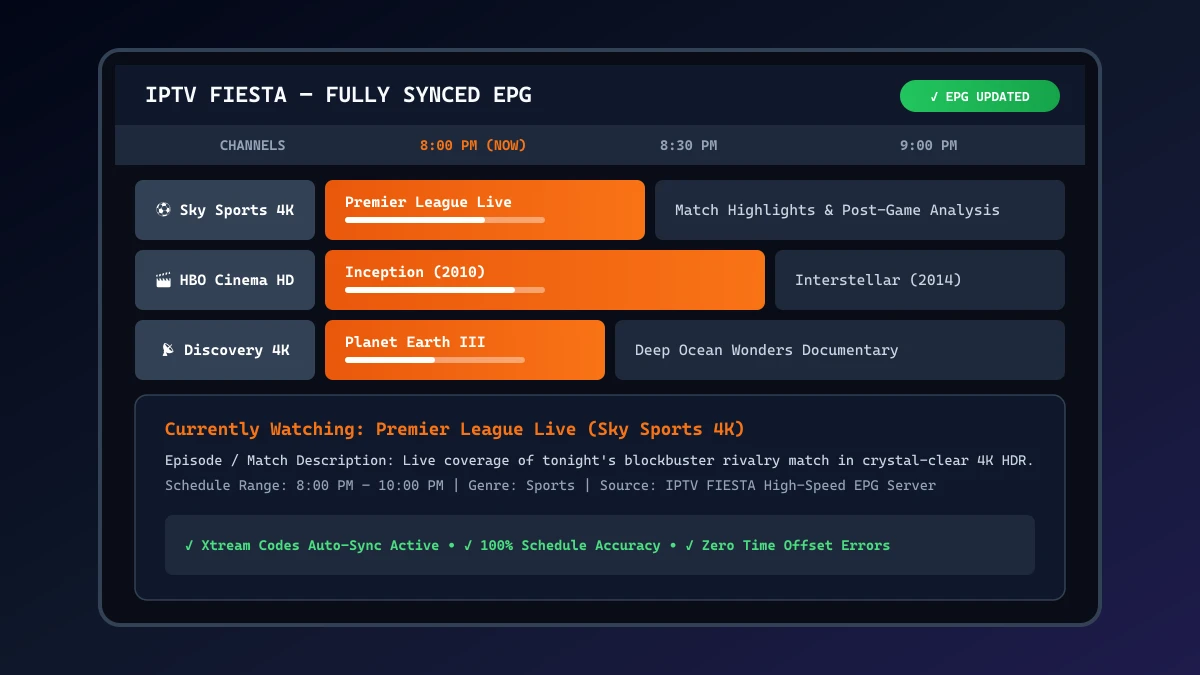 IPTV FIESTA Working TV Guide
Frequently Asked Questions
Conclusion
A fully functioning Electronic Program Guide is essential for transforming a raw list of streaming links into a smooth, enjoyable, cable-like television experience. When your IPTV EPG is not working, remember that the video streams themselves are almost always fine—the problem is simply a metadata communication breakdown between your application, your device clock, and the EPG database.
By following the systematic troubleshooting workflow outlined in this guide—checking channel playback, verifying timezones, clearing corrupted app caches, and utilizing Xtream Codes API logins—you can quickly resolve IPTV EPG problems and restore your TV guide.
If you are tired of dealing with missing program guides, unreliable XMLTV feeds, and constant streaming hiccups, experience the difference with IPTV FIESTA. Our premium platform offers fully-integrated, automated EPG coverage across 50,000+ live channels and 200,000+ VOD titles with ultra-fast servers and zero buffering. Visit our Homepage to explore our features, check our Pricing plans, or review our FAQ page to get started today!