IPTV EPG Explained: What It Is, How It Works and How to Fix EPG Issues
IPTV EPG Explained: What It Is, How It Works and How to Fix EPG Issues
Introduction
When you switch from traditional cable television to internet-based streaming, one of the most noticeable differences is the user interface. Modern streaming services provide a vast amount of content, but navigating thousands of live channels can be overwhelming if you do not have a clear, organized schedule. This is where an Electronic Program Guide (EPG) becomes absolutely essential.
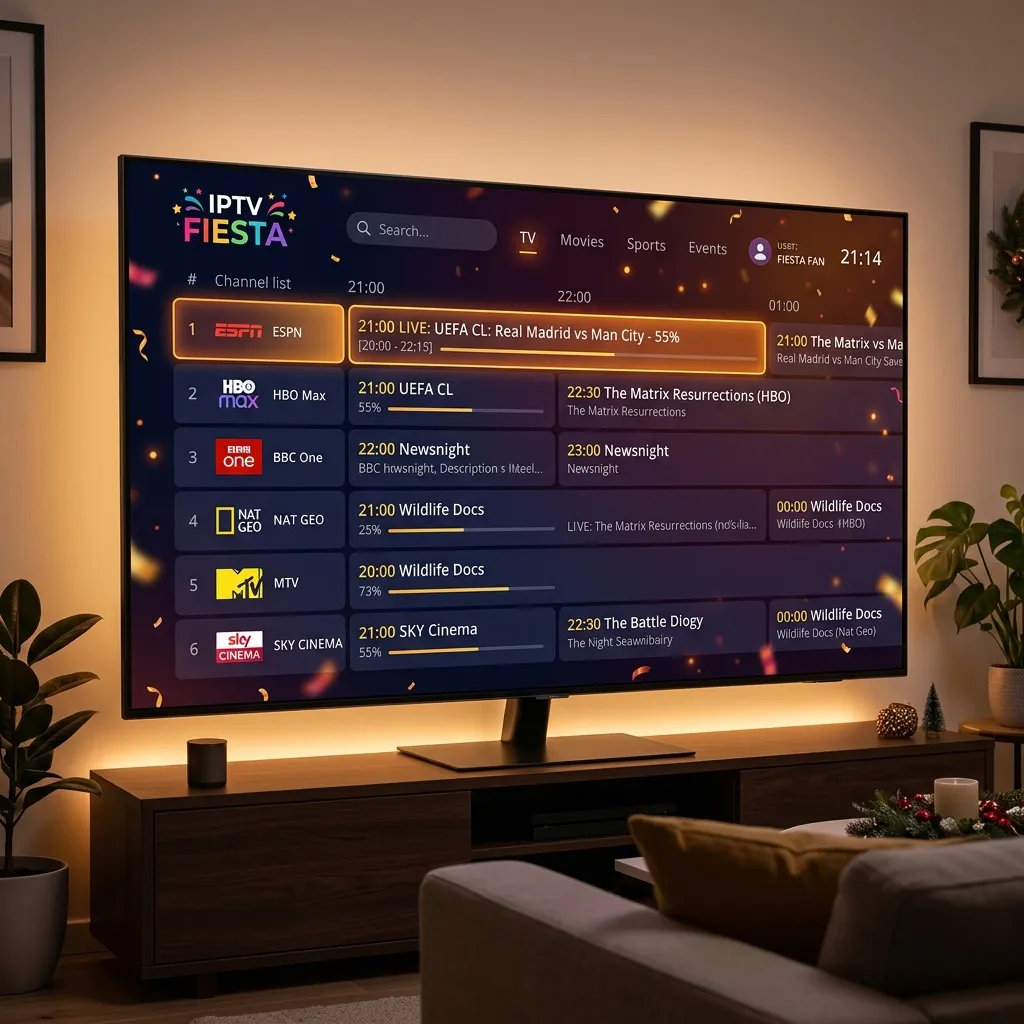
An Electronic Program Guide (EPG) is the digital TV guide that appears on your screen, allowing you to browse channel schedules, view current programs, discover upcoming shows, check start and end times, and read program descriptions where available. Without it, you are essentially flying blind through a massive list of channel names.
At IPTV FIESTA, we believe that premium streaming should be as convenient and user-friendly as traditional cable, if not more so. A well-configured EPG transforms a simple list of links into a highly interactive, cable-like experience.
In this comprehensive guide, we will explain exactly what an IPTV EPG is, how it works behind the scenes, how to set it up properly on your device, and how to troubleshoot the most common problems—such as an empty guide, the wrong EPG time, or a guide that simply refuses to update.
IPTV EPG electronic program guide explained
What Is IPTV EPG?
So, what does EPG mean in the context of streaming? As mentioned, it stands for Electronic Program Guide.
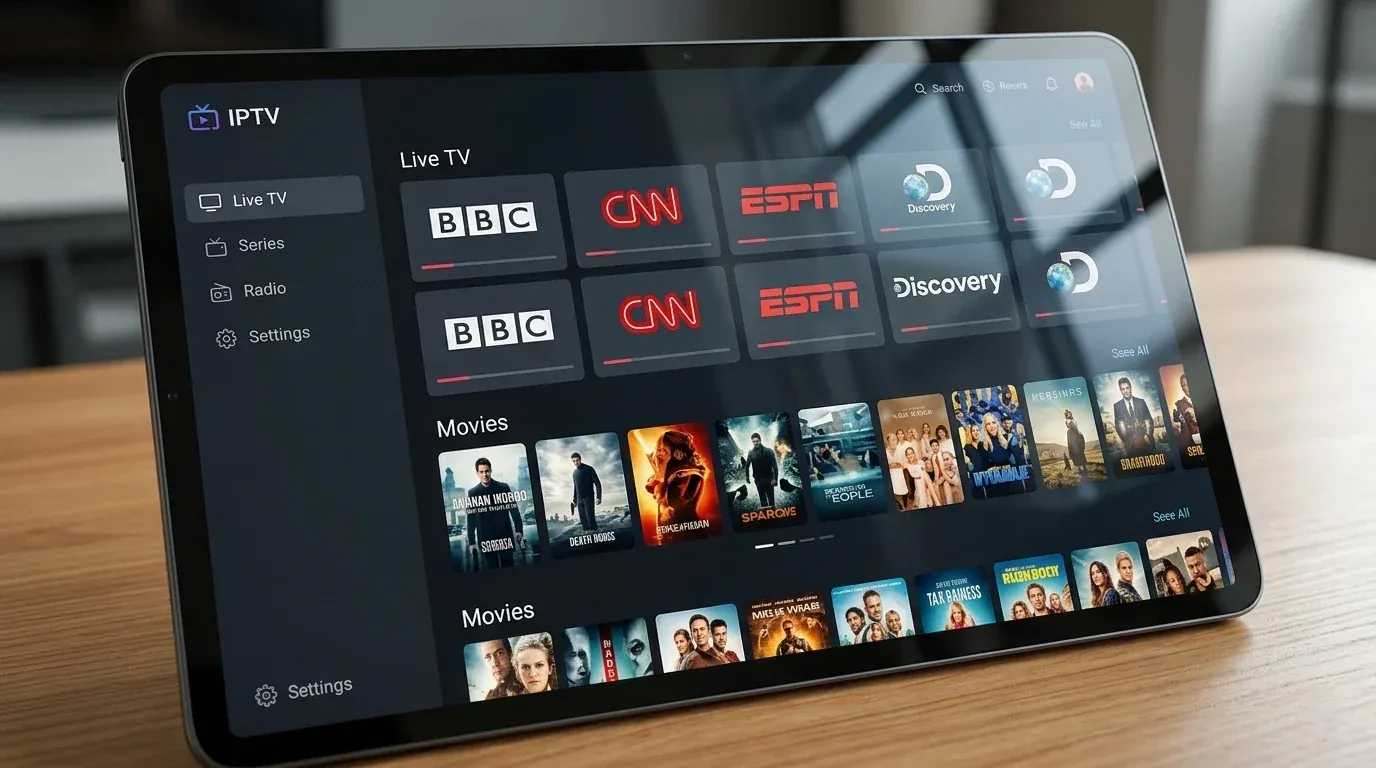
When you open your IPTV application and see a grid displaying the time across the top, the channels down the left side, and blocks showing what is currently playing and what is coming up next, you are looking at the EPG.
For IPTV users, the EPG is crucial because it provides context. Instead of just seeing a raw list that says "HBO HD" or "ESPN 4K", an active EPG will tell you that "Game of Thrones" is playing right now, and "SportsCenter" is up next. It bridges the gap between raw data and a smooth, enjoyable viewing experience.
A high-quality IPTV FIESTA subscription ensures that this data is populated quickly and accurately across thousands of local and international channels, giving you full visibility over what is airing worldwide.
Upgrade Your Streaming Experience
Get access to 50,000+ live channels, 200,000+ VODs in 4K/FHD with zero buffering.
- 4K & Full HD Quality
- Anti-Buffer Technology
- All Smart TVs Supported
- Instant Activation
How Does IPTV EPG Work?
Understanding how the program guide actually functions can help you troubleshoot issues later on. The process of getting that TV schedule onto your screen involves a few different components working together.
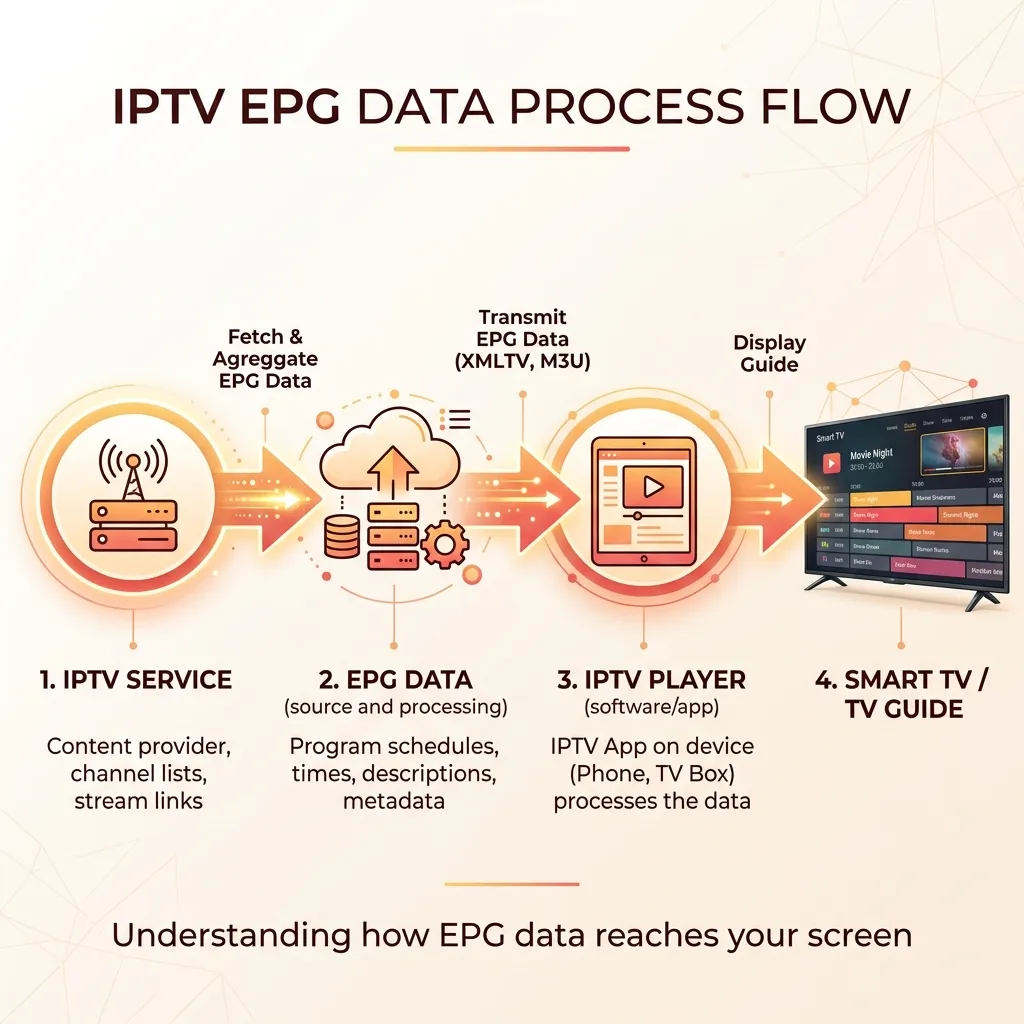
Here is the basic visual flow of how EPG data reaches your television:
- The IPTV Service / Data Source: The provider maintains a massive database of television schedules, constantly pulling information from broadcasting networks around the world.
- The EPG Data (XMLTV): This schedule information is formatted into a standardized data file (often an XMLTV file) or transmitted directly via an API.
- The IPTV Player: The application you use to watch TV (such as TiviMate or Smarters Pro) downloads this data file from the server.
- The Display: The player matches the schedule data against the channel list and displays the organized TV guide on your Smart TV or device.
Because the schedule data and the actual video streams are technically separate pieces of information, it is entirely possible for a channel to play perfectly fine while its EPG data is missing or incorrect.
 How IPTV EPG works with an IPTV player
What Information Does an IPTV EPG Show?
The exact details you see on your screen depend entirely on two things: the quality of the data provided by your IPTV service, and how your specific IPTV player chooses to display that data.
Generally, a fully functioning EPG will show:
- Program Title: The name of the movie, series, or event currently airing.
- Channel Name and Logo: To help you visually identify the network.
- Start and End Time: When the program began and when it will finish.
- Progress Bar: A visual indicator of how far along the current program is.
- Upcoming Programs: The schedule for the next several hours or even days.
- Program Description: A brief synopsis of the movie, episode details, or sports matchup information (when supported by the source).
- Categories: Organizing channels by genre (e.g., News, Sports, Movies, Documentary).
Why Is EPG Important for IPTV?
While it is possible to use an IPTV service without an EPG, doing so significantly degrades the user experience.
Here are the main benefits of having a working Electronic Program Guide:
- Easier Channel Browsing: You can visually scan through hundreds of channels quickly to find something interesting, rather than clicking into each channel blindly.
- Planning What to Watch: You can see what is scheduled for later in the evening and plan your viewing accordingly.
- Catch-Up TV Integration: If your service supports "Catch-Up" (the ability to watch previously aired programs), the EPG is usually the interface you use to go backward in time and select those past broadcasts.
- Better TV-Like Navigation: It replicates the familiar, comfortable interface of traditional cable or satellite TV, making it much easier for family members and guests to use.
How IPTV Players Use EPG Data
It is vital to understand the distinction between your IPTV service and your IPTV player.
An IPTV Player is just an empty shell—an application you download (like TiviMate, IPTV Smarters, or IBO Player). It does not contain any channels or TV guides by itself.
The IPTV Service (like IPTV FIESTA) provides the actual content: the live channels, the video-on-demand library, and the EPG data.
When you log into your IPTV player, the app communicates with the service's server. It downloads the channel list first, and then it downloads the EPG data. The player's job is to cross-reference the channel IDs with the EPG data and arrange them into the visual grid you see on screen. If you are having trouble choosing an app, check out our guide on the best IPTV players for Android TV or the best IPTV players for Firestick.
How Does EPG Work With an M3U Playlist?
If you set up your player using an M3U Playlist (a long web link containing your channel list), the EPG data is sometimes included within that link, but often it requires a separate link specifically for the guide data.
In an M3U file, each channel has a specific identifier tag (usually called 'tvg-id'). The EPG data file contains a matching schedule for that specific 'tvg-id'. When the player reads both files, it matches the channel to the schedule. If the IDs do not match exactly, the channel will play, but the program guide will say "No Information."
This is why we highly recommend using the Xtream Codes API login method instead of a raw M3U link whenever possible. Xtream Codes automatically handles the synchronization between the channel list and the EPG data, resulting in a much smoother and less error-prone setup. (For a deeper dive into setup methods, read our guide on how to set up IPTV on Smart TV).
What Is an EPG URL?
An EPG URL is a specific web address provided by your IPTV service that points directly to the XMLTV file containing all the schedule data.
If you use an older or more basic IPTV player, it might ask you to input two separate links:
- The Playlist URL (for the channels).
- The EPG URL (for the TV guide).
If your player asks for an EPG URL, you must use the exact link provided by your service. Using a random EPG URL found on the internet will not work, because the channel IDs in that random guide will not match the channel IDs assigned by your specific provider.
If you use the Xtream Codes login method (Username, Password, and Server URL), you do not need to worry about an EPG URL, as the player retrieves the data automatically from the server.
How to Set Up EPG in an IPTV Player
While the exact menus look different depending on which app you are using, the general process to configure and update your EPG is quite similar across the board.
Here is a general step-by-step guide to setting up and refreshing your EPG:
- Open your IPTV player and navigate to the Settings menu.
- Look for a section labeled EPG, TV Guide, or Playlists.
- If you are using an M3U setup, you may need to enter the EPG Source URL provided by your service and save the configuration.
- If you are using Xtream Codes, simply look for a button that says Update EPG, Refresh EPG, or Sync Data.
- Click the update button and wait. The player will download the latest schedule from the server. This can take anywhere from a few seconds to a couple of minutes depending on the size of the guide and your internet speed.
- Once the update is complete, return to the Live TV section and open the TV Guide. The program information should now be populated.
Using EPG With IPTV FIESTA
When you choose the IPTV FIESTA IPTV service, we make the EPG experience as seamless as possible. We invest heavily in our backend infrastructure to ensure that our electronic program guide is highly accurate, updated frequently, and covers an massive range of local and premium international channels.
Because we fully support the Xtream Codes API, setting up the Fiesta IPTV guide is virtually automatic. When you log into a compatible app using your provided iptvfiesta credentials, the player will automatically pull our comprehensive EPG data without requiring you to manually type in long, complicated EPG URLs.
Whether you are browsing live sports schedules or looking for the evening news, the IPTV FIESTA supported devices and servers ensure you always know exactly what is playing.
Upgrade Your Streaming Experience
Get access to 50,000+ live channels, 200,000+ VODs in 4K/FHD with zero buffering.
- 4K & Full HD Quality
- Anti-Buffer Technology
- All Smart TVs Supported
- Instant Activation
IPTV EPG Not Working? Common Causes
Even with the best service and the best player, you might occasionally run into EPG issues. Here are the most common scenarios and what causes them.
EPG is completely empty
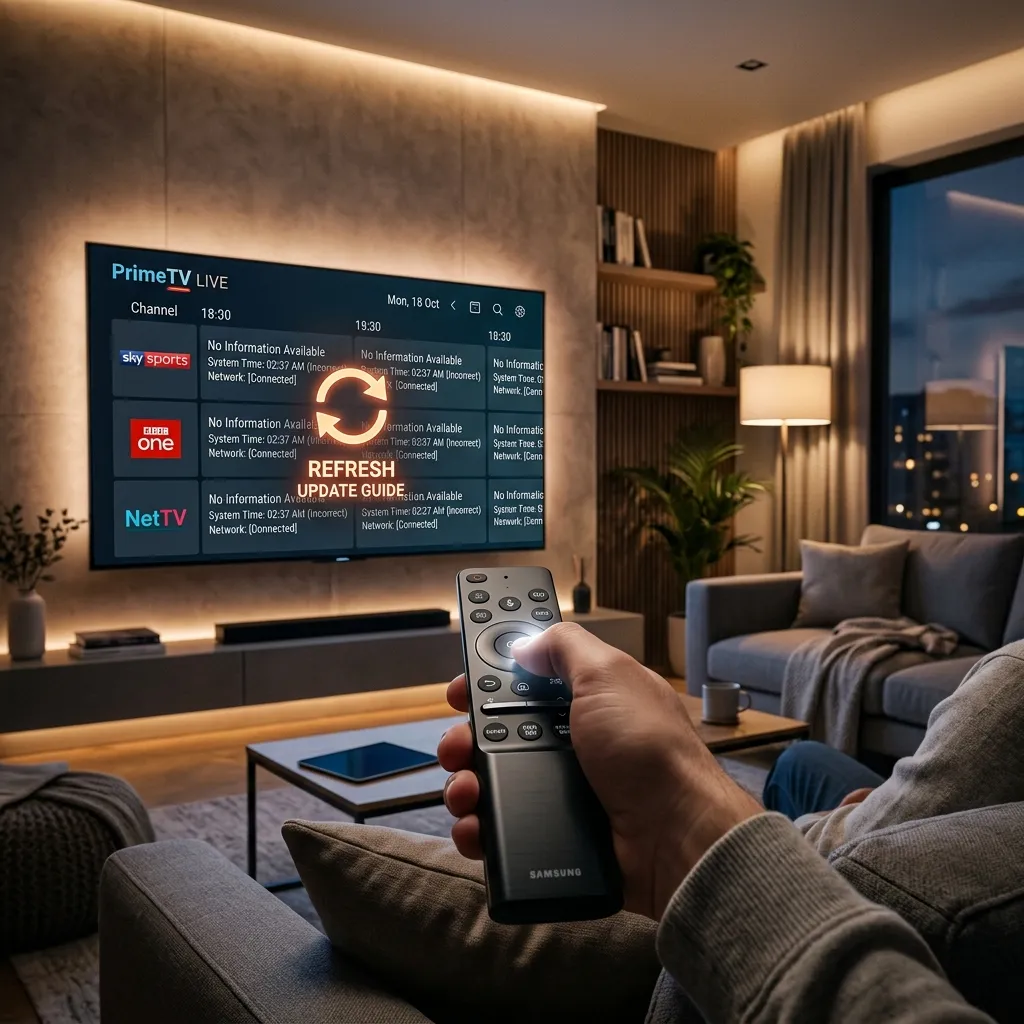
If every single channel says "No Information" or the grid is totally blank, the player failed to download the data. This usually happens if the EPG URL is typed incorrectly (if entering manually), if your internet connection dropped during the sync, or if there is a temporary communication error with the server.
Some channels have EPG and others do not
It is completely normal for some obscure or highly localized international channels to lack EPG data. EPG coverage is vast, but it is rarely 100% for every single channel in a massive playlist. If major networks are missing data, it might be a mapping issue, but if a local public access channel is missing data, it is simply because a schedule is not broadcasted for it.
EPG is outdated
If the guide shows programs from yesterday, it means the player has not synced with the server recently. You need to manually refresh the EPG in the player's settings.
EPG shows the wrong time
If the programs listed in the guide are correct but they are showing as starting hours earlier or later than they actually do, you have a time-shift or time zone configuration issue. (We cover how to fix this below).
EPG disappears after refreshing
If the guide was working, but disappears after you hit refresh, the player might have encountered an error while downloading the new XMLTV file, overwriting the old data with a blank file. Wait a few minutes, check your internet connection, and try updating the EPG again. If issues persist across the app, refer to our broader guide on IPTV channels not loading.
 How to fix IPTV EPG problems and wrong guide times
How to Fix Wrong EPG Times
One of the most annoying issues is when the TV guide works, but all the programs are shifted by a few hours. This makes it impossible to know when a show actually starts.
This happens when there is a mismatch between the time zone the EPG data was generated in, and the time zone your device is currently set to.
Here is exactly how to fix wrong EPG times:
- Check the device time: This is the #1 culprit. Go to the main settings of your Smart TV, Firestick, or Android box. Ensure the system clock displays the correct current time.
- Check the time zone: While in the device settings, verify that the time zone is set correctly for your physical location.
- Enable Automatic Date/Time: If your device has a setting for "Automatic Date and Time provided by network", turn it ON. This prevents the internal clock from drifting.
- Check IPTV player time settings: Open your IPTV application's settings. Some players allow you to manually override the time zone. Ensure it matches your local time.
- Apply an EPG Time Shift: If the device time is correct, but the guide is still off by exactly 2 hours, you can use the EPG Time Shift feature (explained in the next section) to manually adjust the schedule display.
- Refresh the EPG: After making any time or date changes, you must completely refresh the EPG data in the app so it can recalculate the display times.
What Is IPTV EPG Time Shift?
EPG Time Shift (or EPG Offset) is a setting found in most high-quality IPTV players. It allows you to manually push the entire TV guide schedule forward or backward by a specific number of hours.
For example, let's say a live soccer match starts at 3:00 PM your time. However, the EPG says the match starts at 1:00 PM. The guide is exactly 2 hours behind.
To fix this, you would go into the player's EPG settings, find the "Time Shift" or "EPG Offset" option, and set it to +2. After refreshing the guide, the soccer match will correctly display a 3:00 PM start time.
Do not change the time-shift value randomly. Calculate exactly how many hours off the guide is, apply that specific offset, and test it.
How to Fix an IPTV EPG That Is Not Updating
If your EPG is blank or outdated and refuses to pull new data, follow this troubleshooting checklist:
- Manually Refresh the EPG: Go to settings and click "Update EPG". Do not assume the app updates it automatically in the background.
- Check Your Internet Connection: The EPG file can be quite large. If your Wi-Fi is dropping, the download will fail. (See our guide on fixing IPTV buffering for network tips).
- Restart the IPTV Player: Force close the application completely and reopen it. Sometimes the app's cache gets stuck.
- Restart the Device: Unplug your Smart TV or streaming box from the wall for 60 seconds, then plug it back in to clear the system memory.
- Reload the Playlist: In the app settings, try reloading the entire playlist/account, which often forces a fresh EPG sync.
- Update the IPTV Player: Ensure you are running the latest version of the app from the app store, as bugs related to EPG syncing are frequently patched. (See: IPTV not working after an app update).
- Contact Support: If you have tried everything and the EPG remains completely blank across all channels for several hours, the provider's EPG server might be undergoing maintenance. You can reach out to the IPTV FIESTA support team for status updates.
How to Use IPTV EPG on a Smart TV
Using the EPG on a Smart TV is generally an excellent experience because the large screen is perfect for displaying grid layouts.
However, the exact steps to access and configure the EPG depend entirely on whether you are using a Samsung (Tizen), LG (webOS), Sony, Android TV, or Google TV, and which specific app you downloaded.
For the vast majority of Smart TV apps (like Smarters Player Lite or IBO Player), the TV guide is accessed directly from the main menu. Simply navigate to "Live TV" and look for a button labeled "EPG" or "TV Guide".
For detailed, step-by-step instructions on configuring your specific television, we highly recommend reading our complete guide on how to set up IPTV on Smart TV.
Does IPTV EPG Work on Every Device?
A common question is whether the program guide is limited to certain hardware. The answer is that EPG support depends on the IPTV player software, not the physical device.
As long as the application you are using supports EPG functionality (and almost all modern apps do), the guide will work regardless of whether you are using an Android TV box, an Amazon Firestick, an Apple TV, a smartphone, or a computer.
The quality and speed of the EPG might vary—a powerful Nvidia Shield will load a massive TV guide much faster than an older, budget Smart TV—but the core functionality remains the same across all supported devices.
IPTV EPG vs Channel List: What's the Difference?
If you are new to streaming, you might hear the terms "Channel List" and "EPG" used interchangeably, but they are very different things.
- The Channel List (Playlist): This is the raw list of available channels you can watch. It provides the name of the channel (e.g., "BBC One") and the underlying video link required to play the stream. It does not tell you what is currently airing.
- The EPG (TV Guide): This is the schedule data layer that sits on top of the channel list. It provides the programming information, times, and descriptions.
You can watch TV using only a channel list, but you cannot watch TV using only an EPG. They work together to create the full experience.
Tips for a Better IPTV EPG Experience
To ensure you always have an accurate and fast-loading TV guide, keep these best practices in mind:
- Keep the IPTV player updated: App developers frequently optimize how EPG data is handled and stored.
- Keep device date/time correct: Check your system clock occasionally, especially after a power outage.
- Use Xtream Codes: Whenever possible, log in using the API (Username/Password) rather than an M3U link to ensure seamless EPG integration.
- Clear the cache: If your player feels sluggish when opening the TV guide, go into the app settings and clear the EPG cache to force a fresh, clean download.
- Be patient during updates: EPG files contain tens of thousands of lines of data. Give the app a minute to fully download and process the file before clicking around.
IPTV EPG Troubleshooting Checklist
If you are experiencing issues with your TV guide, run through this quick checklist before assuming the service is broken:
- Check internet connection stability.
- Verify the device date and time are accurate.
- Confirm the device time zone is correct.
- Check IPTV player time-shift settings (ensure they aren't randomly altered).
- Check for typos if manually entering an EPG source URL.
- Manually click "Refresh EPG" in the player settings.
- Reload the playlist or update the account data.
- Restart the IPTV player application.
- Restart the streaming device or Smart TV completely.
- Test a different IPTV player to see if the issue is app-specific.
- Contact the IPTV FIESTA support team if the issue persists across all apps and devices.
Frequently Asked Questions
Conclusion
Understanding and properly configuring your IPTV EPG is the key to transforming a raw stream of video into a polished, premium television experience. The Electronic Program Guide is what allows you to seamlessly browse channels, discover new movies, plan your sports viewing, and navigate your entertainment options with ease.
By ensuring your device's date and time are accurate, logging in with reliable methods like Xtream Codes, and knowing how to manually refresh the data, you can quickly fix the most common issues—like an empty guide or incorrect start times.
If you are looking for a service that prioritizes a flawless user experience with a highly accurate, regularly updated TV guide, look no further than IPTV FIESTA. With our robust infrastructure, setting up your EPG is automatic, allowing you to spend less time configuring and more time watching. Visit our Homepage to learn more, or check out our comprehensive FAQ for further details. Upgrade your streaming experience with a working EPG today!