IPTV Channel Switching Slow in 2026: Why Channels Take Too Long to Load
You select a channel, but instead of instant video, the screen turns black, a spinner circles, and several seconds pass. Dealing with slow IPTV channel switching is a frequent frustration for viewers accustomed to instant cable zapping.
Crucially, channel switching delay is not the same as mid-stream buffering. If a channel takes 3 to 8 seconds to start but subsequently streams smoothly without freezing, your issue is strictly an IPTV channel startup delay—not continuous data starvation.
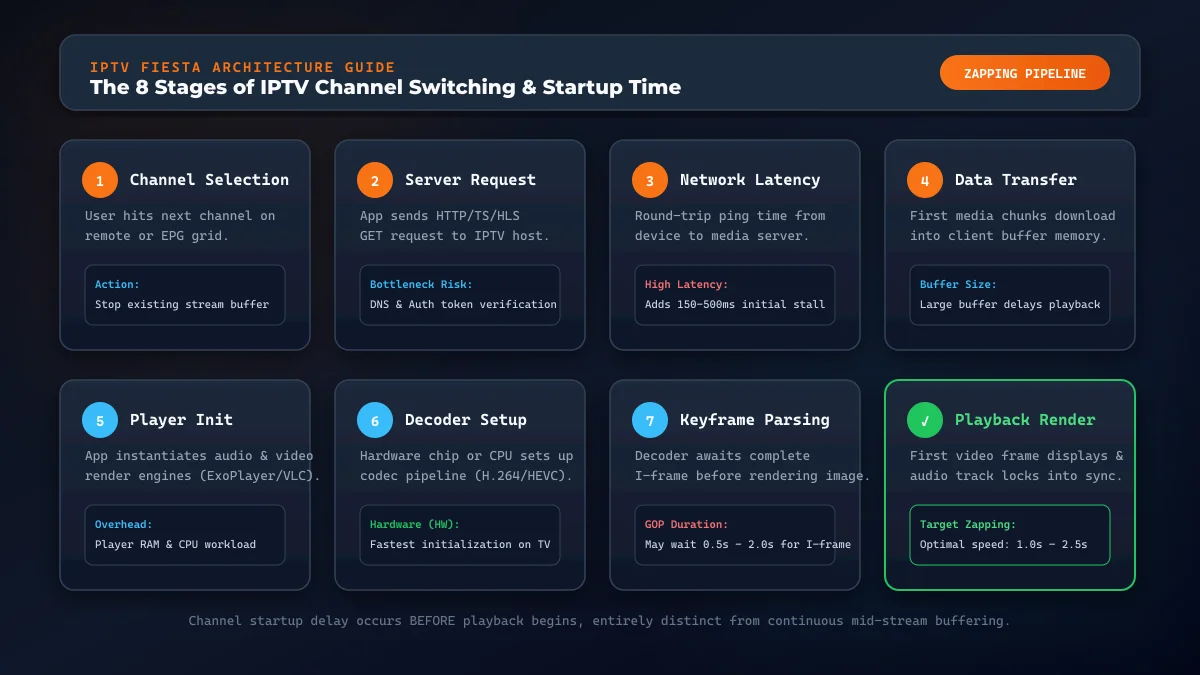
Live television over IP executes eight sequential phases when switching streams—from socket teardown and server authentication to decoder allocation and keyframe acquisition. A bottleneck at any stage causes slow IPTV channel loading. In this 2026 technical guide, we examine why channels open slowly, how to diagnose bottlenecks, and 15 practical fixes to improve your IPTV zapping speed.
IPTV channel switching process and startup pipeline
Why Is IPTV Channel Switching So Slow?
In most setups, IPTV channel switching slow symptoms stem from cumulative delays across network handshakes, transport delivery, and video decoding pipelines. Sluggish zapping typically results from network latency, player buffer configurations, or device hardware limits.
| Symptom Pattern | Probable Cause | Area to Investigate |
|---|---|---|
| All channels slow | High ping or large buffer | Network ping, buffer settings |
| Single channels slow | Wide GOP or remote CDN | Stream source, encoder |
| 4K slower than HD | Bitrate overhead, HEVC load | Device SoC, decoder |
| Phone fast, TV slow | Underpowered TV CPU | TV hardware, streaming stick |
| Ethernet is faster | Wi-Fi retries or interference | Signal quality, 5 GHz |
| Slow at peak hours | ISP throttling or server load | Network traffic, ISP routing |
| Starts slow, streams well | Stream init & keyframe latency | Buffer length, decoder mode |
What Happens When You Switch IPTV Channels?
Unlike cable where all channels tune simultaneously, IPTV uses unicast streaming to deliver only your active channel.
When changing channels, your player executes eight stages:
- Stream Termination: Closes active sockets and purges frames from RAM.
- Channel Lookup: Queries playlist storage for the channel URL and sends an HTTP request.
- Server Handshake: Validates authentication tokens and opens a media session.
- Packet Transmission: Dispatches initial transport packets to your router.
- Player Initialization: Parses headers and allocates buffer memory.
- Decoder Setup: Configures video codecs (H.264, HEVC) and resolution.
- Keyframe Detection: Awaits an I-frame keyframe to render video.
- Render & Sync: Renders the first frame, locks audio synchronization, and begins playback.
If each stage experiences even a 250ms delay, overall startup time exceeds 2 to 3 seconds.
Upgrade Your Streaming Experience
Get access to 50,000+ live channels, 200,000+ VODs in 4K/FHD with zero buffering.
- 4K & Full HD Quality
- Anti-Buffer Technology
- All Smart TVs Supported
- Instant Activation
Slow IPTV Channel Switching vs IPTV Buffering
Confusing slow IPTV channel switching with IPTV buffering leads viewers down ineffective troubleshooting paths:
Slow Channel Switching (Startup Delay)
Startup delay occurs strictly before playback begins. You select a channel, wait through several seconds of a black screen, and then video appears stably. This indicates handshaking latency, keyframe intervals, or decoder initialization overhead.
IPTV Buffering (Mid-Stream Interruption)
Buffering occurs during active playback. A stream launches, plays briefly, then freezes, stutters, or displays a loading wheel. This indicates bandwidth exhaustion, packet drops, or server congestion.
| Problem | When It Happens | Contributing Factors |
|---|---|---|
| Switching Delay | Before stream starts | Network ping, buffer, keyframe arrival |
| Buffering | During playback | Low bandwidth, packet loss, ISP throttling |
| Black Screen | At startup | Incompatible decoder or offline stream |
| Audio Desync | During playback | Clock drift, decoder mismatch |
If streams freeze repeatedly after starting, read our dedicated guide on IPTV buffering causes and fixes.
Why Stream Initialization Can Make IPTV Channels Slow to Load
The primary technical bottleneck during channel startup is stream initialization, specifically video keyframe frequency.
Video codecs compress broadcasts into a Group of Pictures (GOP):
- I-Frames (Keyframes): Standalone images containing full visual information.
- P-Frames & B-Frames: Delta frames storing only pixel differences.
When switching to a live stream, players cannot render delta frames without the reference frame, discarding incoming data until the next I-frame arrives.
With a 2-second GOP interval, you may wait up to 2 seconds for a keyframe. A 4-second GOP increases startup delay to 4 or 5 seconds.
Does Faster Internet Make IPTV Channel Switching Faster?
Upgrading to 1 Gbps fiber does not guarantee faster channel switching. While bandwidth prevents buffering, zapping relies on connection responsiveness rather than download capacity.
- Bandwidth: Data volume transferred per second (e.g., 100 Mbps vs 1 Gbps).
- Latency (Ping): Round-trip packet delivery time (e.g., 20ms vs 120ms).
Channel switching is an interactive two-way handshake exchanging small authentication and header packets. Low latency dictates IPTV zapping speed. To optimize performance, explore our guide on how to improve IPTV streaming quality.
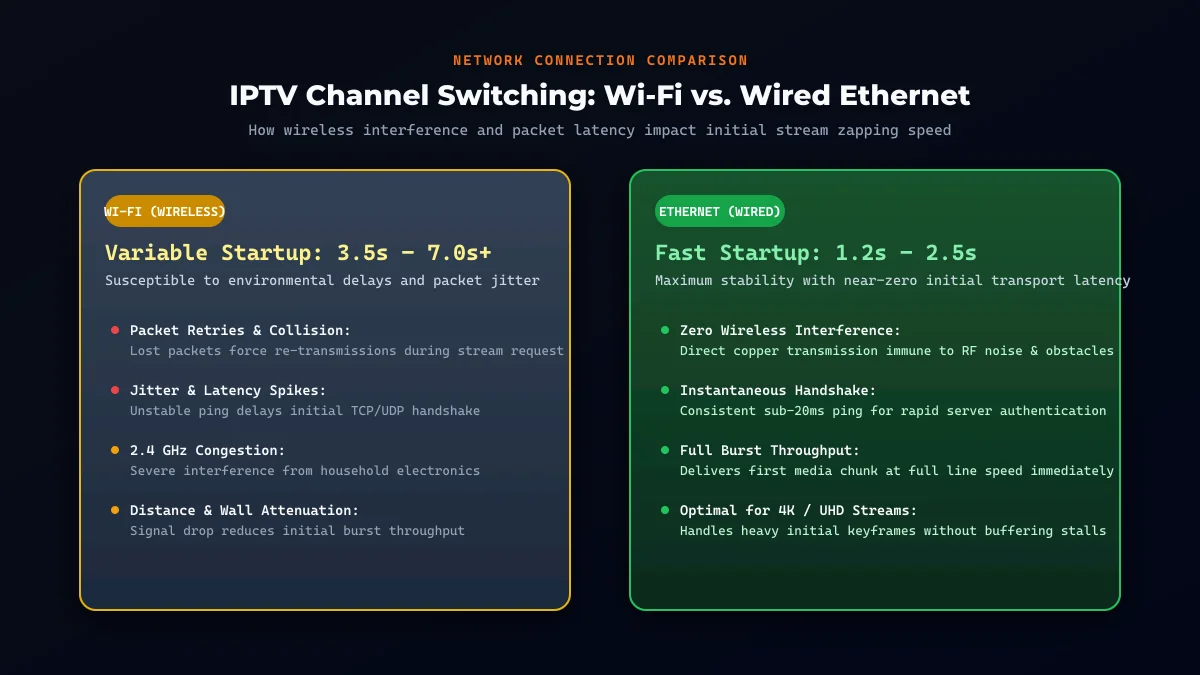 IPTV channel switching speed Wi-Fi vs Ethernet comparison
Can Wi-Fi Make IPTV Channel Switching Slower?
Wireless connectivity is the most frequent cause of sluggish zapping. Even with fast speed tests, Wi-Fi introduces micro-delays that degrade IPTV channel switching speed:
- Packet Retries: Lost handshake packets add 1 to 2 seconds of startup lag.
- 2.4 GHz vs 5 GHz: Crowded 2.4 GHz causes interference; 5 GHz offers cleaner spectrum and lower latency.
- Shielding: Metal TV chassis and walls attenuate wireless signals.
The Ethernet Diagnostic Test
Connect via Cat6 Ethernet cable. If channels take 6 seconds on Wi-Fi but open under 2 seconds on Ethernet, wireless latency was your bottleneck. Alternatively, switch to 5 GHz or use an HDMI extender.
Can Your IPTV Player Cause Slow Channel Switching?
Your media player application heavily impacts channel startup times:
- Playlist & EPG Caching: Premium players cache playlists in RAM databases, fetching stream URLs instantly. Basic apps re-parse multi-megabyte files from disk on every change, adding 1 to 3 seconds of lag.
- Player Core Engine: Advanced players (like TiviMate or OTT Navigator) use optimized ExoPlayer engines tuned for live feeds rather than web views.
- Cache Bloat: Expired guide data and thumbnail cache degrade responsiveness.
If zapping feels sluggish, test an alternative player. See our guides on the best IPTV players for Firestick and best IPTV players for Android TV in 2026.
Can IPTV Buffer Settings Affect Channel Switching Speed?
In advanced IPTV players, the Buffer Size or Stream Buffer Length setting represents a direct trade-off:
- Large Buffer (3–10s): Shields against drops and mid-stream buffering, but channel switching feels slow because playback waits for the buffer to fill.
- Small Buffer (None / 0.5s): Renders the first keyframe immediately for fast zapping (often under 1.5s), but network spikes may cause stutter.
Tuning Buffer Settings
Do not set buffer size to zero unless your network is exceptionally stable. Lower the buffer from "Large" to "Small" or "Normal" and test 10 channels for stability.
Can an Old Smart TV or Streaming Device Slow Channel Switching?
Device hardware plays a critical role in channel startup. When switching channels, the System-on-Chip (SoC) must allocate RAM, initialize decoders, decompress video streams, and render 60 fps at HD or 4K:
- Processor Limits: Budget TV processors take twice as long to configure decoding pipelines.
- Constrained RAM: Devices with 1 GB RAM or less run out of memory when managing large playlists.
- Thermal Throttling: Sticks tucked behind warm TV panels overheat, cutting clock speeds by up to 50%.
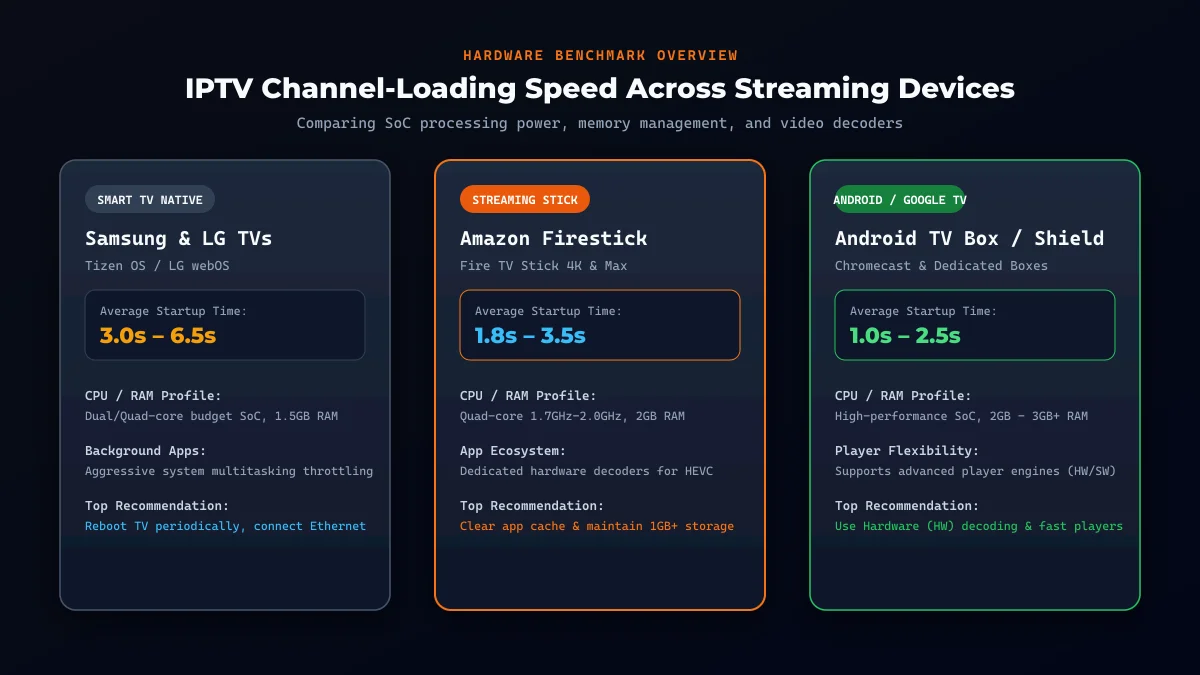 IPTV channel loading performance across Smart TV Firestick and Android TV
If channels open in 1.5s on your phone but take 6s on your TV over the same Wi-Fi, hardware processing power is your bottleneck.
Hardware vs Software Decoding for IPTV
Your player's Video Decoder mode significantly impacts startup speed:
Hardware Decoding (HW / HW Acceleration)
Hardware decoding offloads decompression to dedicated silicon in your graphics processor. It is fast, energy-efficient, and provides the quickest channel startup speed for codecs like H.264 and HEVC.
Software Decoding (SW Decoding)
Software decoding forces the general-purpose CPU to process video algorithmically. It creates heavy CPU loads, adding startup delay and causing frame drops on HD and 4K streams.
Decoder Strategy
Set your default decoder to Hardware (HW). Reserve Software (SW) decoding as a fallback for specific feeds that fail to render under hardware acceleration.
Upgrade Your Streaming Experience
Get access to 50,000+ live channels, 200,000+ VODs in 4K/FHD with zero buffering.
- 4K & Full HD Quality
- Anti-Buffer Technology
- All Smart TVs Supported
- Instant Activation
Why Do Some 4K IPTV Channels Take Longer to Start?
Standard definition and 1080p channels open quickly, while 4K IPTV channels take longer to start. This difference stems from technical stream requirements:
- Higher Bitrate: 4K streams reach 20 to 40 Mbps, requiring longer data transfer bursts before playback starts.
- Codec Complexity: 4K broadcasts rely on HEVC/H.265 or AV1, demanding more processor cycles to initialize decoding pipelines.
- Keyframe Spacing: Broadcasters often space 4K keyframes farther apart to conserve bandwidth.
Optimized 4K streams on modern hardware still open under 2.5 seconds. For display calibration tips, see our guide on how to improve IPTV picture quality.
Why Are Some IPTV Channels Fast While Others Are Slow?
When most channels open in under two seconds but specific streams lag, your home network is rarely the cause:
- Source Encoders: Feeds with short GOP keyframe intervals open instantly; feeds with wide GOP cycles take several seconds.
- Server Locations: Popular channels cache on local CDN edge nodes; distant international feeds require longer round trips.
- Live Transcoding: Streams transcoded on-the-fly add brief session initialization overhead.
- Source Packet Jitter: Jittery incoming feeds force decoders to delay playback while synchronizing clocks.
When isolated channels lag, switch to alternative stream profiles or alert provider support.
How to Test Why IPTV Channels Are Slow to Load
Before altering configurations, perform these seven practical tests to isolate the bottleneck:
- Test 1: Test 10 Channels: Universal delay indicates local network or buffer issues; isolated delay points to stream feeds.
- Test 2: Compare HD vs 4K: Slower 4K startup isolates decoder or bitrate constraints.
- Test 3: Test Alternative Player: Faster startup in another player confirms cache corruption in your primary app.
- Test 4: Test Mobile Phone: Instant playback on mobile confirms television hardware limits.
- Test 5: Test Ethernet: Faster startup over cable isolates Wi-Fi packet retransmissions.
- Test 6: Test Peak Hours: Slower evening loading points to ISP congestion or neighborhood throttling.
- Test 7: Stopwatch Timing: Record seconds from click to video to objectively verify optimizations.
How to Make IPTV Channel Switching Faster
Apply these fifteen practical fixes to reduce latency, streamline decoding pipelines, and achieve faster channel switching:
- Fix 1: Restart Player: Force-stop and relaunch the app to clear memory.
- Fix 2: Restart Device: Cold-reboot your streaming box for 60 seconds.
- Fix 3: Restart Router: Reboot to refresh DNS and gateway routing tables.
- Fix 4: Use Ethernet: Connect Cat6 cabling to eliminate wireless latency.
- Fix 5: Optimize Wi-Fi: Relocate router away from metallic interference.
- Fix 6: Switch to 5 GHz: Connect to 5 GHz wireless for cleaner spectrum.
- Fix 7: Pause Background Traffic: Halt heavy downloads and torrents during viewing.
- Fix 8: Clear App Cache: Purge cached EPG data and thumbnail files.
- Fix 9: Update Player: Run latest app release for video engine fixes. See what to do after an IPTV app update.
- Fix 10: Update OS Firmware: Install system updates for video codec drivers.
- Fix 11: Enable HW Decoding: Select Hardware acceleration in playback settings.
- Fix 12: Reduce Buffer Size: Set stream buffer to "Small" or "Normal".
- Fix 13: Prefer FHD for Zapping: Choose 1080p feeds over 4K when switching quickly.
- Fix 14: Test Alternative Player: Try high-performance apps like TiviMate.
- Fix 15: Contact Provider: Report persistent single-channel delays to support.
How to Improve IPTV Channel Switching on Smart TVs
Smart TVs offer convenient viewing, but modest built-in processors often bottleneck channel zapping:
- Close Standby Apps: Cold-reboot by holding the remote power button for 5 seconds to clear RAM.
- Free Internal Storage: Maintain at least 1 GB of storage for temporary stream caching.
- Connect Wired Ethernet: Eliminate chassis wireless shielding by running an Ethernet cable.
- Add a Dedicated Stick: An external 4K streaming stick vastly outperforms built-in TV processors. See our guide on how to set up IPTV on Smart TV.
How to Improve IPTV Channel Switching on Firestick
Amazon Fire TV devices deliver responsive performance when properly optimized:
- Clear App Cache: Purge app cache monthly to remove stale EPG files.
- Maintain Free Space: Keep at least 1.5 GB of free flash storage.
- Disable Background Tracking: Turn off Data Usage Monitoring in preferences.
- Use HDMI Extender: Reposition the Firestick away from behind-TV wireless interference.
- Disable Match Frame Rate: Turn off AFR in player settings to eliminate display handshake delays.
For complete setup advice, read our guide on how to set up IPTV on Firestick in 2026.
How to Improve IPTV Channel Switching on Android TV
Android TV and Google TV devices provide the most flexible streaming environment:
- Enable Hardware Tunneling: Enable Audio/Video Tunneling in apps like TiviMate to route video straight to display hardware.
- Keep Apps on Internal Storage: Avoid running IPTV applications from slow external USB flash drives.
- Adjust Background Process Limits: Restrict background processes to standard or max 3 in Developer Options.
- Use Gigabit Ethernet: Leverage physical Ethernet ports for instant stream handshakes.
When Is Slow IPTV Channel Switching a Service-Side Problem?
While local optimizations solve most channel switching bottlenecks, specific situations point to a provider-side issue:
- Universal Delay Across Devices: If the same channel takes 6+ seconds on your TV, phone on 5G, and a PC on another network, delay originates on the server.
- CDN Migrations: Temporary routing paths during CDN upgrades can introduce transient latency.
- High Viewer Concurrency: Millions of concurrent viewers during live events can briefly slow authentication handshakes.
- Encoder Configuration: Feeds re-encoded with wide GOP spacing introduce an unavoidable startup threshold.
Information to Collect for Support
If testing confirms delay is server-side, contact support with channel name, measured delay in seconds, device model, player version, and connection type. Never share your account password.
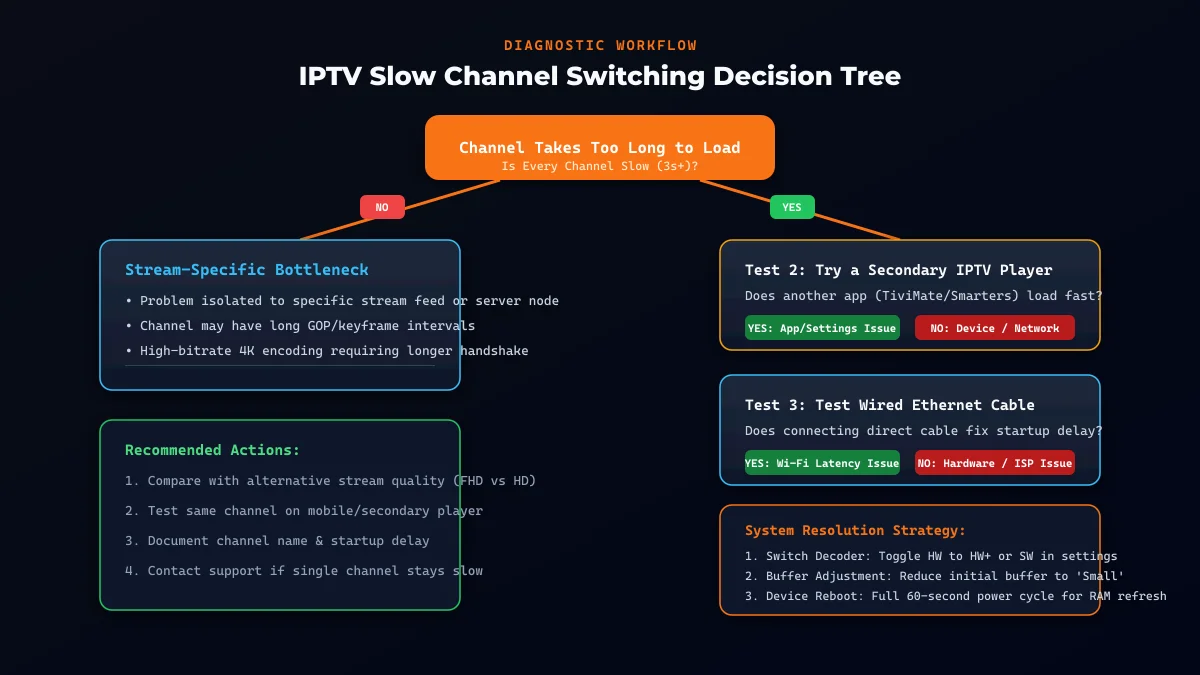 Troubleshooting decision tree for slow IPTV channel switching
IPTV Slow Channel Switching Decision Tree
Use this mobile-friendly diagnostic decision tree to locate your channel switching bottleneck:
SLOW CHANNEL STARTUP (3+ Seconds)
│
├── Universal on ALL channels?
│   ├── NO  → Stream-specific: test HD vs 4K or report to support
│   └── YES → Local bottleneck:
│       ├── Player faster elsewhere? → Clear cache, enable HW decoder, lower buffer
│       ├── Phone faster on Wi-Fi?   → TV CPU bottleneck; try streaming stick
│       ├── Ethernet resolves lag?   → Wi-Fi latency; switch to 5 GHz
│       └── Delay everywhere?        → Reboot router or check ISP routing
IPTV Channel Switching Quick Fix Checklist
Save this quick checklist to audit your streaming setup:
- Test multiple channels to confirm universal vs isolated delay.
- Compare HD and 4K to identify decoder limits.
- Restart player to clear memory leaks.
- Power-cycle hardware for 60 seconds.
- Reboot router to refresh routing tables.
- Test wired Ethernet to eliminate Wi-Fi latency.
- Switch to 5 GHz for cleaner wireless transmission.
- Pause heavy downloads during live TV viewing.
- Clear app cache in device management.
- Update player to latest available release.
- Update firmware for latest video drivers.
- Enable HW decoding in player settings.
- Set stream buffer to "Small" or "Normal".
- Test alternative players like TiviMate.
- Test secondary devices on same network.
- Report persistent feeds to provider support.
Frequently Asked Questions
Conclusion
Staring at black screens every time you change channels undermines the television experience. Recognizing that slow IPTV channel switching is a startup latency hurdle rather than mid-stream buffering enables targeted solutions instead of endless speed troubleshooting.
Auditing your setup—switching to wired Ethernet or 5 GHz Wi-Fi, tuning buffer lengths, enabling hardware decoding, and keeping your device uncluttered—delivers crisp zapping that rivals traditional cable set-top boxes.
If you want an entertainment service built on enterprise-grade infrastructure, low-latency CDNs, and rapid channel response across 50,000+ live broadcasts and 200,000+ on-demand titles, explore IPTV FIESTA. Visit our Homepage to see our premium feature set, review our flexible Pricing plans, or check out our comprehensive Installation Guides and FAQ. For ongoing playback diagnostics, consult our guides on IPTV Buffering Every Few Minutes and IPTV Channels Not Loading: 10 Things to Check. Optimize your streaming setup today and enjoy instantaneous, flawless entertainment!